Software Initialization
Contents
Software Initialization#
What you will need
A computer (the “base station”) with an internet connection and the Duckietown Shell (
dts) installedA micro SD card (64 GB, U3, Class 10 recommended), e.g., the one from your Duckiebox
A micro SD card reader, e.g., the one from your Duckiebox
What you will get
A DD24 initialized and customized micro SD card, ready for first boot
Attention
These instructions apply to both the Raspberry Pi 4 Model B and the Raspberry Pi 5. The same ente image is written through dts init_sd_card; only the underlying Raspberry Pi OS base layer differs and is chosen automatically at flashing time.
The legacy pre-built image for the Raspberry Pi 4 (dt-amelia-DD24-brown2022-sd-card-*.zip flashed through Balena Etcher) is no longer supported on the ente distribution. If you followed it before, re-flash with the procedure below.
1. Install the Duckietown Shell#
On your base station, make sure the Duckietown Shell is installed and running on the ente profile. Follow the laptop setup instructions from the Duckiebot manual if you have not done this before.
Then confirm the profile and update:
dts profile list          # 'ente' must be the active profile
pipx upgrade duckietown-shell
dts update
2. Flash the SD card#
Insert the micro SD card into your base station. Use the USB adapter from the Duckiebox if your base station does not have a micro SD slot.
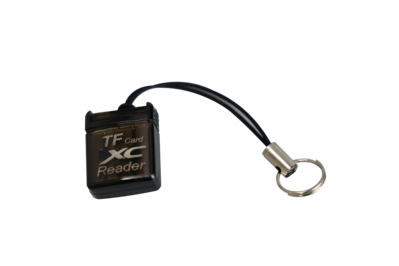
Fig. 44 Micro SD Card adapter#
Run
dts init_sd_cardwith theduckiedronetype and theDD24configuration:dts init_sd_card \ --hostname MY_ROBOT_NAME \ --type duckiedrone \ --configuration DD24 \ --country US \ --wifi miwifi:mypassword
Flag reference:
--hostname— the robot name. Follow the naming rules in the box below.--type duckiedrone --configuration DD24— picks the DD24 base image (Pi 4 and Pi 5 are both supported; the shell detects your target automatically).--country— two-letter country code where the drone will fly (required; Wi-Fi is disabled by default to comply with local regulations).--wifi— one or more networks in the formssid:psk. Separate multiple networks with commas. This is the list the drone will try in client (CL) mode.
Attention
The
hostnamemust start with a lower-case letter and may contain only lower-case latin letters and digits. Using special characters will break things and require re-flashing.✅
argo✅
mydrone01❌
mydrone_01❌
My Drone❌
Argo
The
hostnamecannot be changed after the first boot.Attention
If other Duckiedrones operate in the same environment, make sure your
hostnameis unique.When
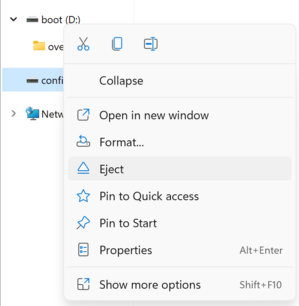
dts init_sd_cardfinishes, eject the SD card safely from the base station.Eject your SD card safely.
Do not just unplug the SD card from the base station.
3. (Optional) Add extra Wi-Fi networks#
dts init_sd_card writes a wpa_supplicant.conf file into the config partition of the SD card. To add networks later you can re-insert the SD card into your base station, open the config partition and append additional network={...} blocks.
ctrl_interface=DIR=/var/run/wpa_supplicant GROUP=netdev
update_config=1
country=US

network={
  id_str="network_1"
  ssid="duckietown"
  psk="quackquack"
  key_mgmt=WPA-PSK
}

network={
  id_str="network_2"
  ssid="example-second-network"
  psk="quackquack2"
  key_mgmt=WPA-PSK
}
country— change if you are not in the US (e.g.,CHfor Switzerland,CAfor Canada; full list of country codes).id_str— unique identifier for each network entry.ssid/psk— the network name and password.
Note
This file can also be edited after the first boot if you want to add other networks.
You are now ready for the first boot.
Troubleshooting#
Troubleshooting
SYMPTOM
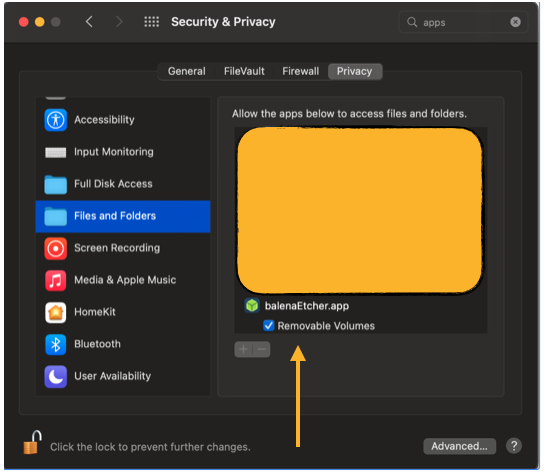
I am using a Mac and the flashing step fails for lack of permissions.
RESOLUTION
Go to your computer’s System Preferences > Security & Privacy > Files and Folders and enable access to Removable Volumes.
Troubleshooting
SYMPTOM
dts init_sd_card fails with “unknown robot type duckiedrone”.
RESOLUTION
Your Duckietown Shell is out of date or the wrong profile is active. Run:
dts profile list # ‘ente’ must be the active profile pipx upgrade duckietown-shell dts update
then rerun the dts init_sd_card command.
Troubleshooting
SYMPTOM
The drone does not join my Wi-Fi after the first boot.
RESOLUTION
Double-check the
--countryflag you passed todts init_sd_card. Wi-Fi is disabled by default if the regulatory domain is unset.Re-insert the SD card into your base station and inspect
config/wpa_supplicant.conf. Confirm that yourssidandpskare correct and that the file has Unix line endings.If you are still stuck, flash again with the correct flags (see First connection).