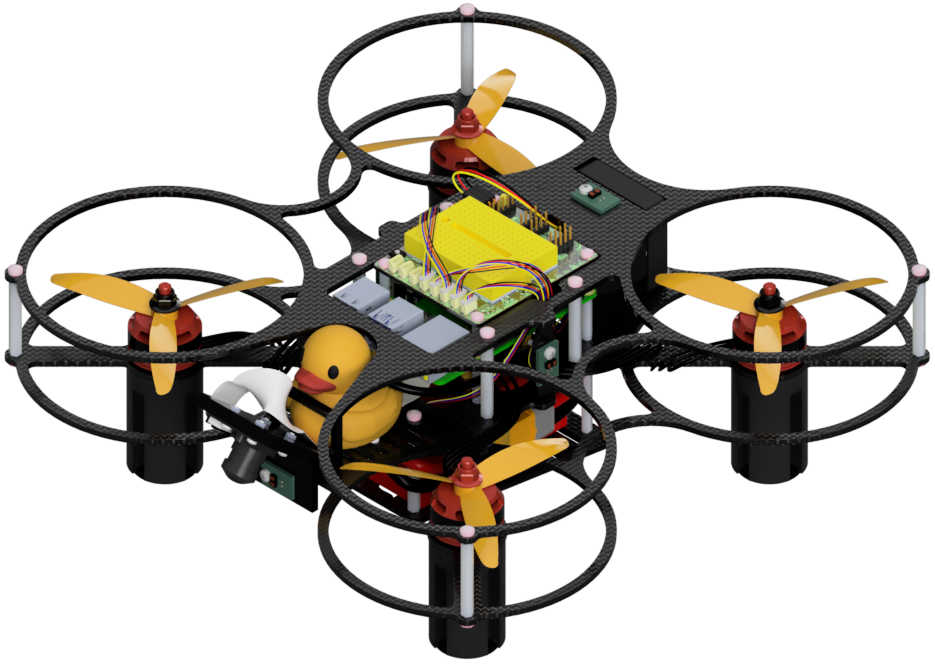
Dashboard overview
Contents
What you will need
A Duckiedrone with the Dashboard reachable: Preparing the software stack
What you will get
Knowledge of the Dashboard tabs, the Info page, and the Mission Control widgets
Dashboard overview#
The Dashboard is the web UI used to monitor and fly the Duckiedrone. It opens on the Robot page, which is split into tabs:

Fig. 71 The tabs of the Robot page.#
Tab |
What it is for |
|---|---|
Info |
A quick health check of the Duckiedrone onboard computer: which robot is connected, how hot and how busy the Raspberry Pi is, how full the microSD card is, how much battery is left, and whether the power supply is adequate. |
Mission Control |
The widgets used to check and fly the Duckiedrone. |
Health |
History plots of temperature, CPU frequency, and CPU usage. |
Architecture |
An interactive graph of the running ROS nodes and topics. |
Components |
Whether the hardware components of the robot are detected. |
Calibrations |
The calibration files stored on the robot, such as the camera intrinsics, with cloud backups. |
Settings |
Robot settings such as the hostname, data-sharing permissions, and robot type. |
The Info and Mission Control tabs are the ones used most, and are described below.
Info#
Info is the first tab shown when the Dashboard opens.
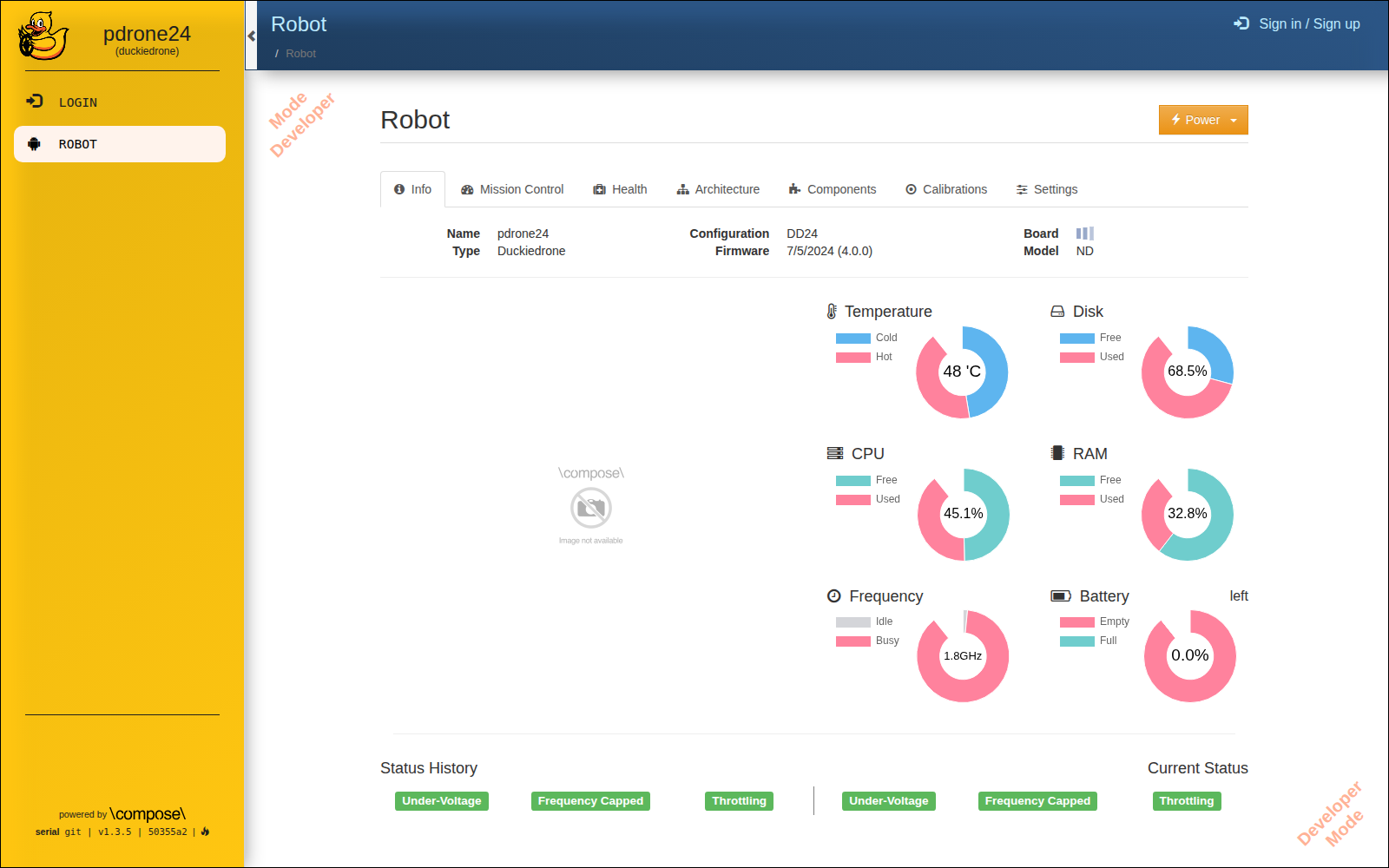
Fig. 72 The Info tab.#
It shows which robot is connected, live gauges for the Raspberry Pi temperature, disk, CPU, RAM, and clock speed, and the battery charge left. The flags at the bottom show whether the Raspberry Pi has had power or overheating problems since boot. The Power menu at the top right shuts down or reboots the Duckiedrone.
Mission Control#
Mission Control shows a set of widgets called a mission. The default mission is loaded automatically. The sections below go through it from top to bottom.
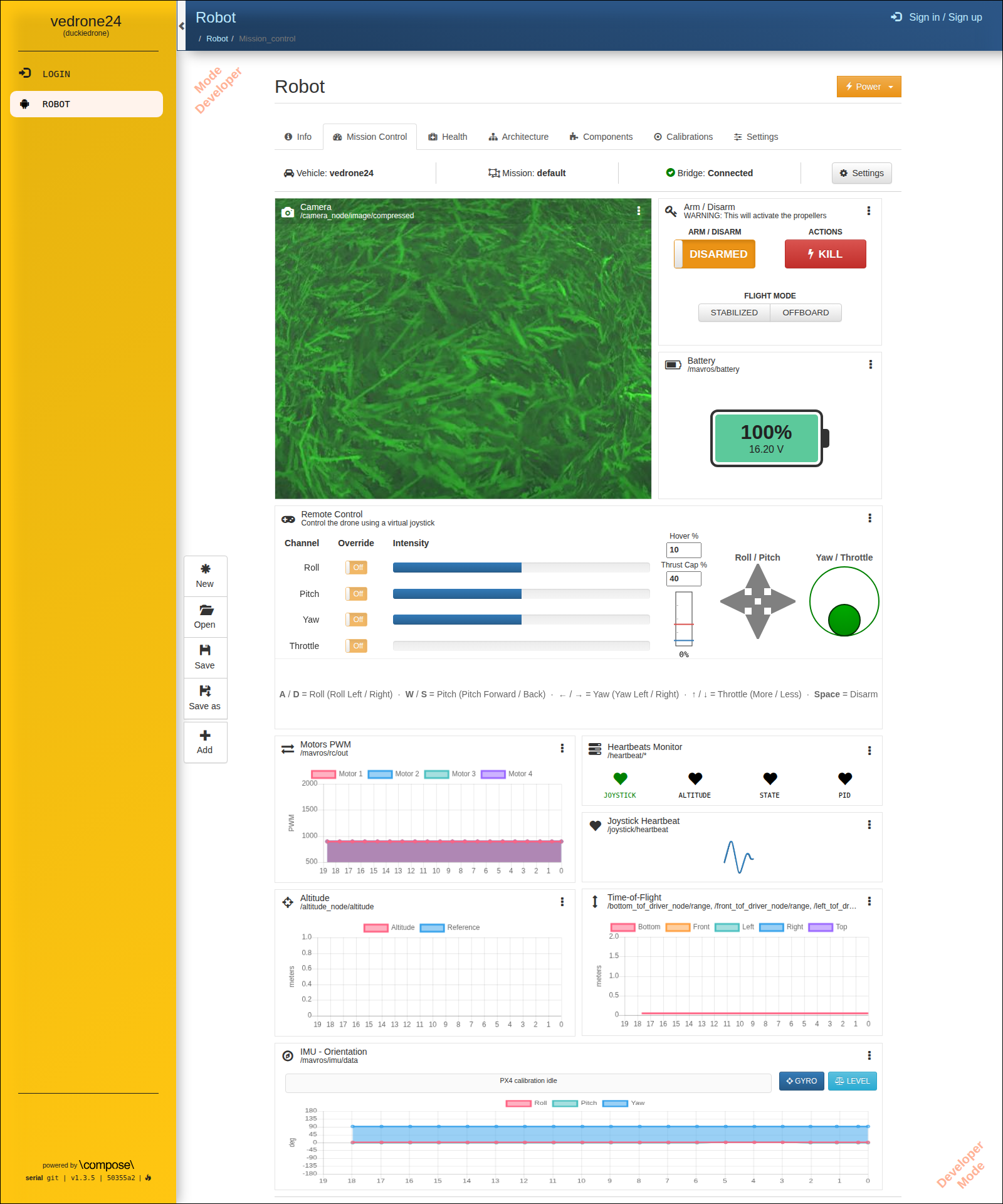
Fig. 73 The default Duckiedrone mission, before arming.#
Each widget shows its name and the ROS topic it reads. The ⋮ menu at the top right of each widget has Properties and Remove options.
Top bar#

Fig. 74 The Mission Control top bar.#
The top bar shows the connected vehicle, the loaded mission, and the bridge status. Bridge: Connected means the Dashboard is receiving ROS 2 data from the Duckiedrone.
Mission toolbar#
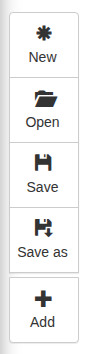
Fig. 75 The mission toolbar.#
The toolbar on the left (New, Open, Save, Save as, Add) creates, loads, and saves missions, and adds widgets to the current one.
Camera#
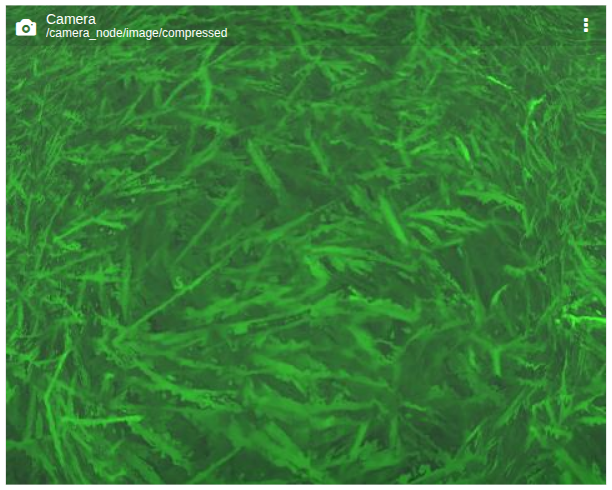
Fig. 76 The Camera widget.#
The live image from the onboard camera.
Arm / Disarm#
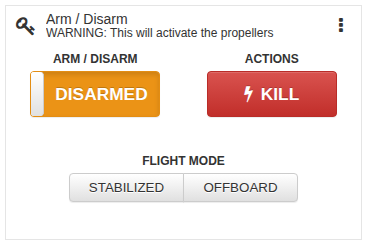
Fig. 77 The Arm / Disarm widget.#
The Arm / Disarm widget is the primary flight control. It has three elements:
An ARM / DISARM toggle on the left of the widget.
A two-button FLIGHT MODE selector:
STABILIZEDandOFFBOARD.A red KILL button that stops the motor outputs immediately when clicked.
No flight mode is selected by default. A flight mode button becomes highlighted only once PX4 has entered that mode, and stays unhighlighted if PX4 refuses it.
The widget shows the live state of the flight controller. It reads /mavros/state and updates the ARM and FLIGHT MODE indicators whenever that state changes. If the toggle flips on its own, the flight controller really changed state, for example after an auto-disarm.
Flight modes#
PX4 runs on the Duckiedrone flight controller, and ros2-mavros bridges it to ROS 2. The Dashboard exposes two PX4 flight modes:
Mode |
When to use |
|---|---|
|
Manual flight with the Remote Control widget. PX4 keeps the Duckiedrone level when roll and pitch are neutral, but the throttle is controlled directly, with no altitude or position hold. It needs only the IMU attitude estimate, so it arms reliably on the Duckiedrone. Use this mode for the first flight. |
|
Flight driven by an external controller, as in the PID altitude control learning experience. PX4 tracks the setpoints that an external node publishes on |
Important
There is no need to click OFFBOARD. Once an external setpoint stream is running, the Duckiedrone switches to OFFBOARD automatically and the OFFBOARD button becomes highlighted. PX4 needs the stream at more than 2 Hz for more than one second; without it, PX4 stays in the previous mode.
Warning
In STABILIZED the throttle is fully manual. PX4 does not hold the height, so lowering the throttle makes the Duckiedrone descend. Manage the throttle throughout the flight and be ready to click KILL.
Battery#
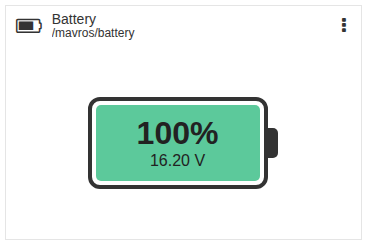
Fig. 78 The Battery widget.#
The battery charge, in percent, and the battery voltage, as reported by the flight controller on /mavros/battery. The fill of the battery icon shrinks and changes color as the charge drops, and a LOW label appears at 20% or below. PX4 refuses to arm when the charge is below 20%. The widget shows -- when no battery data has arrived for 10 seconds.
Remote Control#
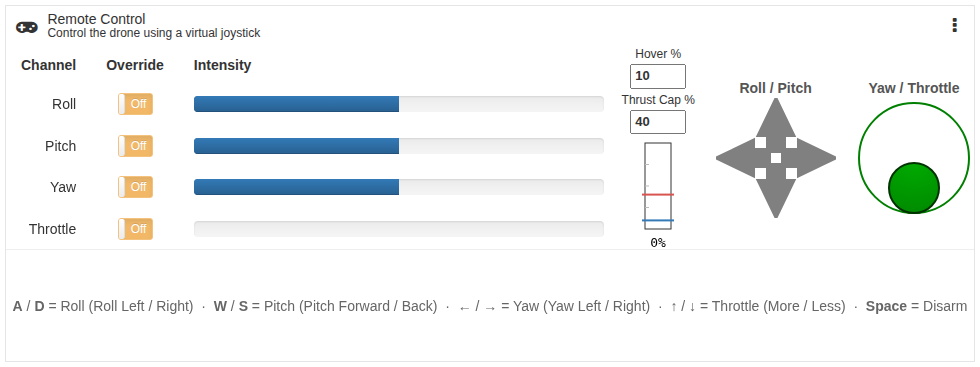
Fig. 79 The Remote Control widget.#
The Remote Control widget publishes stick values to /mavros/manual_control/send. It has two controllers, and both are keyboard only. Neither can be dragged with the mouse or by touch, which prevents accidental inputs.
Roll / Pitch controller: shows the roll and pitch commands. Drive it with W/A/S/D.
Yaw / Throttle controller: shows the yaw (left/right) and throttle (up/down) commands. Drive it with the arrow keys (←, →, ↑, ↓). Throttle rests at the bottom (
0) and holds wherever released; yaw springs back to center.
See Keyboard control below for all the keys.
In STABILIZED mode these controllers fly the Duckiedrone. In OFFBOARD mode they are ignored, and the external setpoint publisher is in control.
Keyboard control#
The keyboard is the only input to the Remote Control widget. Each key moves one axis of the two controllers.
Keys |
Axis |
Behavior |
|---|---|---|
W / S |
Pitch |
Moves fully forward or back while held; returns to center on release. |
A / D |
Roll |
Moves fully left or right while held; returns to center on release. |
← / → |
Yaw |
Turns left or right while held; returns to center on release. |
↑ / ↓ |
Throttle |
Rises or falls gradually while held, and stays at that level once released. |
Space |
None |
Resets the throttle to |
The legend printed at the bottom of the widget repeats these bindings, and hovering over any bar shows the matching tooltip.
Throttle ramp: hover threshold and thrust cap#
Because the throttle keys ramp rather than jump straight to a value, the widget shows a vertical throttle gauge next to the bars with two calibration fields, both in percent of full throttle:
Hover: the throttle value at which this specific Duckiedrone leaves the ground. Below it, ↑ / ↓ step throttle in coarse increments for a quick climb; at or above it, steps become fine for gentle hover trim. Marked as the blue line on the gauge.
Thrust Cap: a hard ceiling on throttle. The published throttle value can never exceed it, whatever the keyboard asks for. Marked as the red line on the gauge.
Both fields are saved in the browser and persist across page reloads, but not across different browsers or devices. Recalibrate when flying from a new machine.
Thrust Cap starts deliberately low, so the Duckiedrone cannot take off until it is set for that Duckiedrone.
Warning
Keep Thrust Cap only slightly above Hover. A higher cap lets the throttle go far beyond what the Duckiedrone needs to hover, and the Duckiedrone is powerful enough to shoot up out of control.
Both fields are set during the first flight of each Duckiedrone, as described in Flying the Duckiedrone.
Checkpoint ✅#
To verify that the keyboard drives the Remote Control widget, keep the Duckiedrone disarmed, with Arm / Disarm reading DISARMED:
Test
Hold W, A, S, D, ←, and →, one at a time.
Hold ↑.
Press Space.
Expected Result
The matching controller moves while the key is held and returns to center on release.
The throttle gauge rises and stops at the red Thrust Cap line.
The throttle gauge returns to
0.
Attention
The throttle holds its value and is not reset when the Duckiedrone is armed. Bring it back to 0 with Space or ↓ before arming.
Motors PWM#
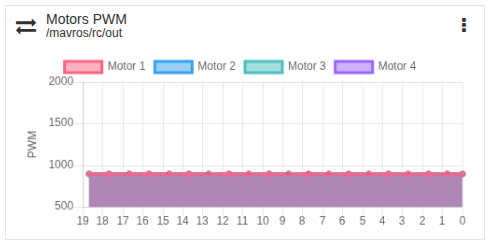
Fig. 80 The Motors PWM widget.#
The output sent to each of the four motors, one line per motor. All four read 0 while the Duckiedrone is disarmed.
Heartbeats#
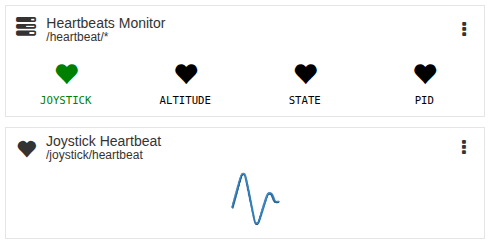
Fig. 81 The Heartbeats Monitor and Joystick Heartbeat widgets.#
Heartbeats Monitor: one heart per node:
JOYSTICK,ALTITUDE,STATE, andPID. A heart turns green while its node is publishing. On the default Duckiedrone software, onlyJOYSTICKis running.Joystick Heartbeat: the heartbeat of the virtual joystick in the Remote Control widget.
Altitude#
Fig. 82 The Altitude widget.#
The altitude estimate and its reference, from the altitude node. It stays empty on the default Duckiedrone software, which does not run this node.
Time-of-Flight#
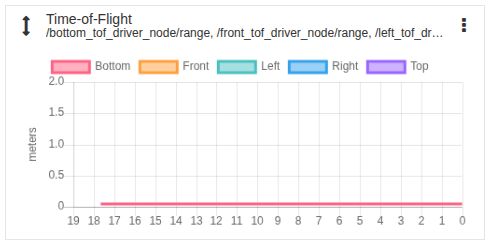
Fig. 83 The Time-of-Flight widget.#
One line per Time-of-Flight sensor (Bottom, Front, Left, Right, Top). The default Duckiedrone software runs only the Bottom sensor.
IMU - Orientation#
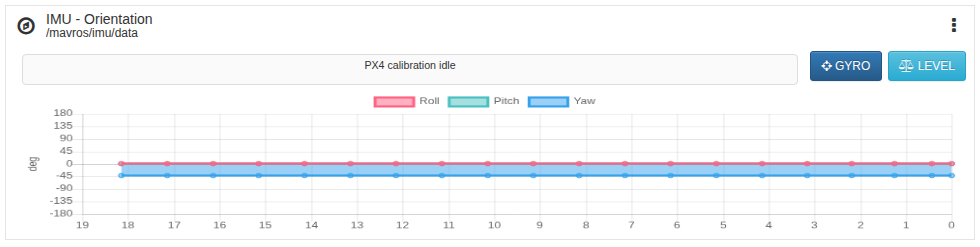
Fig. 84 The IMU - Orientation widget.#
The Roll, Pitch, and Yaw angles of the Duckiedrone, in degrees, from the flight controller. The GYRO and LEVEL buttons start the PX4 gyroscope and level-horizon calibrations, as an alternative to QGroundControl. The bar next to them shows the calibration status.