Preparing the software stack
Contents
Preparing the software stack#
Flying the Duckiedrone requires up-to-date software on both the base station and the Duckiedrone, and a browser on the base station that can reach the Dashboard.
What you will need
A fully assembled Duckiedrone DD24-B with a configured Flight Controller
A base station on the same network as the Duckiedrone (see First connection)
The Duckietown Shell (
dts) installed on the base stationSeveral minutes; the exact duration depends on the images to download and the network connection
What you will get
Updated Duckiedrone containers and base-station tools
A Duckiedrone ready to fly from the Dashboard
Note
On the ente distribution, the flight code runs inside Duckietown containers and is controlled from the Dashboard. There is no need to connect to the Duckiedrone through SSH to start scripts manually.
1. Update the base station#
Check that ente is the active Duckietown Shell profile:
Test
Run:
dts profile list
Expected Result
The ente row starts with >>, which marks the active profile.
Then update the Duckietown Shell, its commands, and the Duckietown desktop software, in this order:
pipx upgrade duckietown-shell
dts update
dts desktop update
2. Update the Duckiedrone#
Pull the latest containers onto the Duckiedrone, replacing ROBOT_NAME with the hostname set during the microSD card initialization:
dts duckiebot update ROBOT_NAME
The first update can take several minutes. Wait for the command to finish before continuing.
When the update finishes, the Duckiedrone containers start automatically. For example:
dashboard: the web UI used to fly the Duckiedrone.ros2-mavros: passes commands such as arm and disarm to the flight controller, and its state back to ROS 2.driver-tof-bottomandros2-tof-bottom: the altitude sensor and its ROS 2 bridge.driver-cameraandros2-camera: the onboard camera and its ROS 2 bridge.
See Duckiedrone Containers for the complete list.
Checkpoint ✅#
To verify that the update completed:
Test
On the base station, run:
dts fleet discover
Use Ctrl-C to stop the command.
Expected Result
The ROBOT_NAME row reads duckiedrone in the Type column and Ready in the Status column.
To verify that the containers are running:
Test
Open Portainer at http://ROBOT_NAME.local:9000, click the primary endpoint, then click Containers.
Expected Result
Each container listed above reads healthy in the State column. The list can span several pages.
3. Open the Dashboard#
On the base station, open a browser and go to:
http://ROBOT_NAME.local/
If ROBOT_NAME.local does not resolve, use the Duckiedrone IP address instead, shown in the Address column of dts fleet discover:
http://ROBOT_IP/
The first time the Dashboard is opened on a freshly flashed Duckiedrone, it shows a four-step setup wizard. Complete the steps until the Robot > Info page appears.
After the setup, the Dashboard opens directly on the Robot > Info page.
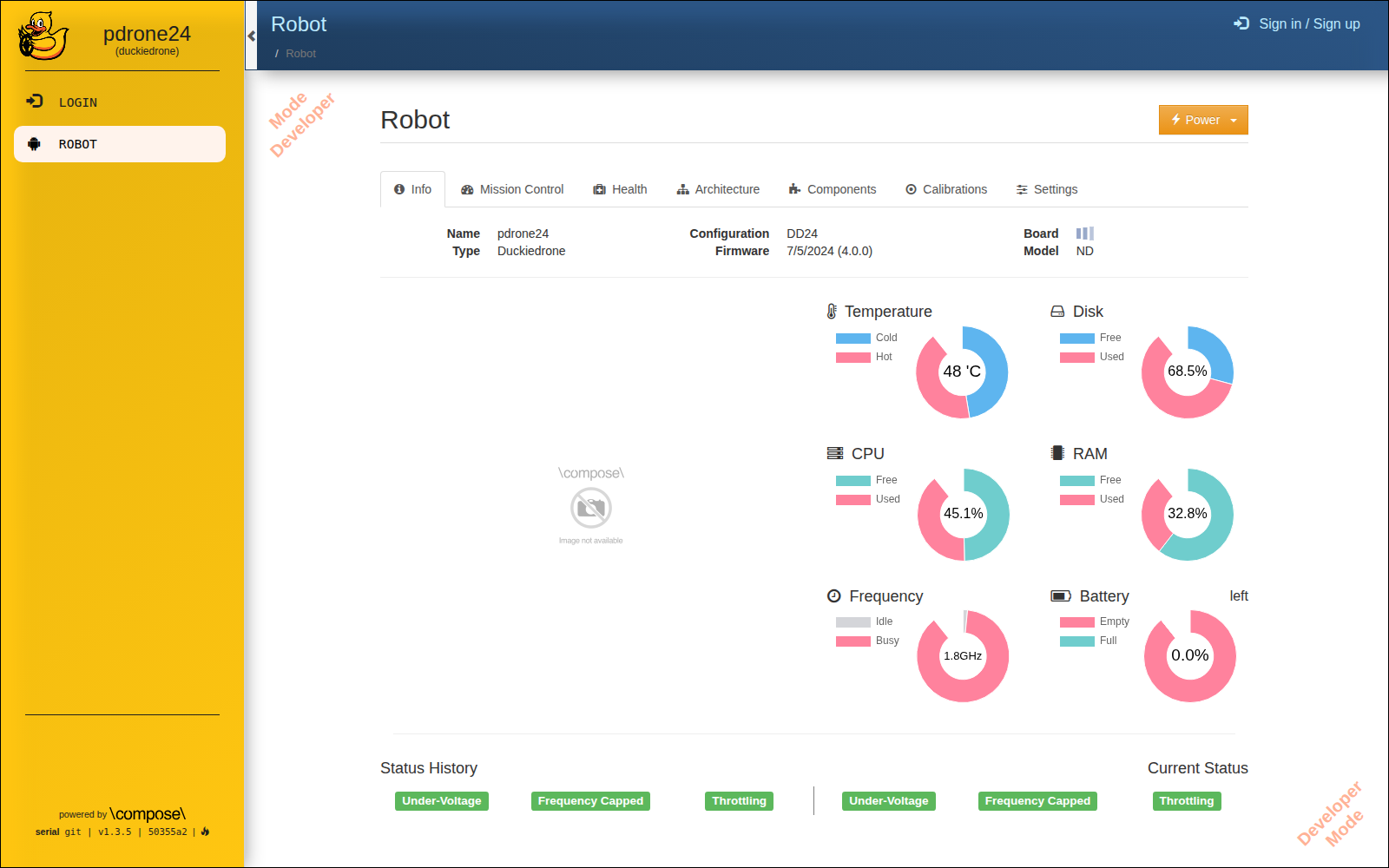
Fig. 70 The Robot > Info page of the Dashboard.#
4. Check the connection#
Test
Click the Mission Control tab.
Expected Result
The top bar reads Bridge: Connected.
In Heartbeats Monitor, the
JOYSTICKheart is green.
Together, these show that the Duckiedrone containers are running and the Dashboard is receiving ROS 2 data.
The software stack is ready. Next, explore the Dashboard in more detail in Dashboard overview, which explains each tab and every widget used to fly the Duckiedrone.
Troubleshooting#
Troubleshooting
SYMPTOM
dts profile list shows >> on a profile other than ente.
RESOLUTION
Switch to it with dts profile switch ente, then continue with step 1.
Troubleshooting
SYMPTOM
The Duckiedrone is missing from dts fleet discover, or its Status does not read Ready.
RESOLUTION
Status reads Booting while the Duckiedrone starts up. Wait for it to change to Ready. If the Duckiedrone does not appear at all, see First connection for network troubleshooting.
Troubleshooting
SYMPTOM
A container does not read healthy in Portainer.
RESOLUTION
Update the Duckiedrone again as described in step 2. If the problem persists, see Containers and Dashboard.
Troubleshooting
SYMPTOM
The top bar does not read Bridge: Connected.
RESOLUTION
The Dashboard receives ROS 2 data through the ros2-rosbridge-websocket container. Check in Portainer that it reads healthy, then see Containers and Dashboard.
Troubleshooting
SYMPTOM
The Dashboard does not load.
RESOLUTION
Check that the Duckiedrone is reachable with ping ROBOT_NAME.local or ping ROBOT_IP. See First connection for network troubleshooting.
Troubleshooting
SYMPTOM
The Dashboard opens through ROBOT_IP but the widgets show no data.
RESOLUTION
Older Dashboard images do not support access by IP address. Update the Duckiedrone as described in step 2.