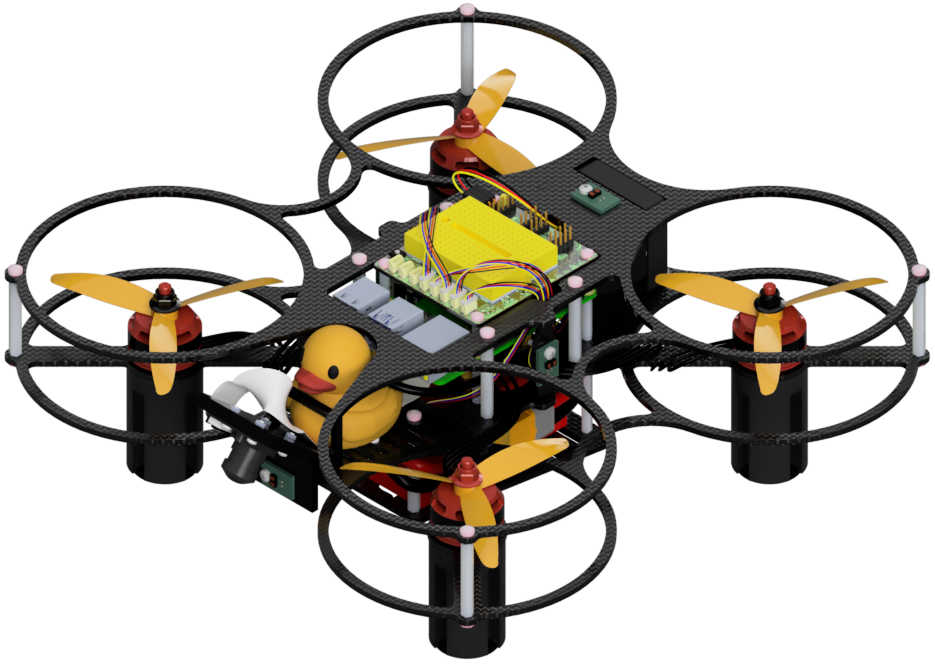
Troubleshooting
Contents
Troubleshooting#
This page collects the issues met most often when building and operating a Duckiedrone.
When something does not work, identify which parts work and which do not before redoing the build or replacing a part. The Duckiedrone will not fly until everything works.
If the Raspberry Pi does not power up or boot, go to Power and boot. Otherwise, start with Finding the failing part to narrow the issue down to one part of the Duckiedrone, then go to the matching section below.
For an issue met while following the setup pages, such as flashing the microSD card, initializing the ESCs, or flashing and configuring the Flight Controller, go to Setup and configuration.
Finding the failing part#
Open the Dashboard on the Mission Control tab. Each widget reads from a different part of the Duckiedrone, so the widgets that show no data point to the part that is failing. See Mission Control for what each widget shows.
What the Dashboard shows |
What it means |
Where to go |
|---|---|---|
The Dashboard does not load |
The Raspberry Pi is not running, or the base station cannot reach it |
|
The top bar does not read Bridge: Connected, or no widget updates |
The Dashboard is not receiving ROS 2 data |
|
Motors PWM, IMU - Orientation, and Arm / Disarm show no data, while Time-of-Flight and Camera work |
The Flight Controller is not connected |
|
Time-of-Flight shows no |
The bottom Time-of-Flight sensor or its containers are not working |
|
Camera is blank |
The camera or its containers are not working |
|
Altitude is empty, or the |
Nothing is wrong. The default Duckiedrone software does not run these nodes |
|
Every widget shows data, but the Duckiedrone does not arm or fly |
The issue is in arming, the motors, or the propellers |
Checking the containers in Portainer#
The Duckiedrone software runs in containers. Portainer is the web page that shows them, and most software issues are found and fixed there.
On the base station, open
http://ROBOT_NAME.local:9000. IfROBOT_NAME.localdoes not resolve, usehttp://ROBOT_IP:9000.Click the
primaryendpoint, then click Containers in the left menu.Read the State column. A working container reads
healthyorrunning. The list can span several pages.To restart a container, tick the checkbox at the start of its row and click Restart above the list. Wait for its state to read
healthyagain.To see why a container is failing, click the logs icon in its Quick actions column.
If several containers are not working, or a restart does not help:
Reboot the Duckiedrone from the Power menu on the Dashboard.
Pull and restart all the containers from the base station:
dts duckiebot update ROBOT_NAME
See Duckiedrone Containers for what each container does.
Power and boot#
Troubleshooting
SYMPTOM
The Raspberry Pi does not power up.
RESOLUTION
First verify that power reaches the Raspberry Pi. The red power LED of the Raspberry Pi should be on.
With a multimeter set to DC voltage, measure between a
5Vpin and aGNDpin on the 40-pin header of the Raspberry Pi. The header has two5Vpins and several ground pins. Do not probe the3.3Vor signal GPIO pins. See the Raspberry Pi GPIO pinout and How to Use Multimeters.If the voltage is absent or not a steady
5 V, unplug the battery and check that:
The HUT is attached to the Raspberry Pi all the way, with no gap between the GPIO pins and the HUT pin header.
There is no short between the power and ground rails on the HUT, and no stray wire strands bridge the
5VandGNDrails.
Troubleshooting
SYMPTOM
The Raspberry Pi receives power but does not boot.
RESOLUTION
The issue is typically the microSD card.
Check that the microSD card was initialized as described in Software Initialization.
Check that the microSD card is fully inserted in the Raspberry Pi.
The first boot takes longer than the following ones. Check that it has completed, as described in First boot.
If the problem persists, connect a keyboard and a monitor to the Raspberry Pi during boot. The error messages on the display help identify the fault.
Connection#
Troubleshooting
SYMPTOM
The Dashboard does not load.
RESOLUTION
The base station cannot reach the Duckiedrone.
Check that the Raspberry Pi is powered and has finished booting. The Duckiedrone reads
Readyin theStatuscolumn ofdts fleet discoveronce it has.Check that the base station and the Duckiedrone are on the same network.
Test the connection with
ping ROBOT_NAME.local. If the name does not resolve, use the address shown in theAddresscolumn ofdts fleet discover, and open the Dashboard athttp://ROBOT_IP/.
See First connection for network troubleshooting, and Network management to change the Wi-Fi network of the Duckiedrone.
Troubleshooting
SYMPTOM
The Duckiedrone does not join the Wi-Fi network after the first boot.
RESOLUTION
The Wi-Fi settings are written to the microSD card when it is initialized. Wi-Fi stays disabled when the country code is unset, and a wrong network name or password prevents the Duckiedrone from joining.
If the microSD card was flashed with Balena Etcher, re-insert it into the base station and open the
configfspartition. Check thatcountry.txtcontains the correct two-letter country code, and thatwifi/00-user.yamlholds the correct network name and password and is indented with spaces, not tabs. See The Fast Way.If the microSD card was flashed with
dts sd_card init, check the--countryflag and the network credentials that were passed to the command, then flash the card again with the correct values. See The complete way.
Troubleshooting
SYMPTOM
The Duckiedrone answers ping at its IP address, but not at its hostname.
RESOLUTION
mDNS is unavailable on the network or is being filtered. To isolate the network issue, create a phone hotspot named duckietown with password quackquack, then reboot the Duckiedrone. If the hostname resolves on the hotspot, ask the administrator of the original network to allow mDNS on the relevant subnet. See First connection.
Troubleshooting
SYMPTOM
There is a long delay between moving the Duckiedrone and the widgets changing.
RESOLUTION
This is typically network latency. On a shared Wi-Fi network, reduce the traffic from other devices, move the base station closer to the Duckiedrone, or switch to a less congested network.
Do not fly while the delay lasts. The keyboard commands travel over the same network as the widget data.
Containers and Dashboard#
Troubleshooting
SYMPTOM
The flight containers are not running on the Duckiedrone.
RESOLUTION
Open Portainer as described in Checking the containers in Portainer and check that these containers read healthy:
Container |
Needed for |
|---|---|
|
The Dashboard itself |
|
Communication between all the ROS 2 containers |
|
Every Mission Control widget |
|
Arm / Disarm, Motors PWM, IMU - Orientation, and flying |
|
Time-of-Flight |
|
Camera |
Restart any container that does not. If a container is missing or still does not read healthy, update the Duckiedrone as described in Preparing the software stack.
Troubleshooting
SYMPTOM
The Dashboard shows all the widgets, but nothing updates.
RESOLUTION
The top bar of Mission Control shows the bridge status. If it does not read Bridge: Connected, the Dashboard is not receiving ROS 2 data.
Reload the Dashboard page.
In Portainer, check that
ros2-rosbridge-websocketandzenoh-routerreadhealthy, and restart them if they do not, as described in Checking the containers in Portainer.If the Dashboard was opened with
http://ROBOT_IP/and still shows no data, update the Duckiedrone as described in Preparing the software stack. Older Dashboard images do not support access by IP address.
Troubleshooting
SYMPTOM
A heart in the Heartbeats Monitor is not green.
RESOLUTION
A heart is green while its node is publishing. The widget shows four hearts:
JOYSTICK: the Remote Control widget of the Dashboard. It must be green to fly. If it is not, reload the Dashboard page and check that the top bar reads Bridge: Connected.ALTITUDE,STATE, andPID: the altitude, state-estimation, and PID controller nodes. The default Duckiedrone software does not run them, so these three hearts are not green on a default Duckiedrone, and that is expected.
Troubleshooting
SYMPTOM
The Altitude widget is empty.
RESOLUTION
This is expected on the default Duckiedrone software. The widget reads from the altitude node, which belongs to the ros2-core/duckiedrone stack and is not installed by the standard update. See Duckiedrone Containers.
The height above the ground is shown by the Bottom line of the Time-of-Flight widget.
Flight Controller and sensors#
Troubleshooting
SYMPTOM
The Flight Controller does not connect.
RESOLUTION
The ros2-mavros container connects the Flight Controller to ROS 2. When the connection is down, the Motors PWM, IMU - Orientation, and Arm / Disarm widgets show no data, and the Duckiedrone cannot be armed.
Check that the USB cable is plugged between the Raspberry Pi and the Flight Controller. Any USB port of the Raspberry Pi works. This cable is moved to the base station to use QGroundControl, and is easily left there.
Check that the Flight Controller lights up. If it does not, try a different USB cable or port. A Flight Controller that never lights up may have a broken USB-C port and need replacement.
In Portainer, check that
ros2-mavrosreadshealthy, and restart it, as described in Checking the containers in Portainer.Open the
ros2-mavroslogs. A working connection prints this line shortly after the container starts:
CON: Got HEARTBEAT, connected. FCU: PX4 Autopilot
If the line is missing, the Flight Controller is not answering. Repeat steps 1 and 2, then check that the PX4 firmware is flashed as described in Initializing the Flight Controller.
Troubleshooting
SYMPTOM
The Time-of-Flight widget shows no Bottom line, or the line does not react.
RESOLUTION
The widget has one line per sensor. The default Duckiedrone software runs only the Bottom sensor, so missing Front, Left, Right, and Top lines are expected.
If the Bottom line is missing:
In Portainer, check that
driver-tof-bottomandros2-tof-bottomreadhealthy, as described in Checking the containers in Portainer.Restart
driver-tof-bottomfirst, thenros2-tof-bottom. The second container connects to the first only when it starts, so it must be restarted after it.If the line is still missing, unplug the battery and check that the cable of the bottom Time-of-Flight sensor is fully seated at both ends.
If the line is there but jumps around:
Check that the sensor points straight down and that nothing covers it.
Use a matte, non-reflective surface below the Duckiedrone, as described in Flying the Duckiedrone.
Troubleshooting
SYMPTOM
The Camera widget is blank.
RESOLUTION
In Portainer, check that
driver-cameraandros2-camerareadhealthy, and restartdriver-camerafirst, thenros2-camera, as described in Checking the containers in Portainer.If the image still does not appear, the issue is typically the flat cable (FFC) between the camera and the Raspberry Pi. Unplug the battery and check that:
The FFC is fully inserted at both the camera and the Raspberry Pi, and both connector latches are closed.
The FFC is oriented as shown in the 3D assembly instructions.
The FFC has no holes or rips. A crash or a soldering iron can damage it, and a damaged FFC must be replaced.
Troubleshooting
SYMPTOM
The Roll and Pitch lines of the IMU widget do not sit near 0 on a level surface.
RESOLUTION
The level horizon calibration is missing or out of date. Place the Duckiedrone on a level surface and repeat the calibration as described in Sensor calibration. Also check that the Flight Controller board is level and firmly attached to the frame.
Motors and flight#
Troubleshooting
SYMPTOM
The Duckiedrone does not arm, or disarms on its own.
RESOLUTION
See the troubleshooting section of Flying the Duckiedrone, which lists the causes in the order to check them.
Troubleshooting
SYMPTOM
The motors do not spin when the Duckiedrone is armed from the Dashboard.
RESOLUTION
First check that the Arm / Disarm widget reads ARMED. If the toggle snaps back to DISARMED, PX4 rejected the arming request: see the troubleshooting section of Flying the Duckiedrone.
If the widget reads ARMED but the motors are silent:
Check that the battery is connected and charged. USB alone does not power the ESCs.
Remove all the propellers, and keep them off for the rest of these checks.
With the battery unplugged, inspect the connector between the Flight Controller and the ESC board, and all the motor leads.
Connect QGroundControl as described in Connecting to the Flight Controller, and check that the ESC protocol matches the supplied Duckiedrone parameter file, as described in Configuring the Flight Controller.
On the Actuators page, spin each motor individually. Motor 1 is the front-right motor, seen from above with the camera facing forward. See Motor configuration for the full motor order.
If a motor does not spin from the Actuators page, check that the ESCs are initialized as described in Initializing the ESCs.
Troubleshooting
SYMPTOM
The Duckiedrone does not get off the ground.
RESOLUTION
Check Thrust Cap in the Remote Control widget. It starts deliberately low, so the Duckiedrone cannot take off until it is raised. See Throttle ramp: hover threshold and thrust cap.
Check that the battery is charged.
Check that the arrows embossed on the propellers are visible from above, and that each propeller matches the spin direction of its motor.
With all the propellers removed, connect the battery and use the Actuators page of QGroundControl to spin each motor and verify its position and direction, as described in Motor configuration.
Troubleshooting
SYMPTOM
The Duckiedrone flips or tilts hard as soon as it leaves the ground.
RESOLUTION
Disarm immediately. A propeller is on the wrong motor, or a motor is in the wrong position or spins the wrong way. Verify the motor order, the spin directions, and the propellers as described in Motor configuration.
Troubleshooting
SYMPTOM
The motors make unusual noises when the Duckiedrone is armed.
RESOLUTION
Disarm immediately. Unplug the battery, then inspect the propellers and the wiring around them. Secure any loose wire outside the propeller arc.
Troubleshooting
SYMPTOM
The Duckiedrone oscillates or drifts in flight.
RESOLUTION
Unplug the battery and inspect the Duckiedrone:
Check that the propellers are undamaged and tightened down all the way.
Check that the Flight Controller board is level and firmly attached to the frame. Otherwise, the IMU returns incorrect readings.
Check that nothing obstructs the field of view of the bottom Time-of-Flight sensor.
Check that the camera is mounted firmly in its 60-degree holder and faces the front of the Duckiedrone.
Check that the ESCs are flashed with Bluejay, as described in Initializing the ESCs.
Repeat the sensor calibrations as described in Sensor calibration.
If the issue persists, load the duckiedrone-px4-v4.params file again as described in Configuring the Flight Controller. Do not change individual controller parameters: see Flight Controller tuning. In STABILIZED mode the Duckiedrone does not hold its position, so some drift is expected and is corrected with the keyboard.
Setup and configuration#
These issues appear on the base station while following the setup pages, before the Dashboard is available.
Troubleshooting
SYMPTOM
On macOS, flashing the microSD card fails for lack of permissions.
RESOLUTION
Go to Apple menu > System Settings > Privacy & Security > Files & Folders, then enable Removable Volumes for the application that flashes the card: Balena Etcher for The Fast Way, or the terminal application that runs dts for The complete way.
Troubleshooting
SYMPTOM
dts sd_card init fails with “unknown robot type duckiedrone”.
RESOLUTION
The Duckietown Shell is out of date or the wrong profile is active. Run:
dts profile list # ‘ente’ must be the active profile pipx upgrade duckietown-shell dts update
Then run the dts sd_card init command again, as described in The complete way.
Troubleshooting
SYMPTOM
The ESC Configurator does not detect any ESCs after Read Setup.
RESOLUTION
The ESCs are not powered. USB alone does not power the ESCs, so connect the LiPo battery to the Duckiedrone, then click Read Setup again. See Initializing the ESCs.
Troubleshooting
SYMPTOM
On Linux, the ESC Configurator cannot open the serial port (Failed to open serial port).
RESOLUTION
This is a serial-port permission issue. On Ubuntu, add the current user to the dialout group by running sudo usermod -a -G dialout "$USER", then sign out and sign back in, or reboot, for the change to take effect. See Troubleshooting if that does not help.
Troubleshooting
SYMPTOM
The Flight Controller does not enter DFU mode: dfu-util -l shows no devices, or Betaflight Configurator does not show DFU - STM32 BOOTLOADER.
RESOLUTION
The board booted into its regular firmware instead of the bootloader.
Unplug the USB cable from the base station.
Press and hold the
BOOTbutton on the Flight Controller, reconnect the cable while still holding the button, and release it only once the cable is fully seated.If the board still does not show up, try a different USB cable or port. Some cables are power-only and cannot carry data.
Troubleshooting
SYMPTOM
After flashing PX4, the Flight Controller does not enumerate as a PX4 bootloader.
RESOLUTION
The most common cause is that the firmware was flashed to 0x08000000 instead of 0x08008000, which overwrites the bootloader. Boot the Flight Controller in DFU mode again, flash the bootloader as described in 3. Flash the PX4 bootloader, then flash the firmware at the correct address as described in 4. Flash the PX4 firmware.
Troubleshooting
SYMPTOM
QGroundControl reports that a parameter failed to load.
RESOLUTION
The duckiedrone-px4-v4.params file loads cleanly in a single pass. A parameter that fails to load means that the Flight Controller runs the wrong firmware build, or that an outdated parameter file was used. Flash the firmware build named in 4. Flash the PX4 firmware, then load duckiedrone-px4-v4.params again as described in Configuring the Flight Controller.
Troubleshooting
SYMPTOM
The motor identification popup does not appear in QGroundControl.
RESOLUTION
Assign the motors by hand. With the propellers removed, turn on the switch that enables the motor sliders on the Actuators page, move one slider by a small amount, and watch which motor spins. Assign that output to the matching motor function, and repeat for all four motors. See 2. Motor order.