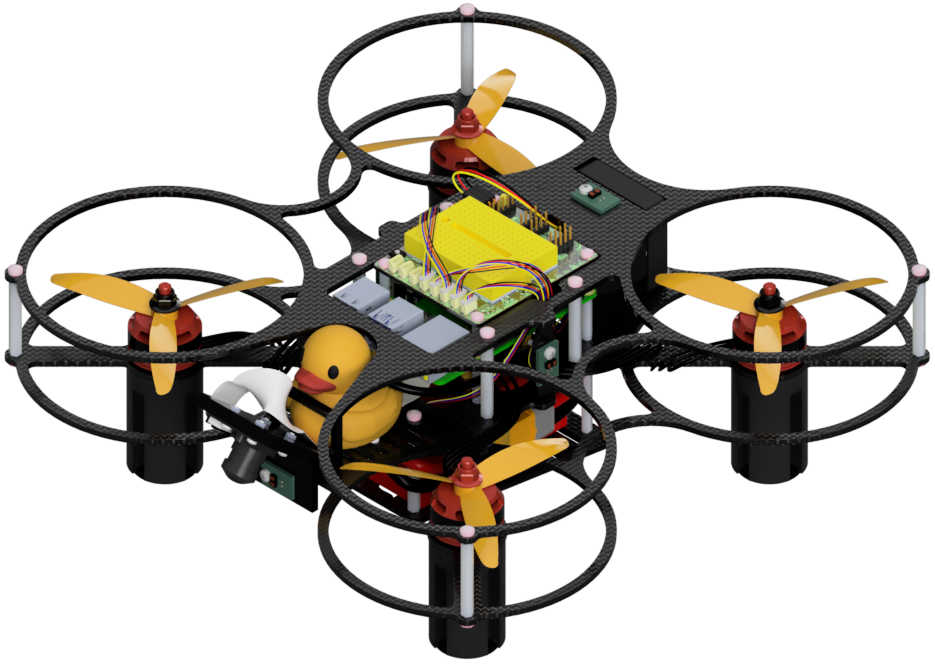
LX: Introduction to Containerization
Contents
LX: Introduction to Containerization#
What you will need
A computer with Docker and the Duckietown Shell (
dts) set up: Initial setupFamiliarity with shell commands, paths, permissions, and basic networking: LX: Linux and Networking
Internet access to download images and dependencies
(optional) A physical or virtual Duckiedrone for the deployment-inspection activities
What you will get
Practical experience with Docker images, containers, storage, networks, and connections in Duckietown
This Learning Experience introduces containerization technology with Docker through small experiments on your base station. You will inspect containers, build and test a web-server image, preserve data, and connect applications over a Docker network. Later activities relate these concepts to Duckiedrone services, Docker contexts, the Duckietown Shell, and the Duckietown Workspace.
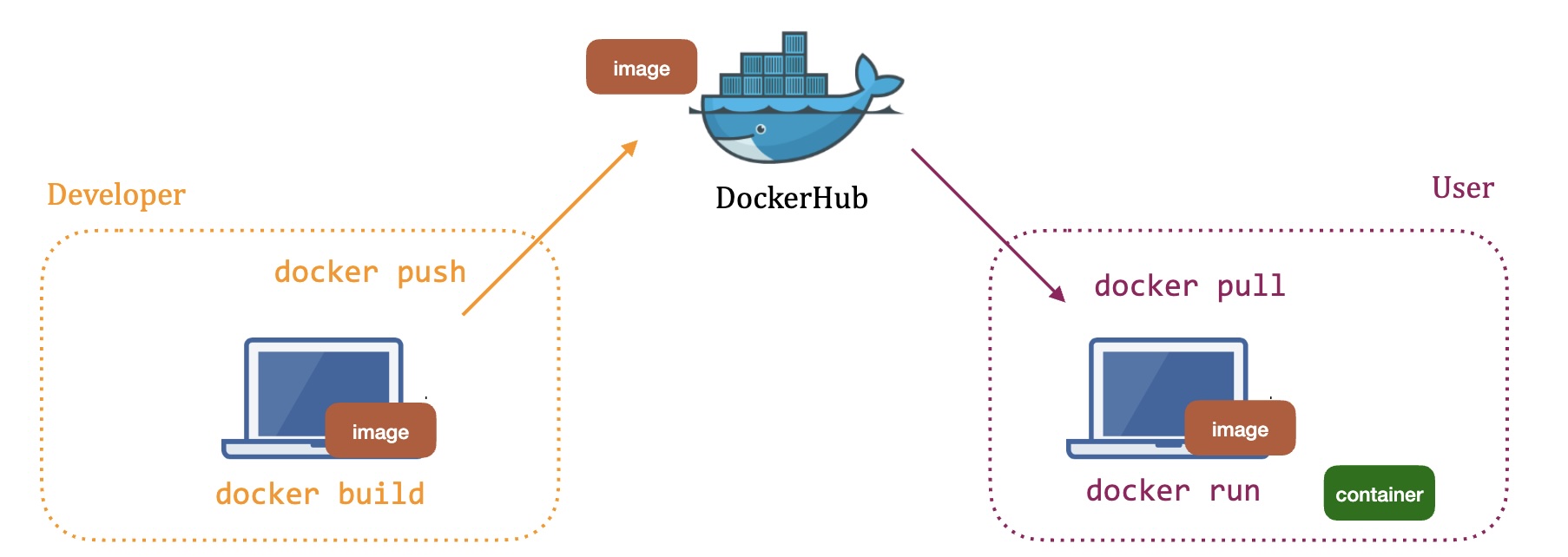
Fig. 94 Containers include applications and their dependencies, making software easy to ship and handle.#
Intended Learning Outcomes
After completing this learning experience, learners will be able to:
Explain why reproducible software environments are useful in robotics, and distinguish Docker images, layers, containers, virtual machines, clients, daemons, and registries.
Interpret image tags, digests, and platforms; identify the daemon receiving a command; and distinguish local practice resources from Duckiedrone services.
Run, inspect, enter, stop, restart, and remove containers using logs, process information, and resource measurements.
Build an image from a Dockerfile, inspect its configuration, and verify an application’s response through a published port.
Use named volumes and bind mounts, test communication between containers, and clean up exercise resources individually.
Explain how permissions, mounts, and network settings affect container isolation, and relate Docker contexts and runtime configuration to Duckietown Shell and Workspace workflows.
Available repositories
Warning
If you are using a Duckietown Workspace, the WebGL (browser) versions of the Duckietown Viewer and
Duckiematrix can be run inside or outside the Duckietown Workspace. If
dts is installed on the host machine, commands that launch native
Duckietown Viewer apps or the Duckiematrix Renderer, such as dts matrix run, can also be run in either location. When one of these commands is
run inside the Duckietown Workspace, it is automatically delegated to the
host machine, where it launches the native UI. The --standalone flag
starts the Duckiematrix Engine in the environment where the command is run.
About these learning activities#
Note
The local container, image, storage, and network exercises require a prepared base-station environment with Docker, dts, and curl. Use a supported native Ubuntu installation or a Duckietown Workspace, following Initial setup.
A physical Duckiedrone is optional. Inspecting live platform configuration requires a physical or virtual deployment; the remote Docker-context comparison requires a physical Duckiedrone with configured SSH authentication and Docker access. Project build and workbench examples have their own project prerequisites, stated in the notebooks.
Notebooks#
Work through the twelve notebooks in order. Each includes activities and an interactive checkpoint. Run shell commands in the terminal specified by the notebook, and write or select a response before revealing each checkpoint answer.
Notebook |
Topics |
|---|---|
1 |
Introduction to Docker: containers, images, layers, registries, clients, and daemons |
2 |
Preparing the local practice environment and verifying the Docker connection |
3 |
Image references, processor platforms, and image and container inventories |
4 |
Container access, isolation, and Duckiedrone boundaries |
5 |
Running, inspecting, entering, stopping, and removing containers |
6 |
Building and testing a local web-server image |
7 |
Named volumes, read-only bind mounts, persistence, and cleanup |
8 |
Duckiedrone Docker hosts and Compose stacks |
9 |
Communication between containers and real Duckiedrone runtime configuration |
10 |
Docker contexts and local and remote daemon selection |
11 |
Docker operations behind Duckietown Shell commands |
12 |
Development containers and the Duckietown Workspace |
Forking the Repository#
Fork the LX repository to keep your own changes while retaining access to upstream updates. You can also clone the Duckietown repository directly if you do not need to push personal changes.
Create a fork: navigate to the
lx-dd-dockerrepository and press the “Fork” button on the top right:
Fig. 95 Fork the LX to keep your own changes and receive upstream updates.#
This creates a repository at
<your_github_username>/lx-dd-docker.Clone the fork: replace
<your_github_username>in the command below, then enter the repository directory:git clone [email protected]:<your_github_username>/lx-dd-docker cd lx-dd-docker
Configure the upstream repository: add the Duckietown repository as a source of updates, then check the configured remotes:
git remote add upstream https://github.com/duckietown/lx-dd-docker
git remote -v
You can push your changes to your fork and obtain updates from the upstream repository.
Keeping the System Up To Date#
These instructions are for the
entedistribution. Check your Duckietown Shell profile:dts profile list
If necessary, follow Initial setup to select an
enteprofile.From the LX repository root, synchronize with the upstream
entebranch:git pull upstream ente
Commit or back up local edits you want to keep before updating.
Update the Duckietown Shell and its commands:
pipx upgrade duckietown-shell
dts update
Follow Preparing the software stack to prepare the computer and, if you plan to use one, the Duckiedrone.
SSL Certificate Setup#
Note
This procedure is needed only when the LX editor certificates have not already been set up on the computer.
For a native Ubuntu setup, install the certificate tools and configure the local certificate used by the browser-based LX editor:
sudo apt install libnss3-tools
dts setup mkcert
Note
If you use a Duckietown Workspace, install mkcert on the host system following the Workspace setup instructions.
Launching the Code Editor#
Important
Run all dts code commands from the LX repository root.
From the lx-dd-docker directory, launch the editor:
dts code editor
Wait for a URL to appear in the terminal, then open it in your browser. The repository’s README and the instructions shown in the editor provide the current LX-specific guidance.
Walkthrough of Notebooks#
In the editor’s navigator sidebar, open the notebooks directory and start with Notebook 1. Continue through the notebooks in order.
Run the Docker practice commands in a separate base-station terminal in your prepared environment. Notebook 2 guides you through verifying its local Docker connection. Use the same practice daemon throughout the local activities, and run the build and bind-mount exercises from the LX repository root as directed.
Use the prepared LX editor environment for the interactive checkpoints. Follow each notebook’s cleanup instructions before moving on.
Testing with the Duckiematrix#
The Docker LX does not require a running Duckiematrix session. The local Docker experiments and source-reading activities can be completed without a robot. A virtual Duckiedrone is optional for the live configuration inspection in Notebook 9 and the virtual-connection example in Notebook 11.
1. Creating and starting a virtual Duckiedrone#
If you want to complete those optional activities and do not already have a virtual Duckiedrone, create one:
dts duckiebot virtual create --type duckiedrone --configuration DD24 VDRONE
Replace VDRONE with your chosen virtual Duckiedrone name, following the hostname constraints.
The Duckietown Shell prompts for a password for the virtual Duckiedrone’s duckie account and asks you to confirm it. The password must contain at least eight characters and cannot contain colons or line breaks. Typed characters are not displayed.
Start the virtual Duckiedrone:
dts duckiebot virtual start VDRONE
Check its status:
dts fleet discover
Wait until it reports Ready, then follow the relevant notebook’s connection instructions. After the activity, stop it:
dts duckiebot virtual stop VDRONE
Troubleshooting#
Refer to General Procedure for Running Learning Experiences for the shared LX workflow and Troubleshooting for common editor and setup problems. For Docker activity failures, use the checks and troubleshooting steps in the relevant notebook. The Docker LX README lists the environment and activity prerequisites.