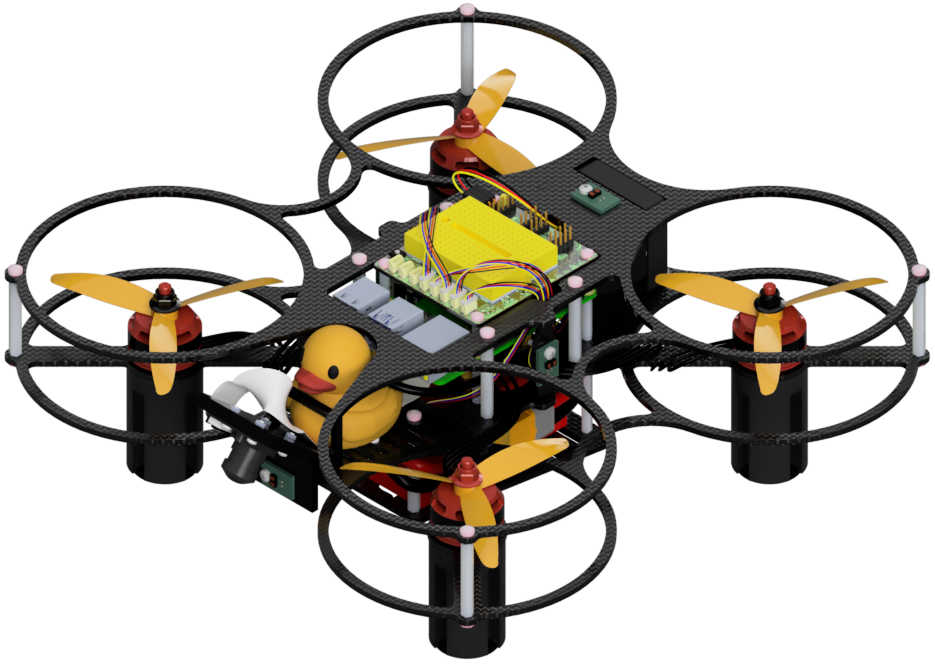
Flying the Duckiedrone
Contents
Flying the Duckiedrone#
What you will need
A fully assembled Duckiedrone with a configured Flight Controller
A charged battery
A Duckiedrone with a working software stack: Preparing the software stack
Knowledge of the Dashboard controls: Dashboard overview
Safety goggles
A flat, matte, non-reflective takeoff surface
What you will get
A Duckiedrone airborne
A delighted duckie captain
Setup checks#
These checks are done once, before the first flight of a Duckiedrone. Every setup step below must be complete. Before proceeding, make sure that:
The ESCs are initialized: Initializing the ESCs.
The Flight Controller runs the PX4 firmware: Initializing the Flight Controller.
The Duckiedrone parameter file is loaded on the Flight Controller: Configuring the Flight Controller.
The gyroscope, accelerometer, and level horizon are calibrated: Sensor calibration.
The motor order and spin directions are verified with the propellers removed: Motor configuration.
The software stack is up to date and passes its checkpoints: Preparing the software stack.
Repeat all the checks from here to the end of Arm and disarm test before every flight session.
Environment checks#
Warning
Fly the Duckiedrone only in an appropriate environment, following the flight safety rules. Make sure that:
The space is open and free of obstructions.
Everyone nearby knows a flight is about to start and has cleared the area.
The pilot, and anyone else present, wears safety goggles.
The surface below the Duckiedrone is matte and non-reflective. A highly textured poster or patterned carpet makes the motion of the Duckiedrone easy to observe.
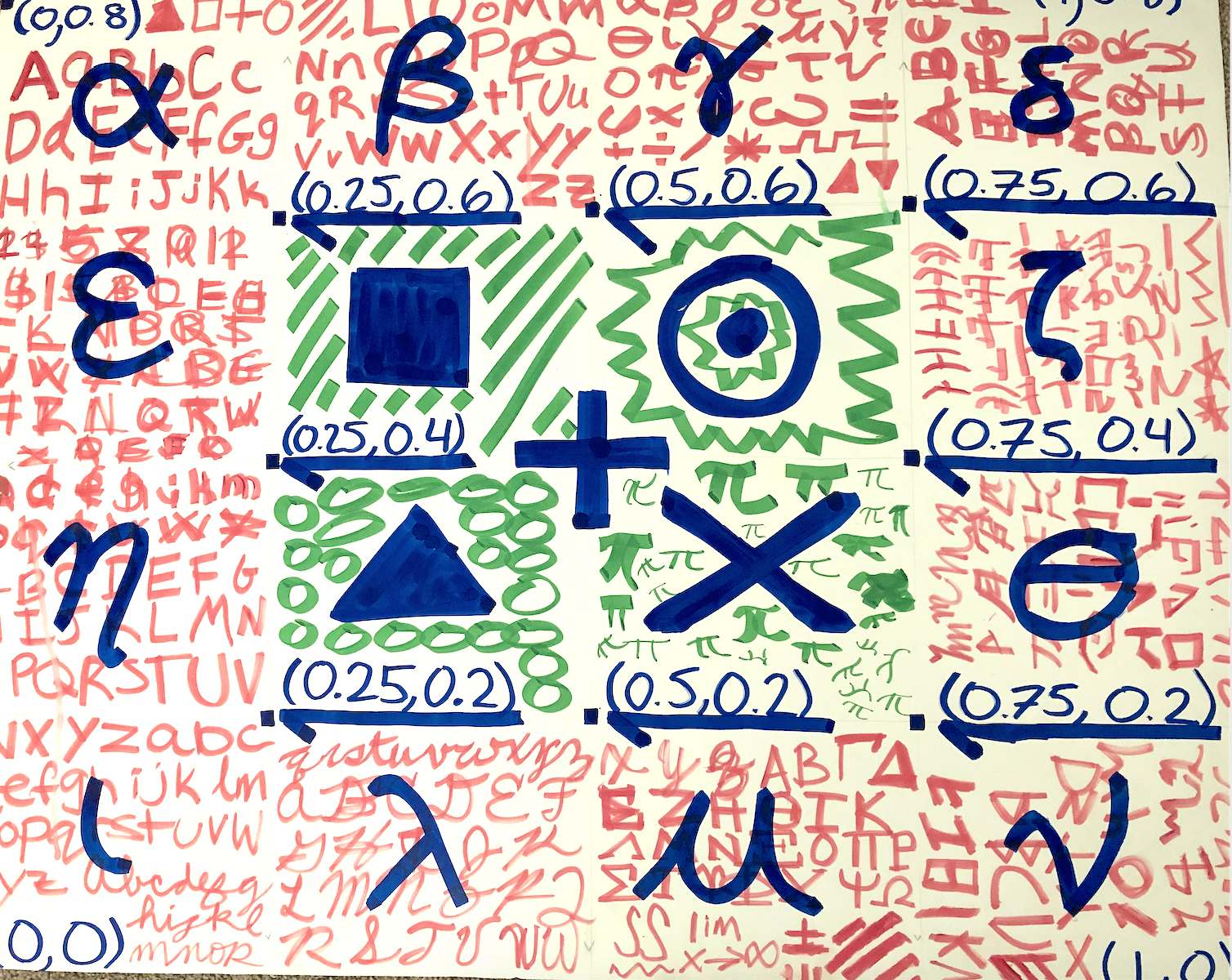
Fig. 85 Example of a highly textured planar surface.#
Hardware checks#
With the battery unplugged:
Spin each propeller by hand and check that no wires are in the way. Fasten any wire that gets close to the frame with a zip tie, away from the propellers.
Check that the Flight Controller USB cable is plugged into the Raspberry Pi. Any USB port works.
Check that the camera flat cable is fully seated on both the Raspberry Pi and the camera.
Check the screws on the frame, motors, and propellers, and tighten any that are loose. Vibrations during flight can loosen them over time.
Check that the arrows embossed on the propellers are visible from above.
Check that each propeller matches the spin direction of its motor, listed in Motor configuration. The two propeller types are described in Propellers (CW and CCW). A propeller on the wrong motor flips the Duckiedrone at takeoff.
Check that no propeller is chipped, cracked, or bent, and replace any that is.
Check that the battery is charged and secured to the frame. PX4 refuses to arm when the battery charge is below 20%.
Power up and check the Dashboard#
Plug the battery into the Duckiedrone and wait until the Dashboard loads at http://ROBOT_NAME.local/.
Test
Open the Dashboard on the Mission Control tab. Pass a hand under the Duckiedrone, then tilt and turn it.
Expected Result
The top bar reads Bridge: Connected.
In Heartbeats Monitor, the
JOYSTICKheart is green.Arm / Disarm reads
DISARMED.Motors PWM shows all four motors at
0.Time-of-Flight: the
Bottomline reacts to the hand.IMU - Orientation: the
Roll,Pitch, andYawlines move with the Duckiedrone, andRollandPitchsit near0when it is level.Camera shows a live image.
See Dashboard overview for what each widget shows.
Arm and disarm test#
Danger
There are two ways to stop the motors, and they do not behave the same:
Space resets the throttle to
0and asks PX4 to disarm. The ARM / DISARM toggle only asks PX4 to disarm. PX4 can refuse to disarm while the Duckiedrone is in the air. The Dashboard then shows a Disarming failed message and the motors keep running.KILL forces the disarm. The motors stop immediately, so a flying Duckiedrone falls. Use it only in an emergency.
On the ground, disarm with Space. In the air, be ready to click KILL at any moment.
In STABILIZED mode, PX4 keeps the Duckiedrone level but does not hold its height. The throttle is fully manual for the whole flight. See Dashboard overview for the keys used below.
Place the Duckiedrone on the takeoff surface, camera forward.
In the Remote Control widget, check that the throttle gauge reads
0. If it does not, press Space.In the Arm / Disarm widget, click STABILIZED. No flight mode is selected by default. The button becomes highlighted only once PX4 has entered the mode; if it stays unhighlighted, PX4 refused the mode, so do not arm.
Click the ARM / DISARM toggle. The motors start spinning at idle speed as soon as the Duckiedrone is armed, so keep hands and objects clear of the propellers before clicking.
If the motors spin fast or make strange noises, immediately disarm with Space, or click KILL if the Duckiedrone does not respond.
If the motors do not spin at all, see the troubleshooting at the end of this page.
Disarm with the toggle or Space. The motors stop almost immediately. Arm and disarm once or twice more to check that the Duckiedrone responds.
Arm once more and click KILL. The motors stop and the toggle returns to
DISARMED. After KILL, the Duckiedrone is disarmed and can be armed again as usual.
Checkpoint 1 ✅#
Do not take off until this checkpoint passes:
Test
Complete steps 3 to 6 above.
Expected Result
The STABILIZED button becomes highlighted.
After arming, the toggle reads
ARMED, all four motors spin at idle speed, and the Motors PWM lines leave0.After Space, the toggle reads
DISARMED, the motors stop, and the Motors PWM lines return to0.After KILL, the toggle reads
DISARMEDand the motors stop.
Monitoring during flight#
Keep the Mission Control page visible while the Duckiedrone is in the air. If any of these happens, land and investigate before flying again:
Time-of-Flight: the
Bottomline stops updating or jumps around.Motors PWM: all four lines stay near their maximum while the Duckiedrone does not respond as expected.
The Duckiedrone descends on its own. The battery is critically low and PX4 is landing the Duckiedrone. Let it land, disarm, and charge the battery.
Heartbeats Monitor: the
JOYSTICKheart stops being green, which means the Remote Control widget is no longer publishing.
First flight in STABILIZED#
Arm the Duckiedrone again.
Take off:
First flight of this Duckiedrone, or from a new browser: Thrust Cap starts deliberately low, so the Duckiedrone cannot take off yet. Raise Thrust Cap a little at a time, and after each change hold ↑ in short bursts until the Duckiedrone just leaves the ground. PX4 disarms a Duckiedrone that has not taken off about 10 seconds after arming, so expect to arm again between attempts. Read the percentage printed under the throttle gauge at liftoff, enter it into Hover, then set Thrust Cap slightly above it. See Throttle ramp: hover threshold and thrust cap for what both fields do.
Hover and Thrust Cap already set: hold ↑ in short bursts to raise the throttle slowly until the Duckiedrone lifts off.
Steer with W/A/S/D and turn with ←/→. Keep adjusting the height with ↑/↓.
To land, bring the Duckiedrone down gently: hold ↓ in short bursts so it descends slowly, and disarm with the toggle or Space once it touches down. If the Dashboard shows Disarming failed, the Duckiedrone is not yet on the ground: keep lowering the throttle and disarm again.
Danger
Keep hands away from the propellers while the Duckiedrone is armed. Always disarm before approaching it.
Checkpoint 2 ✅#
After landing, before approaching the Duckiedrone:
Test
Read the Arm / Disarm and Motors PWM widgets.
Expected Result
Arm / Disarm reads
DISARMED.Motors PWM shows all four motors at
0.
Unplug the battery before handling the Duckiedrone.
Congratulations on the first Duckiedrone flight.
Flying in OFFBOARD#
In OFFBOARD mode, an external controller flies the Duckiedrone by publishing setpoints, and the Remote Control widget is ignored. The Duckiedrone switches to OFFBOARD automatically once the setpoint stream is running.
OFFBOARD is used by the PID altitude control learning experience. Follow that learning experience to set up the controller and fly in OFFBOARD. Complete a flight in STABILIZED and pass both checkpoints above first.
Troubleshooting#
Troubleshooting
SYMPTOM
The ARM toggle snaps back to DISARMED a second after clicking it.
RESOLUTION
PX4 rejected the arming request. The Dashboard shows an Arming failed message with the reason PX4 reported, such as Pre-flight checks failed or Command denied. Go through the causes below in order, and retry arming after each one:
The throttle is not at zero. PX4 refuses to arm unless the throttle gauge in the Remote Control widget reads
0. Press Space to reset it.PX4 is not receiving the Remote Control commands. Keep the Mission Control tab open and in the foreground, and check that the
JOYSTICKheart in Heartbeats Monitor is green.No flight mode is active. Click STABILIZED and wait for the button to become highlighted before arming.
The flight stack has not finished starting. Wait until the Motors PWM, Time-of-Flight, and IMU - Orientation widgets show data.
The Duckiedrone is not level, or it moved while arming. Place it on a flat surface and keep it still.
The sensor calibration is missing or out of range. Recalibrate the sensors as described in Sensor calibration.
The Time-of-Flight sensor returns invalid distances. Check that the
Bottomline in the Time-of-Flight widget shows a steady value, and see Flight Controller and sensors if it does not.The battery charge is below 20%. Charge the battery.
If arming still fails, connect QGroundControl as described in Connecting to the Flight Controller. It reports which preflight check is failing.
Troubleshooting
SYMPTOM
The Duckiedrone disarms on its own after arming.
RESOLUTION
PX4 automatically disarms a Duckiedrone that sits idle on the ground and has not taken off about 10 seconds after arming. This is a safety feature, not a fault. Arm again when ready to take off.
Troubleshooting
SYMPTOM
The Mission Control widgets show no data.
RESOLUTION
The Dashboard is not receiving ROS 2 data. Reload the Dashboard page, then check the ros2-rosbridge-websocket container as described in Containers and Dashboard.
Troubleshooting
SYMPTOM
The Duckiedrone flips or tilts hard as soon as it leaves the ground.
RESOLUTION
Disarm immediately. A propeller is on the wrong motor, or a motor is in the wrong position or spins the wrong way. Repeat the propeller checks in the hardware checks above, then see Motors and flight.
Troubleshooting
SYMPTOM
The Duckiedrone does not lift off, even with the throttle at the Thrust Cap.
RESOLUTION
Thrust Cap starts deliberately low. Raise it a little at a time as described in the first flight steps. If the Duckiedrone still does not lift off, see Motors and flight.
Troubleshooting
SYMPTOM
The Duckiedrone climbs too fast.
RESOLUTION
Thrust Cap is too far above Hover. Land, lower Thrust Cap until it is only slightly above Hover, and raise the throttle in short bursts. See Throttle ramp: hover threshold and thrust cap.
Troubleshooting
SYMPTOM
The motors do not spin at all after arming.
RESOLUTION
Check that the battery is connected, since USB alone does not power the ESCs. Then follow the motor checks in Motors and flight.