LX: Linux and Networking
Contents
LX: Linux and Networking#
What you will need
Computer setup
dts: Initial setup(optional) A Duckiedrone: Flying the Duckiedrone
(optional) Review of “Basics of networking for robotics” slides
What you will get
An understanding of the basics of Linux and networking, including the command line, file system, and network configuration.
This Learning Experience introduces Linux and networking concepts in the context of Duckietown. You will learn about the command line, file system, and network configuration.
Fig. 90 “The hardest part of robotics is networking.”#
Intended Learning Outcomes
After completing this learning experience, learners will be able to:
Distinguish the Linux kernel, distributions, user space, and central processing unit (CPU) architecture before navigating a Linux filesystem. Create and safely manage files, use wildcards and searches, interpret command results, understand standard streams, redirection, pipes, variables, permissions, processes, and trusted shell scripts, and write and verify small Python and shell programs that read from and write to standard streams.
Explain how Media Access Control (MAC) addresses, Internet Protocol (IP) addresses, subnets, gateways, Dynamic Host Configuration Protocol (DHCP), Network Address Translation (NAT), firewalls, Domain Name System (DNS), multicast Domain Name System (mDNS), ports, and network quality support Duckiedrone connectivity. Use authorized, targeted ip, getent, ping, nc, ss, curl, and dts fleet discover checks to investigate a connection.
Distinguish a base-station shell, a physical Duckiedrone Secure Shell (SSH) shell, a virtual Duckiedrone shell, and a service shell. With explicit authorization, access one Duckiedrone and inspect its filesystem, processes, and running services without changing device state.
Available repositories
Warning
If you are using a Duckietown Workspace, the WebGL (browser) versions of the Duckietown Viewer and
Duckiematrix can be run inside or outside the Duckietown Workspace. If
dts is installed on the host machine, commands that launch native
Duckietown Viewer apps or the Duckiematrix Renderer, such as dts matrix run, can also be run in either location. When one of these commands is
run inside the Duckietown Workspace, it is automatically delegated to the
host machine, where it launches the native UI. The --standalone flag
starts the Duckiematrix Engine in the environment where the command is run.
About these learning activities#
Note
This learning experience introduces a number of Linux concepts and tools that can be run on any Ubuntu system. A native installation of a supported Ubuntu version, or a Duckietown Workspace, is recommended. Examples are worked out on physical and virtual Duckiedrones.
Notebooks#
Each notebook includes hands-on learning activities and a checkpoint to self-assess understanding. Work through the notebooks in order, since each one builds on the previous ones.
Notebook |
Topics |
|---|---|
1 |
Linux kernel, user space, CPU architecture, and distributions |
2 |
Terminal, shell, current directory, and paths |
3 |
Variables, quoting, |
4 |
Creating, inspecting, copying, renaming, and removing files |
5 |
Filename conventions, wildcards, |
6 |
Command help, error recovery, and exit status |
7 |
Standard input ( |
8 |
Pipes and text processing |
9 |
Shell scripts, execution, and sourcing |
10 |
Users, ownership, and permissions |
11 |
Processes, monitoring, and job control |
12 |
Shell exercises and output verification |
13 |
Physical Duckiedrone access through SSH |
14 |
Virtual Duckiedrone connections |
15 |
Duckiedrone filesystem inspection |
16 |
Duckiedrone process inspection |
17 |
Network addresses, subnets, routing, gateways, and IPv6 |
18 |
Network protocols, ports, packet layers, and connection quality |
19 |
Localhost and service binding |
20 |
DHCP, private addresses, NAT, firewalls, and access policy |
21 |
DNS, mDNS, URLs, and service discovery |
22 |
Network diagnostics, local TCP listeners, and Duckiedrone connection testing |
Forking the Repository#
The recommended way to use the repository of an LX is to make a fork, and then clone that fork. Forking can be done through the GitHub web interface, and creates a personal copy that can still be synchronized with the upstream Duckietown code.
Cloning the repository directly also works, at the cost of not being able to push personal changes.
Create a fork: navigate to the
lx-dd-linux-and-networkingrepository.Find and press the “Fork” button on the top right:
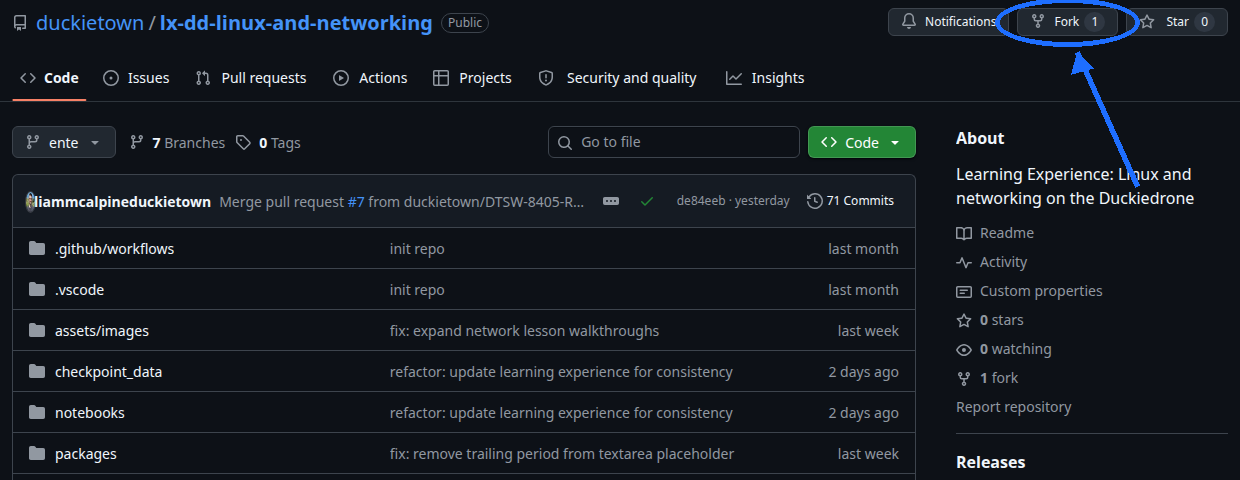
Fig. 91 Fork the LX to be able to make local changes while still being able to receive updates.#
This creates a new repository at
<your_github_username>/lx-dd-linux-and-networking.Clone the fork: clone the fork on the computer, replacing the GitHub username in the command below, and navigate to the new folder:
 git clone [email protected]:<your_github_username>/lx-dd-linux-and-networking
 cd lx-dd-linux-and-networking
Configure upstream repo: configure the Duckietown version of this repository as the upstream repository to synchronize with the fork.
List the current remote repository for the fork,
git remote -v
Specify a new remote upstream repository,
git remote add upstream https://github.com/duckietown/lx-dd-linux-and-networking
Confirm that the new upstream repository was added to the list,
git remote -v
Work can now be pushed to the personal repository using the standard GitHub workflow, and the beginning of every exercise prompts a pull from the upstream repository, updating the exercises to the latest version.
Keeping the System Up To Date#
💻 These instructions are for
entelearning experiences. Ensure that the Duckietown Shell is set to anenteprofile (and not adaffyone). The current profile is shown by:dts profile list
To switch to an
enteprofile, follow Initial setup.💻 Pull from the upstream remote to synchronize the fork with the upstream repo:
git pull upstream ente
💻 Make sure the Duckietown Shell is updated to the latest version:
pipx upgrade duckietown-shell
💻 Update the shell commands:
dts update💻 Update the computer and the Duckiedrone: follow Preparing the software stack.
SSL Certificate Setup#
Note
This procedure is only needed the first time an LX is run on a new computer.
Duckietown uses SSL certificates and TLS encryption to guarantee the highest standard of safety and privacy. Set up a local SSL certificate needed to run the LX editor inside the browser:
sudo apt install libnss3-tools
dts setup mkcert
Note
If a Duckietown Workspace is in use, install mkcert on the host system by following the workspace setup instructions instead of running these commands inside the dev container.
Launching the Code Editor#
Important
All dts code commands must be executed inside the root directory of the learning experience.
From inside the directory of the learning experience, open the code editor by running:
dts code editor
Wait for a URL to appear on the terminal, then click on it or copy-paste it in the address bar of the browser to access the code editor. The first thing shown in the code editor is a version of these instructions. The indications shown in the code editor take precedence over this page.
Walkthrough of Notebooks#
Inside the code editor, use the navigator sidebar on the left-hand side to navigate to the notebooks directory and open the first notebook.
Follow the instructions on the notebook and work through them in sequence.
Testing with the Duckiematrix#
This learning experience explores the fundamentals of bash programming and networking. The Duckiematrix is not needed to complete this learning experience. The notebooks on virtual Duckiedrone connections only need a virtual Duckiedrone, created and started as follows.
1. Creating and starting a virtual Duckiedrone#
If this has not been done already (e.g., for a different LX), create a virtual Duckiedrone with the command:
dts duckiebot virtual create --type duckiedrone --configuration DD24 [VDRONE]
where [VDRONE] is the hostname. It can be any name, subject to the same naming constraints of physical Duckiedrones.
When the command runs, DTS prompts for a password for the virtual Duckiedrone’s duckie account, and asks to confirm it. The password must contain at least eight characters and cannot contain colons or line breaks. The typed characters are not displayed.
Then start the virtual robot with the command:
dts duckiebot virtual start [VDRONE]
The virtual Duckiedrone appears with status Booting and finally Ready in the output of dts fleet discover:
         | Hardware |    Type     | Model |  Status  |    Address
-------- | -------- | ----------- | ----- | -------- | --------------
[VDRONE] |  virtual | duckiedrone | DD24  |  Ready   | [VDRONE].local
Note
The Duckiedrone software stack runs on ROS 2. When running ROS 2 commands against a virtual or physical Duckiedrone from the computer, the ROS_DOMAIN_ID must match the one used by the robot.
Troubleshooting#
For more detailed instructions, refer to General Procedure for Running Learning Experiences. For help troubleshooting common problems, refer to its troubleshooting section.