LX: Middlewares and ROS 2
Contents
LX: Middlewares and ROS 2#
What you will need
A computer with Docker and the Duckietown Shell (
dts) set up: Initial setupFamiliarity with shell commands and basic networking: LX: Linux and Networking
Basic Python knowledge, including functions and classes
Familiarity with containers: LX: Introduction to Containerization
Internet access to download images and dependencies
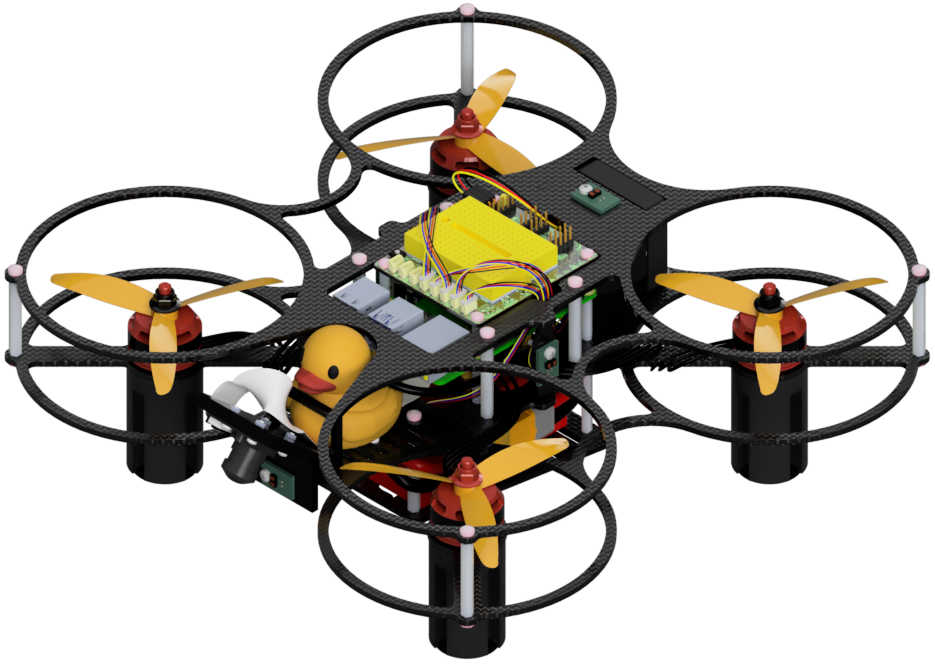
(optional) A Duckiedrone with the ROS 2 stack running
What you will get
Practical experience inspecting ROS 2 communication, building a Python package, modifying a publisher, and diagnosing missing messages
An understanding of how ROS 2 interfaces connect to Duckiedrone data paths
Robotics applications combine sensor processing, state estimation, and control, which requires their software components to exchange information. This Learning Experience introduces the role of middleware through ROS 2, following messages from command-line experiments into packaged Python nodes.
The activities begin with the communication graph and Duckiedrone data paths, then introduce discovery, package builds, publishers, subscribers, and diagnosis. No previous ROS 2 experience is required, while an optional comparison supports readers familiar with ROS 1.
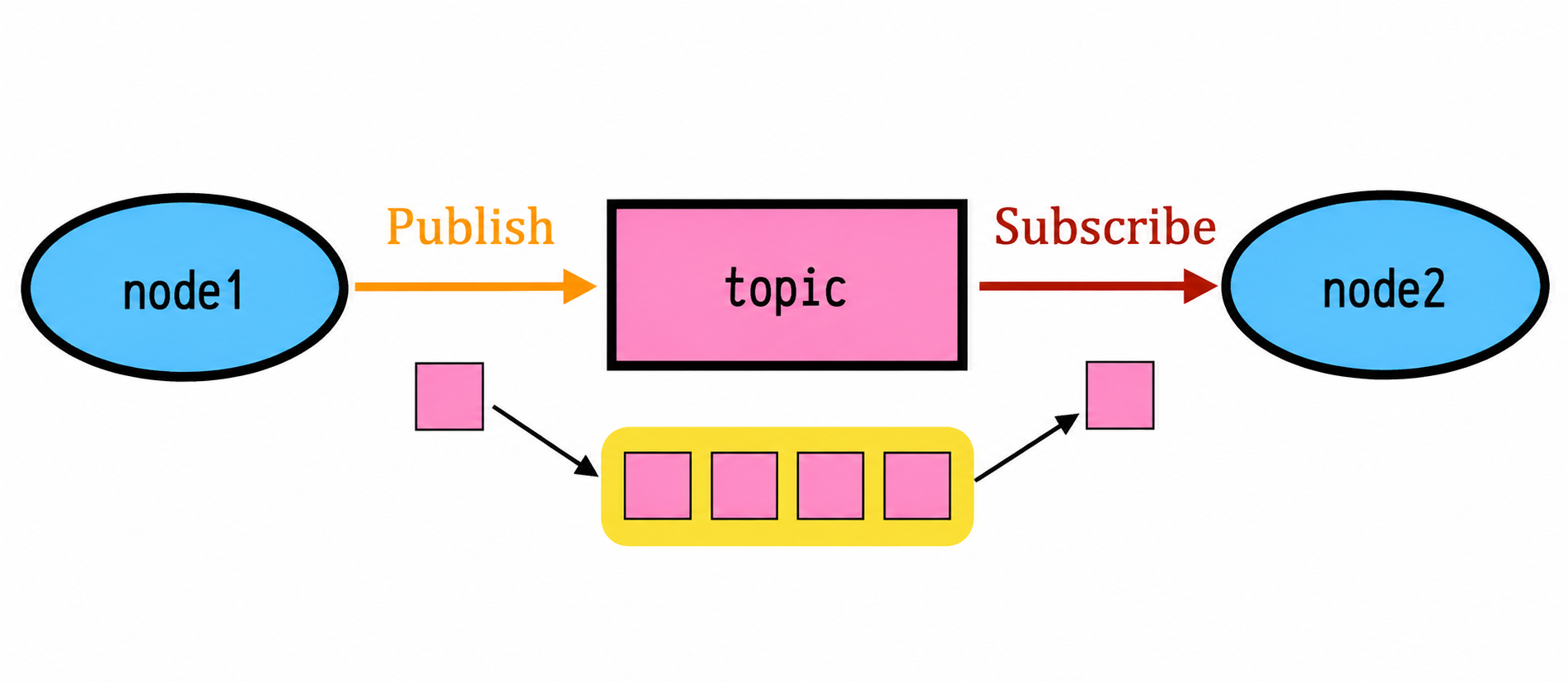
Fig. 92 ROS 2 organizes communication between software components through named interfaces and typed messages.#
Intended Learning Outcomes
After completing this learning experience, learners will be able to:
Explain nodes, topics, message types, services, actions, parameters, and the roles of client libraries and middleware.
Investigate discovery and resolve topic names using domains, namespaces, and private names.
Inspect, build, and source a supplied Python package, then locate its installed ROS 2 executables.
Relate timers, executors, and callbacks to publisher and subscriber behavior, then modify a publisher’s payload and rate.
Inspect endpoints and quality-of-service settings, observe arrival rate and timestamp-based message age, and diagnose missing messages.
Reuse installed nodes with distinct names and topic remappings.
Explain the DTPS and MAVROS data paths and optionally inspect a Duckiedrone’s flight-controller state interface.
Available repositories
About these learning activities#
Note
The local activities use a dedicated container environment containing ROS 2 Jazzy and the exercise tools. A separate host installation of ROS 2 is unnecessary.
Use a supported native Ubuntu installation or a Duckietown Workspace, following Initial setup. Notebook 8 optionally inspects telemetry on a Duckiedrone; the remaining activities can be completed in the local exercise environment.
Notebooks#
Follow the eleven notebooks in order, skipping the optional Duckiedrone inspection when hardware is unavailable. Each notebook includes an interactive checkpoint, where a response must be entered or selected before the answer can be revealed.
Notebook |
Topics |
|---|---|
1 |
ROS 2 graph, communication interfaces, and software layers |
2 |
DTPS, sensor bridges, and the PX4–MAVLink–MAVROS data path |
3 |
Discovering a publisher and receiving typed messages |
4 |
Discovery domains, namespaces, and absolute, relative, and private names |
5 |
Workspace structure, package files, dependencies, and executable entry points |
6 |
Building a package, sourcing its overlay, and checking executable discovery |
7 |
Inspecting endpoints and QoS, measuring arrival rate, and observing message age |
8 |
Optional: inspecting the Duckiedrone’s MAVROS state topic |
9 |
Python node execution, timers, and publisher payload and rate changes |
10 |
Subscriber callbacks and diagnosis of missing messages |
11 |
Distinct node names and topic remapping |
Forking the Repository#
A fork provides a place to save personal changes while retaining access to upstream updates. The Duckietown repository can also be cloned directly when pushing personal changes is unnecessary.
Create a fork: open the
lx-dd-middleware-ros2repository and select Fork.
Fig. 93 A fork stores personal changes while preserving access to upstream updates.#
The resulting repository is located at
<your_github_username>/lx-dd-middleware-ros2.Clone the fork: replace
<your_github_username>with the GitHub account name, then enter the repository directory:git clone [email protected]:<your_github_username>/lx-dd-middleware-ros2 cd lx-dd-middleware-ros2
Configure the upstream repository: add the Duckietown repository as a source of updates, then inspect the configured remotes:
git remote add upstream https://github.com/duckietown/lx-dd-middleware-ros2
git remote -v
The listing should identify the fork as
originand the Duckietown repository asupstream.
Keeping the System Up To Date#
These instructions use the
entedistribution. Check the Duckietown Shell profile:dts profile list
If necessary, follow Initial setup to select an
enteprofile.From the LX repository root, obtain updates from the upstream
entebranch:git pull upstream ente
Local edits should be committed or backed up before updating.
Update the Duckietown Shell and its commands:
pipx upgrade duckietown-shell
dts update
Follow Preparing the software stack to prepare the computer and, for the optional telemetry activity, the Duckiedrone.
SSL Certificate Setup#
Note
This procedure is needed only when the LX editor certificates have not already been set up on the computer.
For a native Ubuntu setup, install the certificate tools and configure the local certificate used by the browser-based LX editor:
sudo apt install libnss3-tools
dts setup mkcert
Note
For a Duckietown Workspace, install mkcert on the host system following the Workspace setup instructions.
Launching the Code Editor#
Important
Run the following Duckietown Shell commands from the lx-dd-middleware-ros2 repository root.
Launch the editor from a base-station or Duckietown Workspace terminal:
dts code editor --username duckietown
Wait for a URL to appear in the terminal, then open it in a browser. The exercise recipe supplies the ROS 2 environment used by the notebooks.
Opening Exercise Terminals#
The local experiments can run in the code editor’s integrated terminals or in a runtime container opened from the base station or Duckietown Workspace. All terminals used together in an activity should share the same exercise container.
Option 1: Code editor terminals#
In the editor, select Terminal > New Terminal. Repeat this action when a notebook requires additional terminals.
These terminals share the editor container, where the notebook’s ros2 and colcon commands can run.
Option 2: Base-station or Workspace terminals#
From the LX repository root, build the exercise image and open its runtime shell:
dts code build --local --username duckietown
dts devel run --username duckietown --cmd bash
Once startup completes, the prompt belongs to the exercise container. For another shell in the same running runtime container, open a second base-station or Workspace terminal, change to the same LX directory, and run:
dts devel run attach
Repeat the attachment step when a third terminal is needed. The code editor can still display the notebooks and run their interactive checkpoints while the ROS 2 experiments run in these attached shells.
Note
Each notebook identifies the terminal for each command and provides the required environment-sourcing steps. Environment changes made in one shell do not automatically appear in another, so the setup instructions apply separately to each exercise terminal.
Walkthrough of Notebooks#
In the editor’s navigator sidebar, open the notebooks directory and begin with Notebook 1. Continue in order so that the package builds and source changes remain consistent with later activities.
Run shell commands in the terminal identified by the notebook, compare the results with the expected outputs, and stop long-running processes when instructed. Notebook 6 introduces the package build, while the publisher changes made in Notebook 9 carry forward into the subscriber and remapping activities.
For each interactive checkpoint, select a compatible Python kernel in the prepared editor and run the final code cell. Enter or select a response before revealing the answer; Try again clears the response for another attempt.
Optional Duckiedrone Inspection#
Notebook 8 applies the graph-inspection tools to a Duckiedrone with its ROS 2 stack running. The connection procedure builds on LX: Linux and Networking, then enters the ros2-mavros container to inspect the flight-controller state topic.
This activity observes telemetry and requires no flight. After completing or skipping it, continue with Notebook 9 in the dedicated local exercise environment.
Troubleshooting#
Refer to General Procedure for Running Learning Experiences for the shared LX workflow and Troubleshooting for common editor and setup problems.
For ROS 2 activity failures, follow the diagnostic steps in the relevant notebook. The ROS 2 LX README also covers an empty node listing while a publisher is running and recovery when the installed package cannot be found.