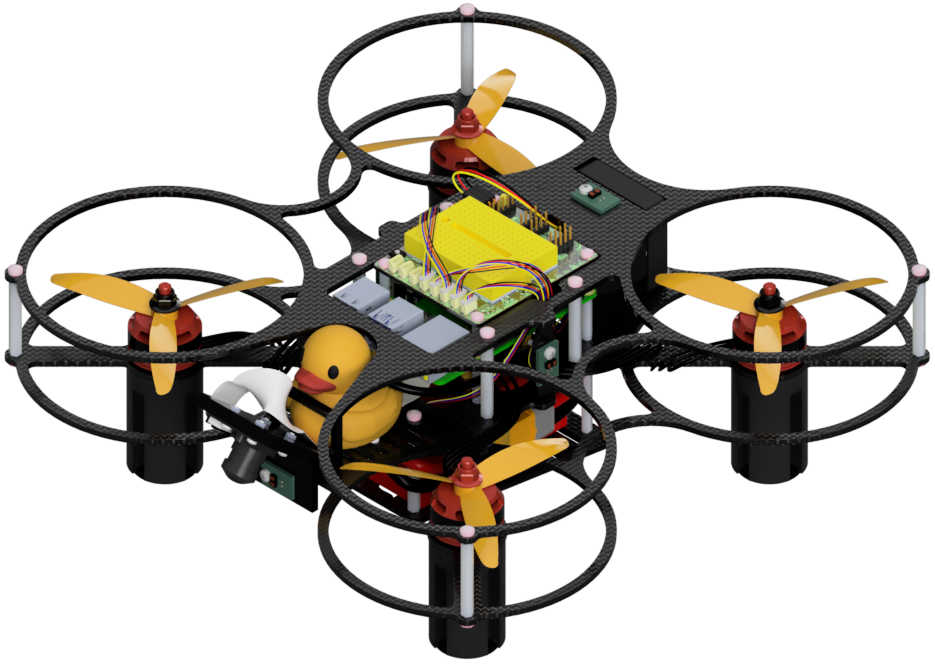
LX: Duckiedrone Safety
Contents
LX: Duckiedrone Safety#
What you will need
Time to complete the LX: 2-3 hours
What you will get
An understanding of robot safety regulations, particularly related to drones
Knowledge of safety tips for soldering at home
Optional TRUST certification for flying an unmanned aircraft system (UAS)
This LX covers the safety analysis every learner must complete before operating a drone. Learners work through the OSHA framework for industrial robot and robot system safety, FAA rules and the TRUST certification for flying an unmanned aircraft system, Brown University’s UAS policy, and the precautions needed to fly safely at home. They also set up and document a safe soldering station and a safe indoor flight area.
Fig. 88 Safety first. Operating a drone requires understanding the safety considerations and regulations that apply to flying an unmanned aircraft system (UAS).#
Intended Learning Outcomes
After completing this learning experience, learners will be able to:
Analyze the safety considerations for operating a robot (drone) using the OSHA framework for industrial robot and robot system safety.
Explain the FAA rules and regulations that govern operating an unmanned aircraft system (UAS), including how to complete the TRUST certification.
Identify the institutional (Brown University) and personal (at-home) policies and precautions that apply to flying a drone outside of the lab.
Set up a soldering station and a flight area that meet the safety requirements for this course.
Available repositories
Access to the solution repository is reserved to Duckietown instructors. Reach out to info@duckietown.com or upgrade your plan through the Duckietown Hub.
Warning
If you are using a Duckietown Workspace, the WebGL (browser) versions of the Duckietown Viewer and
Duckiematrix can be run inside or outside the Duckietown Workspace. If
dts is installed on the host machine, commands that launch native
Duckietown Viewer apps or the Duckiematrix Renderer, such as dts matrix run, can also be run in either location. When one of these commands is
run inside the Duckietown Workspace, it is automatically delegated to the
host machine, where it launches the native UI. The --standalone flag
starts the Duckiematrix Engine in the environment where the command is run.
About these learning activities#
Note
This learning experience introduces important safety guidelines for operating a drone. It is not a substitute for the FAA TRUST certification, which is required to operate a drone outdoors in the United States. The TRUST certification is free and can be completed online in about 30 minutes.
Notebooks#
Each notebook includes hands-on learning activities and a checkpoint to self-assess understanding. Work through the notebooks in order, since each one builds on the previous ones.
Notebook |
Topics |
|---|---|
1 |
OSHA Safety Analysis, FAA Rules, Brown University Community Guidelines, Soldering Station Safety |
2 |
Case Study: Midair Collision Over the Hudson River |
Forking the Repository#
The recommended way to use the repository of an LX is to make a fork, and then clone that fork. Forking can be done through the GitHub web interface, and creates a personal copy that can still be synchronized with the upstream Duckietown code.
Cloning the repository directly also works, at the cost of not being able to push personal changes.
Create a fork: navigate to the
lx-dd-safetyrepository.Find and press the “Fork” button on the top right:
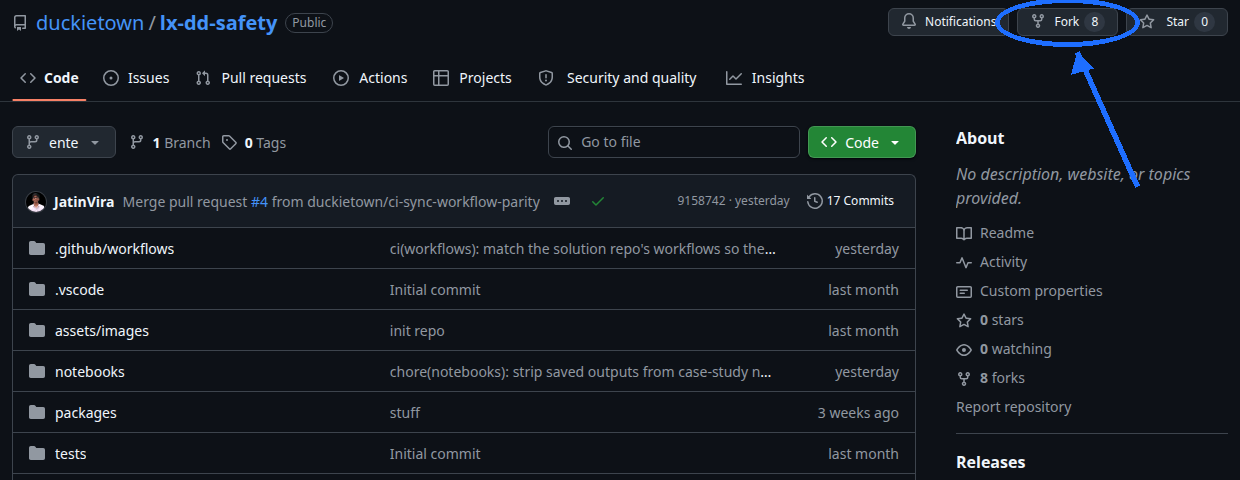
Fig. 89 Fork the LX to be able to make local changes while still being able to receive updates.#
This creates a new repository at
<your_github_username>/lx-dd-safety.Clone the fork: clone the fork on the computer, replacing the GitHub username in the command below, and navigate to the new folder:
 git clone [email protected]:<your_github_username>/lx-dd-safety
 cd lx-dd-safety
Configure upstream repo: configure the Duckietown version of this repository as the upstream repository to synchronize with the fork.
List the current remote repository for the fork,
git remote -v
Specify a new remote upstream repository,
git remote add upstream https://github.com/duckietown/lx-dd-safety
Confirm that the new upstream repository was added to the list,
git remote -v
Work can now be pushed to the personal repository using the standard GitHub workflow, and the beginning of every exercise prompts a pull from the upstream repository, updating the exercises to the latest version.
Keeping the System Up To Date#
💻 These instructions are for
entelearning experiences. Ensure that the Duckietown Shell is set to anenteprofile (and not adaffyone). The current profile is shown by:dts profile list
To switch to an
enteprofile, follow Initial setup.💻 Pull from the upstream remote to synchronize the fork with the upstream repo:
git pull upstream ente
💻 Make sure the Duckietown Shell is updated to the latest version:
pipx upgrade duckietown-shell
💻 Update the shell commands:
dts update💻 Update the computer and the Duckiedrone: follow Preparing the software stack.
SSL Certificate Setup#
Note
This procedure is only needed the first time an LX is run on a new computer.
Duckietown uses SSL certificates and TLS encryption to guarantee the highest standard of safety and privacy. Set up a local SSL certificate needed to run the LX editor inside the browser:
sudo apt install libnss3-tools
dts setup mkcert
Note
If a Duckietown Workspace is in use, install mkcert on the host system by following the workspace setup instructions instead of running these commands inside the dev container.
Launching the Code Editor#
Important
All dts code commands must be executed inside the root directory of the learning experience.
From inside the directory of the learning experience, open the code editor by running:
dts code editor
Wait for a URL to appear on the terminal, then click on it or copy-paste it in the address bar of the browser to access the code editor. The first thing shown in the code editor is a version of these instructions. The indications shown in the code editor take precedence over this page.
Walkthrough of Notebooks#
Inside the code editor, use the navigator sidebar on the left-hand side to navigate to the notebooks directory and open the first notebook.
Follow the instructions on the notebook and work through them in sequence.
Troubleshooting#
For more detailed instructions, refer to General Procedure for Running Learning Experiences. For help troubleshooting common problems, refer to this troubleshooting section.