The Complete Way
Contents
What you will need
A computer (the “base station”) with an internet connection
A working Duckietown Shell (
dts) installation: Install the Duckietown ShellA microSD card (
64 GB, U3, Class 10 recommended), e.g., the one from your Duckiedrone boxA microSD card reader, e.g., the one from your Duckiedrone box
10-20 min, depending on the internet connection
What you will get
An initialized Duckiedrone microSD card, ready for first boot
The Complete Way#
Connect the microSD card to the base station#
Insert the microSD card into your base station. Use the USB adapter from the Duckiedrone box if your base station does not have a microSD slot.
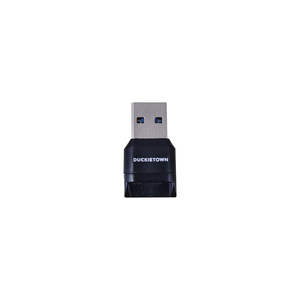
Fig. 49 microSD card adapter.#
Create the image#
Before continuing, confirm that ente is the active Duckietown Shell profile:
dts profile list
Run dts sd_card init with the duckiedrone type and the DD24 configuration:
dts sd_card init \
    --hostname MY_ROBOT_NAME \
    --type duckiedrone \
    --configuration DD24 \
    --country US \
    --wifi mywifissid1:mypassword1[,mywifissid2:mypassword2,...]
Where:
--hostname— the robot name. Follow the naming rules in the box below.During initialization, DTS prompts you to enter and confirm the password for the
duckieaccount. It must contain at least eight characters and cannot contain colons or line breaks. The characters you enter are not displayed. There is no default account password.--type duckiedrone --configuration DD24— picks the Duckiedrone DD24 base image.--country— two-letter country code where the Duckiedrone will fly. A full list of codes can be found, e.g., on Wikipedia: ISO 3166-1 alpha-2 codes.--wifi— one or more networks in the formssid:psw. Separate multiple networks with commas.
Additional options are detailed on the Duckietown Manual.
Duckiedrone hostname naming constraints#
Attention
The hostname must start with a lower-case letter and may contain only lower-case Latin letters and digits. Using special characters will break things and require re-flashing.
✅
argo✅
mydrone01❌
mydrone_01❌
My Duckiedrone❌
Argo
The hostname cannot be changed after the first boot.
Attention
If other Duckiedrones operate in the same environment, make sure your hostname is unique.
Flashing the image#
After downloading the base image, dts sd_card init will prompt you to select the target drive to flash the image to.
On Ubuntu or macOS with a native DTS installation, enter the nominal microSD card capacity (e.g., 64 for 64 GB), and a list of available devices will appear. Select your microSD card and confirm your choice.
Once the flashing is complete, safely eject the microSD card from the base station.
Eject your microSD card safely.
Do not just unplug the microSD card from the base station.
Inside a Duckietown Workspace the system will not be able to detect your microSD card. Therefore, you will flash the image to a file, then burn it to a microSD card with Balena Etcher through the host OS, similarly to the fast way initialization procedure.
When prompted to enter the microSD card capacity, write any number, e.g., 64. When prompted to list all possibilities, enter y, then write the complete path to the image file, e.g., /image-file-name.img.
The dts sd_card init process will proceed to create the image file.
Once complete, switch to the host machine, open Balena Etcher, and flash image-file-name.img to your microSD card.
You are now ready for the first boot.
Troubleshooting#
Troubleshooting
SYMPTOM
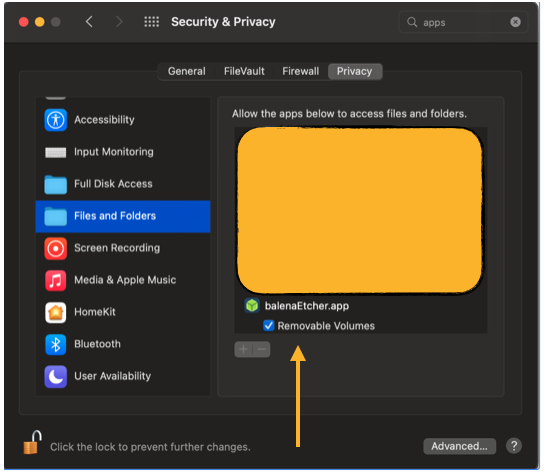
I am using a Mac and the flashing step fails for lack of permissions.
RESOLUTION
Go to Apple menu > System Settings > Privacy & Security > Files & Folders, then enable Removable Volumes for the terminal application you use to run dts.
The screenshot shows the same setting for Balena Etcher; select your terminal application instead.
Troubleshooting
SYMPTOM
dts sd_card init fails with “unknown robot type duckiedrone”.
RESOLUTION
Your Duckietown Shell is out of date or the wrong profile is active. Run:
dts profile list # ‘ente’ must be the active profile pipx upgrade duckietown-shell dts update
then rerun the dts sd_card init command.
Troubleshooting
SYMPTOM
The Duckiedrone does not join my Wi-Fi after the first boot.
RESOLUTION
Double-check the
--countryflag you passed todts sd_card init. Wi-Fi is disabled by default if the regulatory domain is unset.Double-check your network credentials.
If you are still stuck, flash again with the correct flags shown above.