Duckiematrix installation
Contents
What you will need
A working Duckietown Shell installation: Duckietown Shell (dts)
What you will get
A successful Duckiematrix installation
Knowledge on how to start the Duckiematrix
Knowledge of Duckiematrix optional features
Duckiematrix installation#
The Duckiematrix automatically installs the first time it is run, so no explicit installation action is required.
To get started immediately, open a terminal, and run:
dts matrix run --standalone --embedded --map sandbox
There are two ways to use the Duckiematrix from Workspaces:
(Better performance) If
dtsis installed on the host machine:Inside the Workspace, start the Engine with:
dts matrix engine run --sandbox --verbose
Then, inside the Workspace or on the host machine, start the Renderer with:
dts matrix run
Note
If you run this command inside the Workspace, the command is automatically delegated to the host machine, where it starts the native Renderer and connects it to the Engine running in the Workspace.
To run the Linux version of the Duckiematrix on Windows, add
--os-family linuxto the above command.(Broader compatibility) If
dtsis not installed on the host machine, inside the Workspace, run:dts matrix run --standalone --sandbox --verbose --browser
the Renderer will be run through the browser (WebGL).
Note
For the WebGL version of the Duckiematrix, if the colors look desaturated, try a different browser.
Note
After the Duckiematrix Renderer window opens, click on it and press
How to run the Duckiematrix#
As seen above, the command to (install and) run the Duckiematrix is dts matrix run.
However, two additional pieces of information are required:
Where is the Engine running. Options are:
Locally (the preferred option for most use cases): Add the
--standaloneflag to thematrix runcommand.Remotely: Read Using a Remote Engine.
Which map to load. Options are:
Use a default map: Duckiematrix maps.
Create your own map: Using a Custom Map.
Common optional run flags#
--help: get a comprehensive list of optional flags with explanations of use.--map: followed by the path of a customized map.--embedded: use in conjunction with--mapwhen using one of the default maps. For example, you can run thedemomap in an Engine with:dts matrix engine run --embedded --map demo
--no-tutorial: by default, the Duckiematrix runs in tutorial mode, where the key bindings are introduced at startup. Use this flag to disable this introduction. Note that relevant keyboard bindings can always be found though the “Settings” tab in the Renderer (bottom left of the screen).--verbose: provide a more detailed terminal output, useful for debugging in case of need.--browser: to run the browser (WebGL) version of the Duckiematrix, especially useful when using Duckietown Workspaces on macOS or Windows OSs.
Note
For the WebGL (browser) version of the Duckiematrix, if the colors look desaturated, try a different browser.
Using a Remote Engine#
To run a local Renderer and connect it to a remote Engine, specify the location of the Engine (as a hostname or IP address) using the --engine flag:
dts matrix run --engine ENGINE_HOSTNAME
Note
If you are using a Duckietown Workspace and the Engine is running inside the Dev Container, you can run the command that starts the native Renderer inside or outside the Workspace, provided dts is installed on the host machine. When run inside the Workspace, the command is automatically delegated to the host machine.
In this case you do not need to specify a map since that was already specified when the Duckiematrix Engine
was initially run.
Attaching a Robot to a Remote Engine#
When the Engine runs on another machine, attach either a physical or virtual Duckietown robot to a Duckiematrix Entity by specifying the Engine’s hostname or IP address:
dts matrix attach --engine ENGINE_HOSTNAME ROBOT_NAME ENTITY_NAME [--dreamwalk]
where:
ENGINE_HOSTNAMEis the hostname or IP address of the remote Engine.ROBOT_NAMEis the hostname of the physical or virtual robot to attach.ENTITY_NAMEis the name of the Duckiematrix Entity to which you are attachingROBOT_NAME. A list of available Duckiematrix Entities can be found in the map configurations or more simply by clicking on theRobotstab at the bottom of a Duckiematrix Renderer window, and then looking at theName.--dreamwalkis optional and applies only to physical robots.
To attach a robot to a local Engine, omit --engine ENGINE_HOSTNAME; dts determines a local address that the robot can reach.
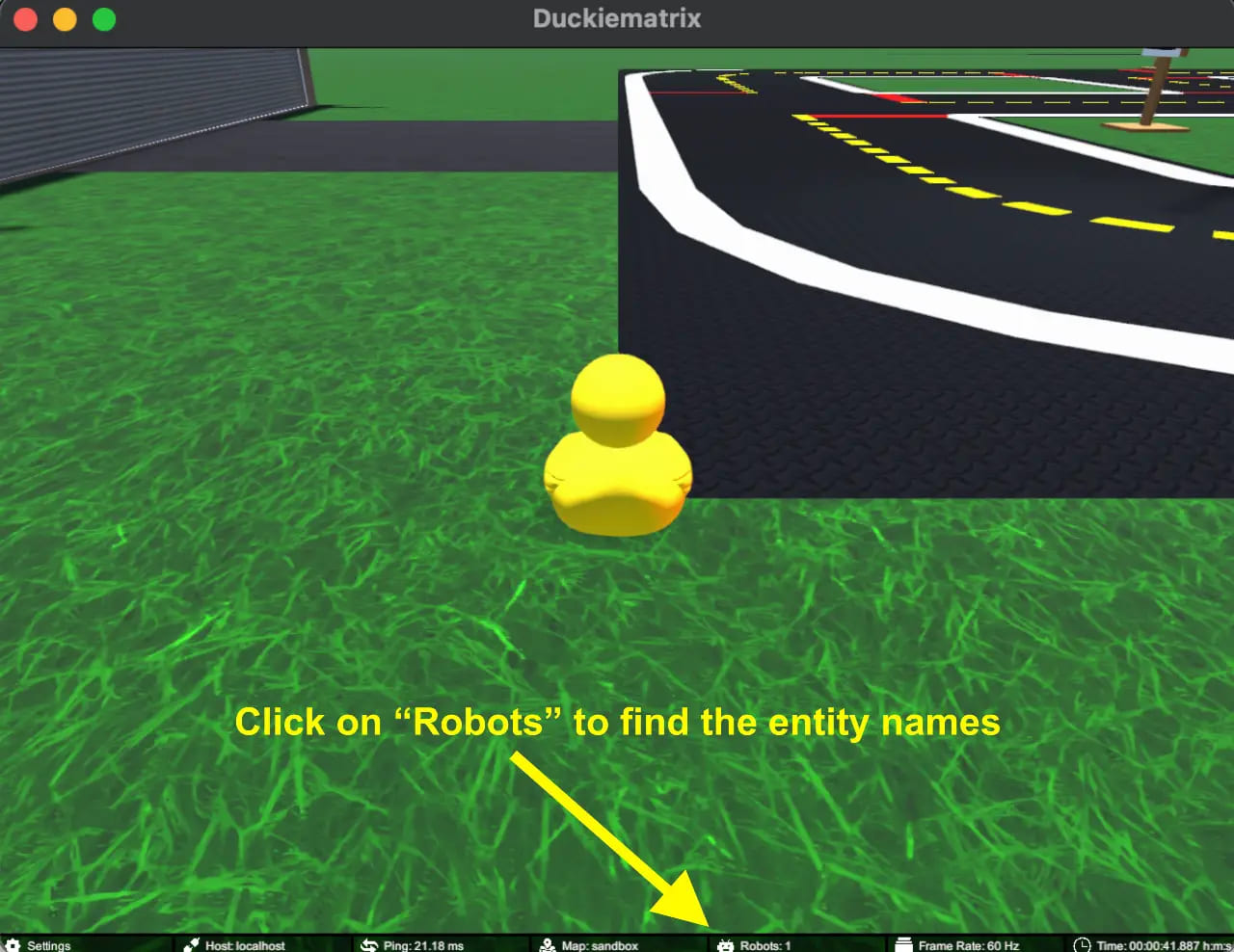
Fig. 3 Find the available Duckiematrix Entity names by clicking on the “Robots” section#
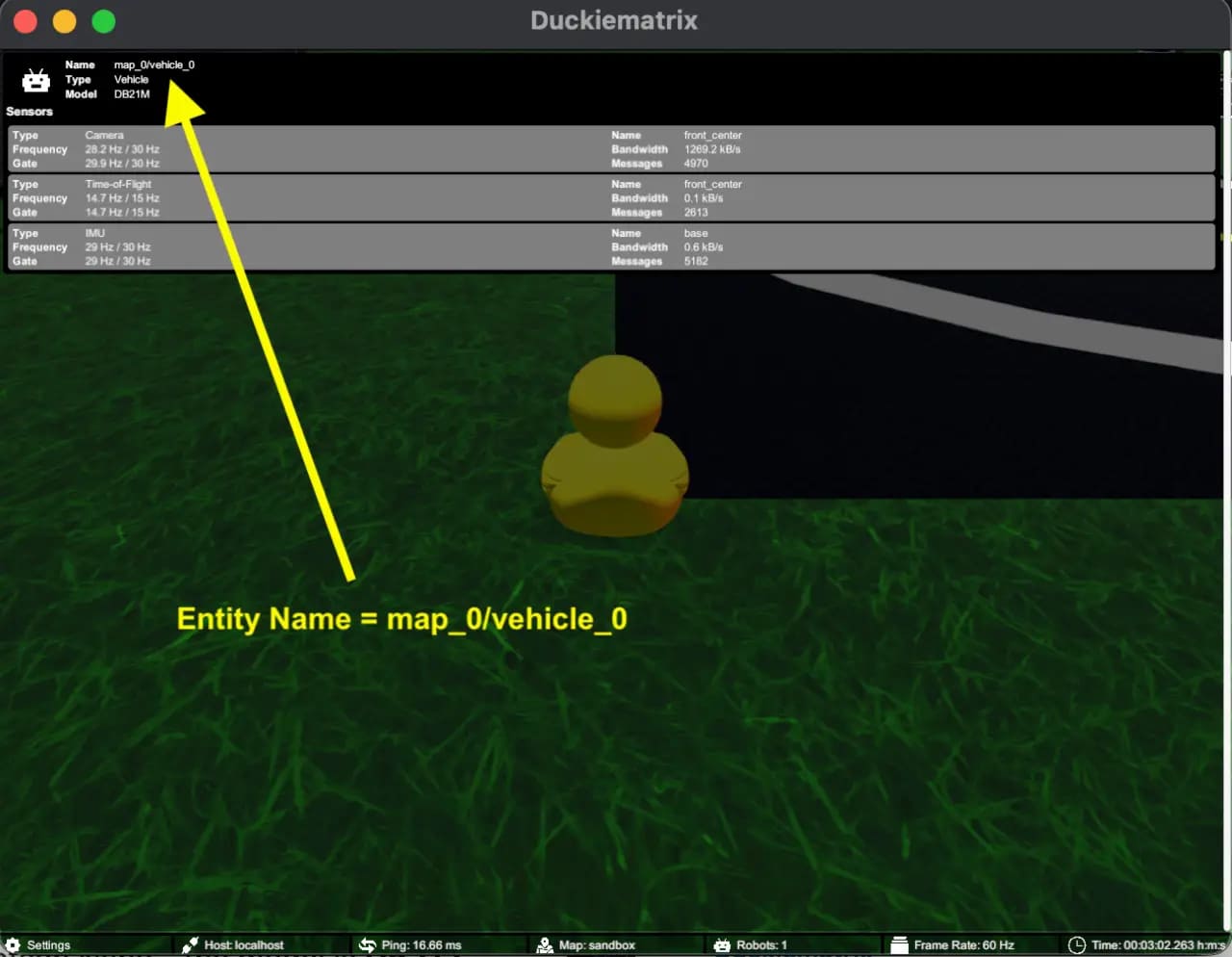
Fig. 4 This map includes an Entity named map_0/vehicle_0; Entity names depend on the loaded map.#
Duckiematrix maps#
With respect to the map, you can choose to either define your own map and tell the Duckiematrix where to find it
on the file system, or you can choose to use one of the default maps that are provided by including the --embedded flag.
The default maps are named:
sandbox: 5x5 tiles map with 4x 3-way intersections, traffic lights, demo traffic signs, watchtowers, one DB21 Duckiebot and garage for calibrations.
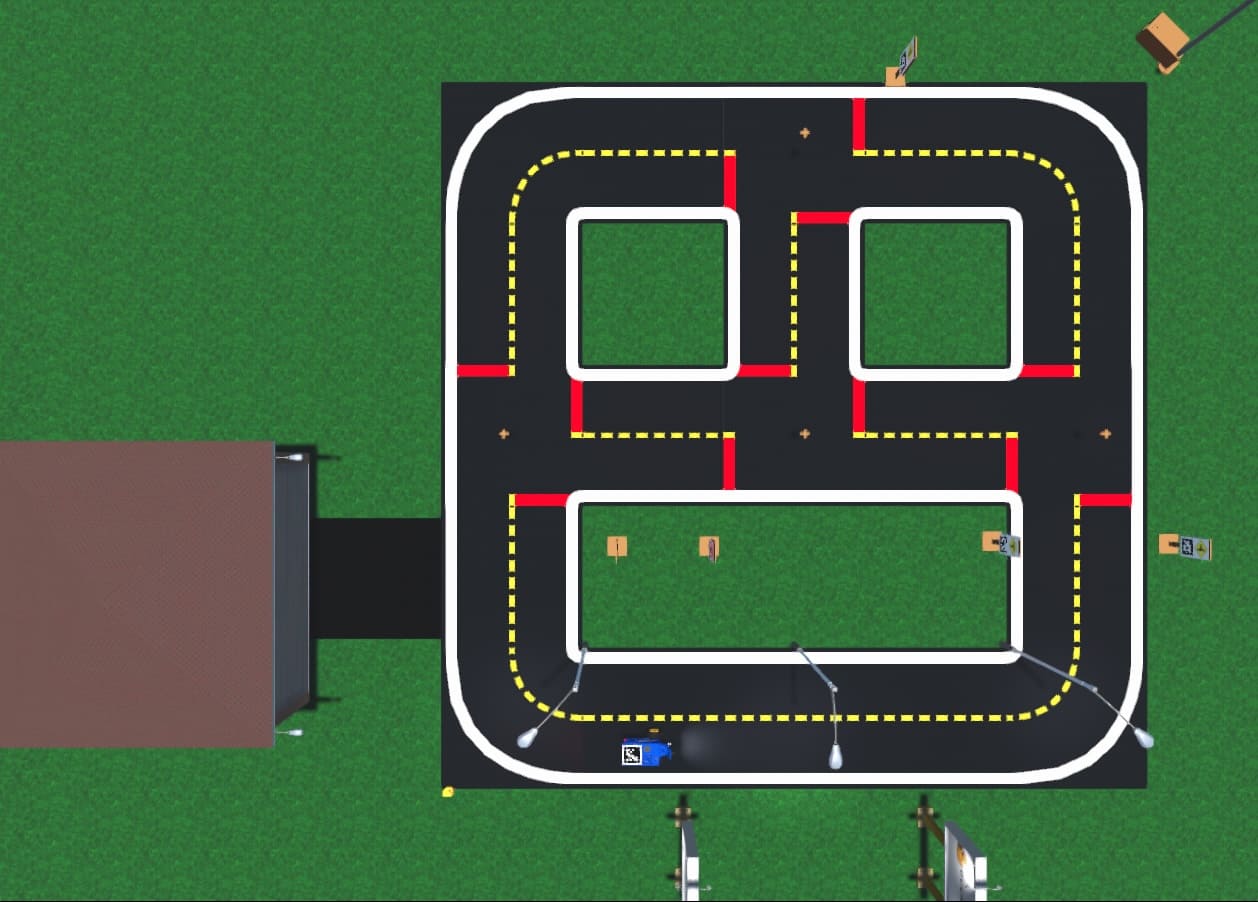
Fig. 5 The default sandbox map.#
demo: same map layout and content assandboxmap, but including multiple Duckiebots (DB21, DB19), night-day cycle, and ornamental moving duckies.
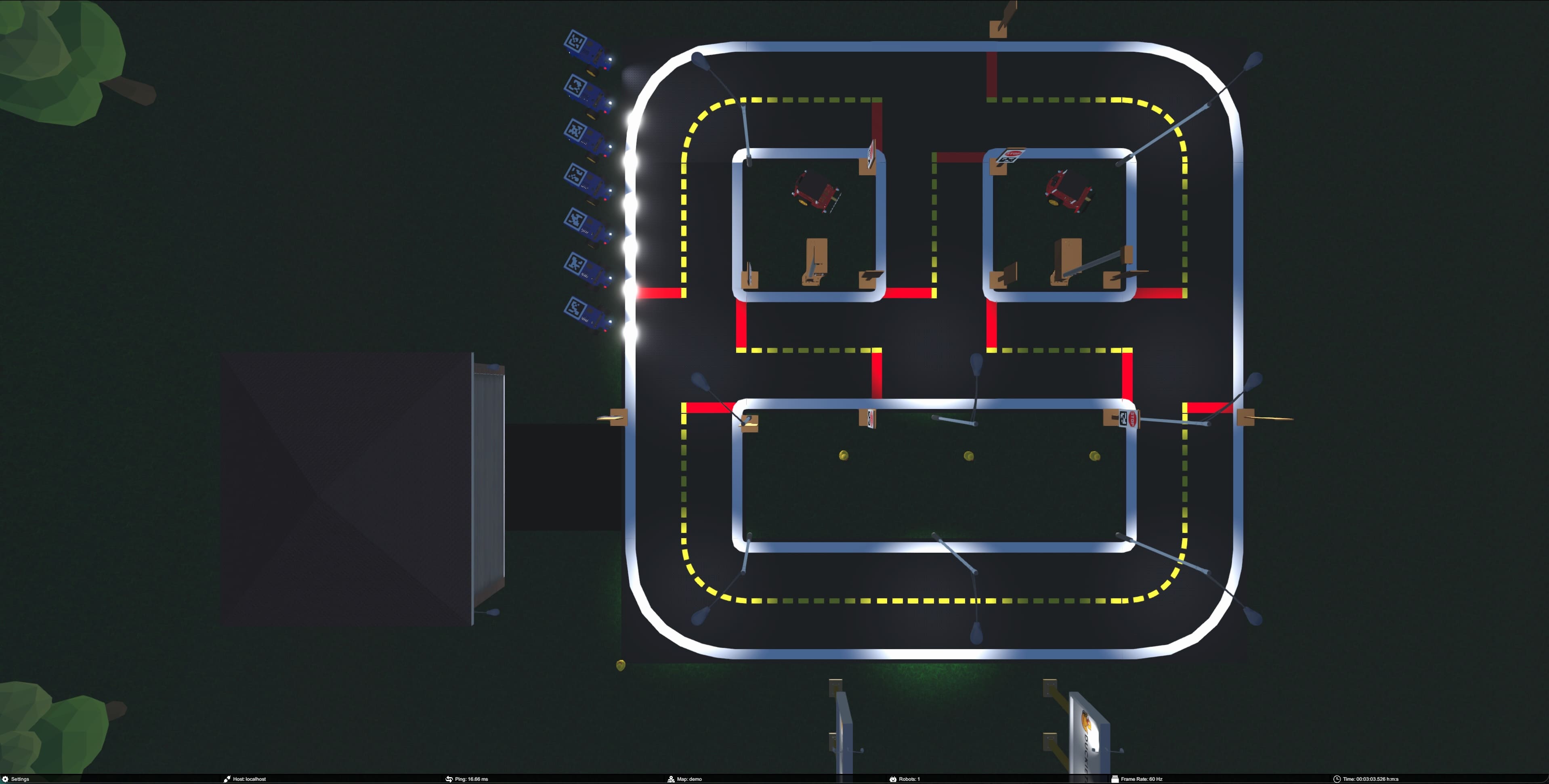
Fig. 6 The default demo map includes multiple Duckiebots and night-day cycle.#
empty: empty map (only grass)
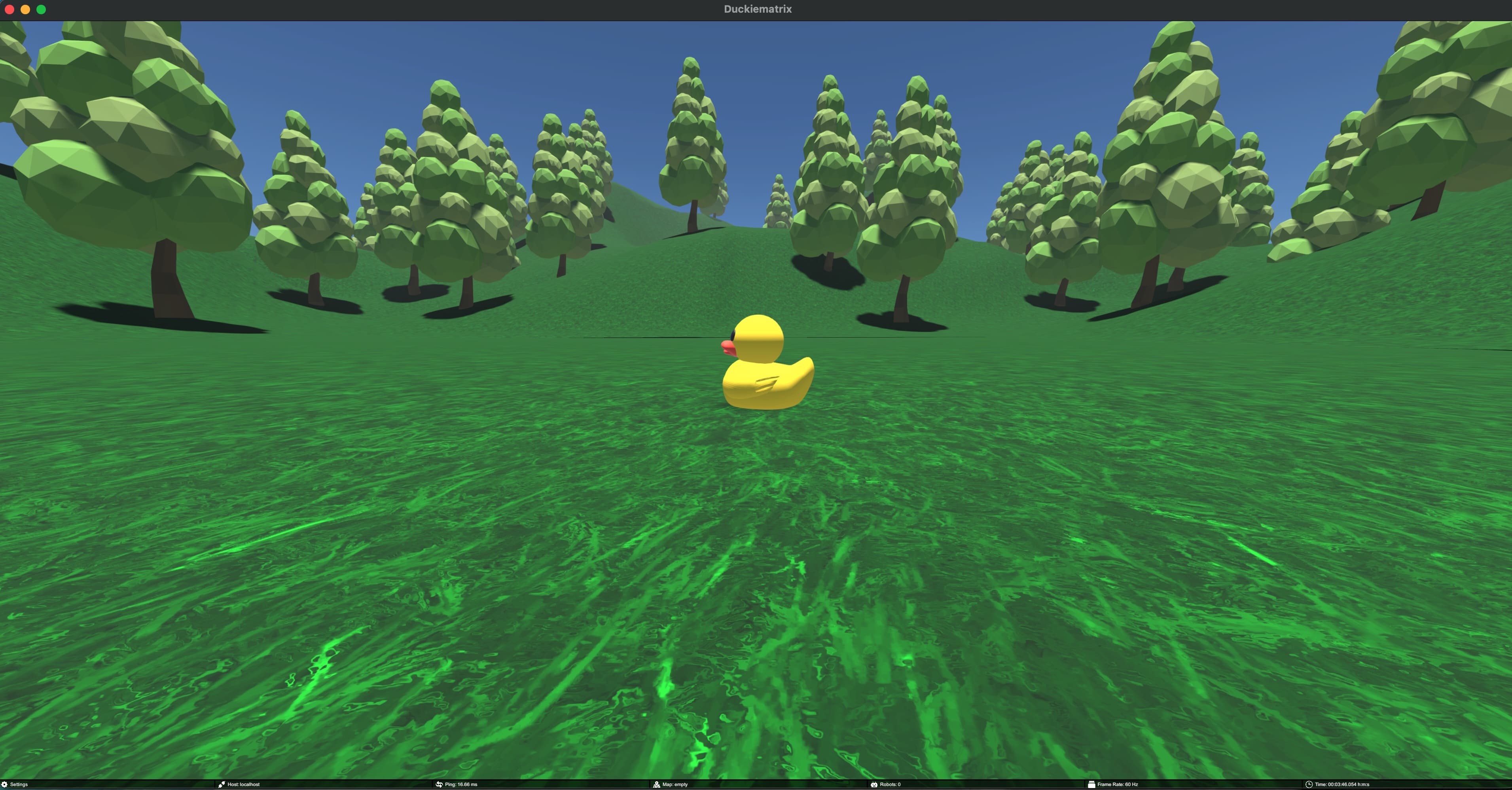
Fig. 7 The default empty map.#
intersections: same map layout assandbox, but with one intersection having traffic signs arranged according to the appearance specifications. Good map for testing intersection navigation agents.
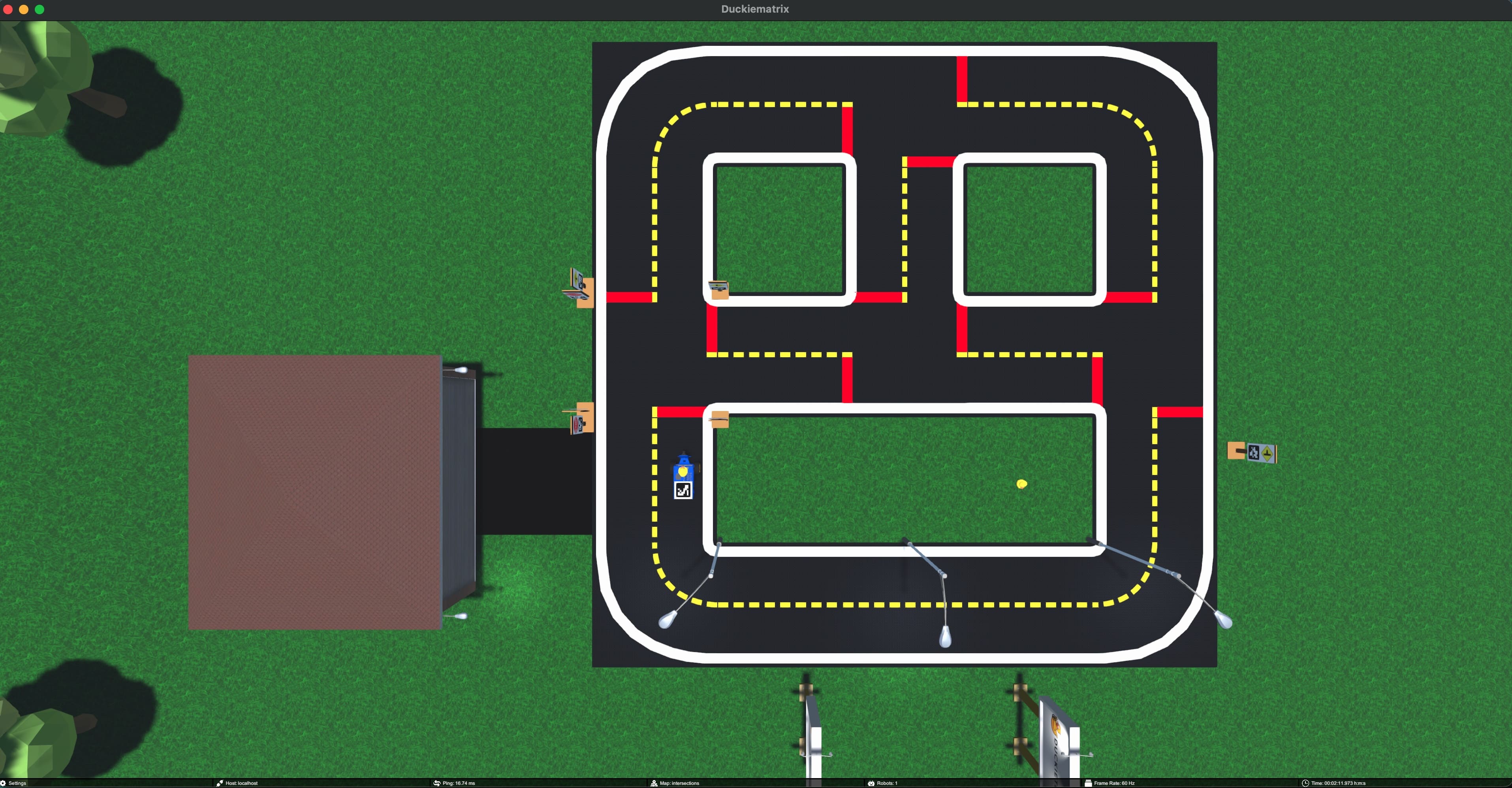
Fig. 8 The default intersections map.#
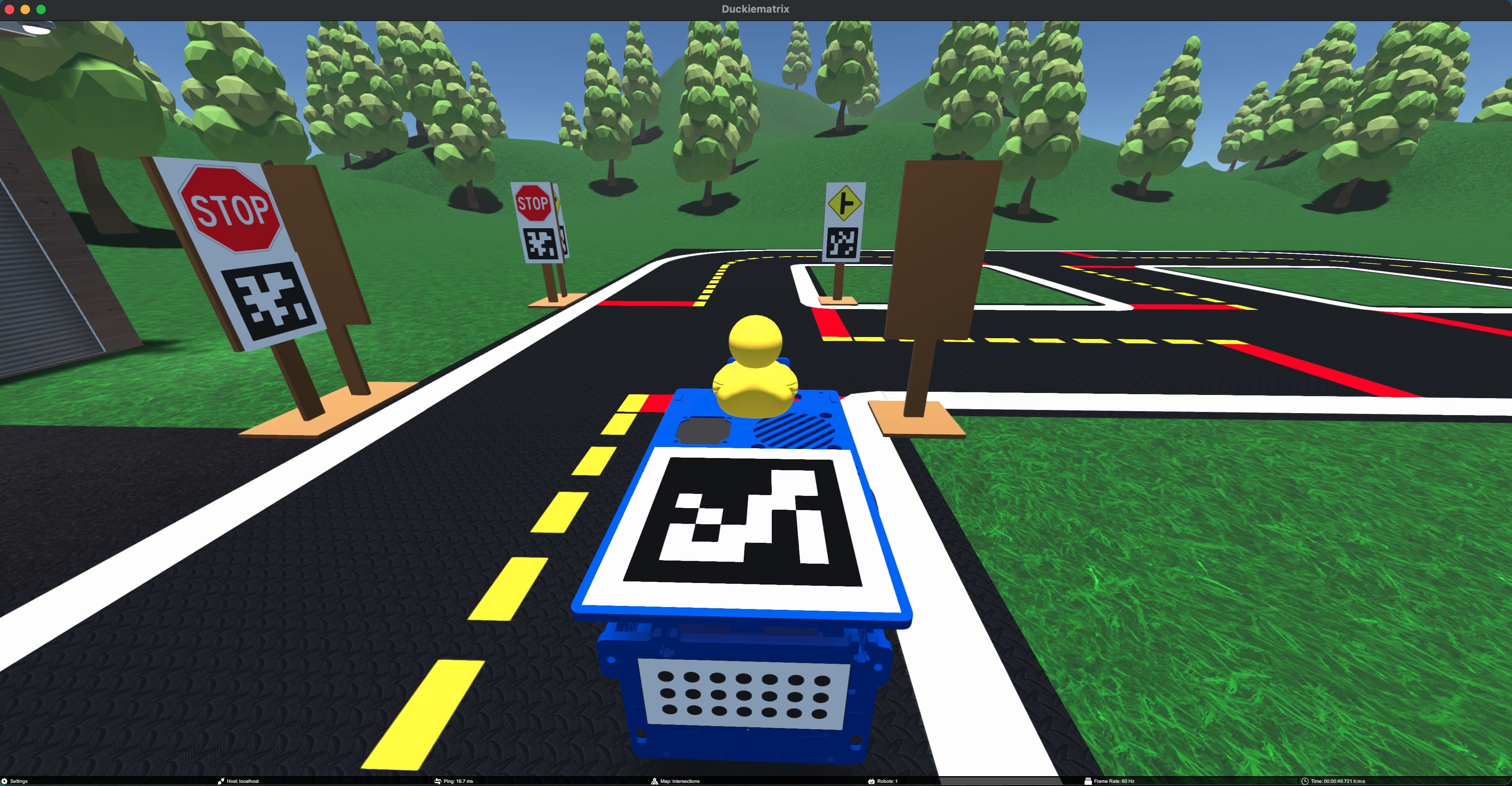
Fig. 9 The default intersections map from a Duckiebot’s point of view.#
loop: 3x3 tiles minimal road loop; the smallest legal Duckietown. One DB21 Duckiebot on the track.
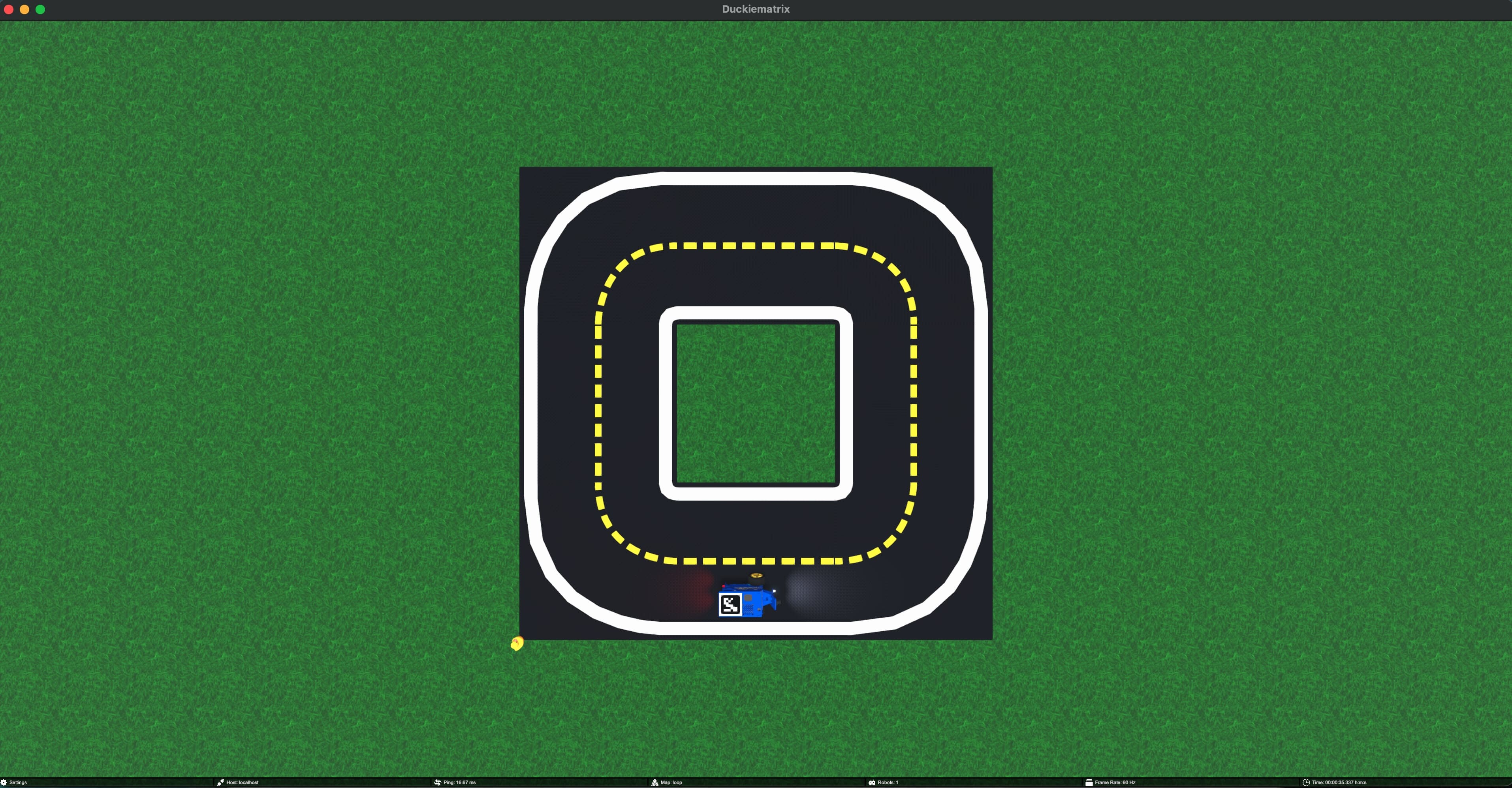
Fig. 10 The default loop map: the minimal Duckietown.#
In summary, dts matrix run --standalone --embedded --map sandbox does the following:
Downloads and installs the latest version of the Duckiematrix if it is not already installed.
Starts it on your local machine and loads the
sandboxmap.
Note
If you are using a Duckietown Workspace, dts matrix run --standalone starts the Duckiematrix Engine in the
environment where the command is run. If dts is installed on the host
machine, this command can be run from inside the Duckietown Workspace and
is automatically delegated to the host machine, where it launches the
native Renderer. For the split Duckietown Workspace workflow, start the
Engine separately and run dts matrix run inside or outside the
Duckietown Workspace.
Using a Custom Map#
The Duckiematrix map loaded in the Engine can be locally defined. To learn how to create a compliant map read: creating Duckiematrix compliant maps. This map can then be loaded by omitting the --embedded flag and specifying the path:
dts matrix run --standalone --map PATH_TO_MAP
Note
If you are using a Duckietown Workspace, dts matrix run --standalone starts the Duckiematrix Engine in the
environment where the command is run. If dts is installed on the host
machine, this command can be run from inside the Duckietown Workspace and
is automatically delegated to the host machine, where it launches the
native Renderer. For the split Duckietown Workspace workflow, start the
Engine separately and run dts matrix run inside or outside the
Duckietown Workspace.