LX: Localization - Extended Kalman Filter (EKF)
Contents
LX: Localization - Extended Kalman Filter (EKF)#
What you will need
Learning experience computer setup: General Procedure for Running Learning Experiences
(recommended) A successful Duckiematrix installation: Duckiematrix installation
(optional) A “Ready to Go” Duckiebot: Getting Started with your Duckiebot
What you will get
Running the Localization - Extended Kalman Filter learning experience.
This learning experience is about how we should use the data streaming through the sensors, together with the knowledge of our surroundings, to estimate our state. The so-called optimal approach to this is the Bayes filter, however, this approach is computationally intractable in all but the simplest settings. We will explore several approximations to the Bayes filter. Namely, the Kalman filter, the particle filter, and the histogram filter. Each has its own assumptions and conditions under which it is most applicable. Finally, you will program an extended Kalman filter, or EKF, to localize your Duckiebot using the data from the wheel encoders and the AprilTag fiducial markers that you observe at known locations.
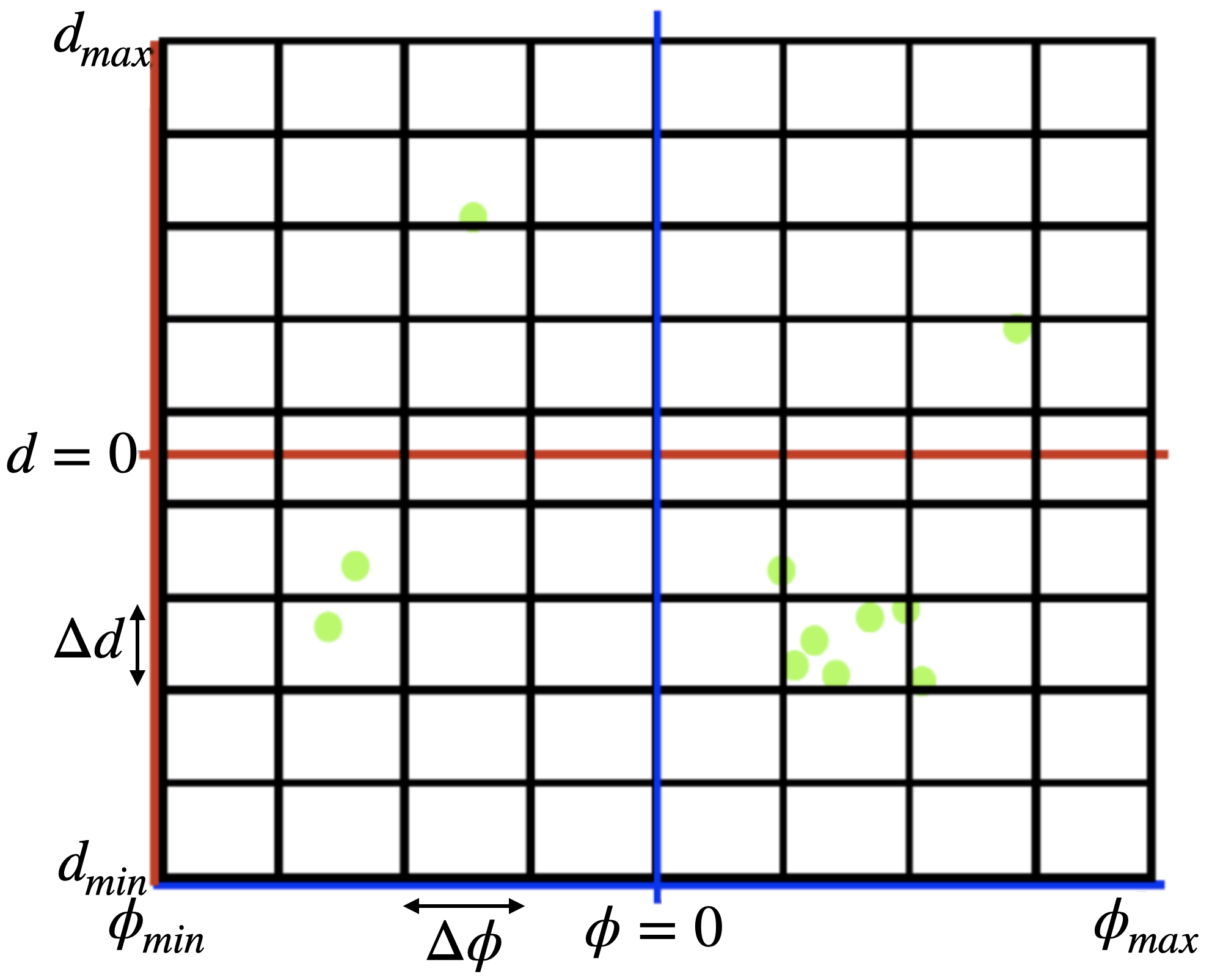
Fig. 179 Welcome to the EKF - Localization LX!#
Intended Learning Outcomes
After this learning experience, you will:
Learn about Kalman filters: from the theory to implementation details.
Learn about Particle filters: from the theory to implementation details.
Learn about Histogram filters: from the theory to implementation details.
Be able to evaluate advantages and disadvantages of each approach given different scenarios.
Be able to design, tune and test an extended Kalman Filter for achieving map-based localization, fusing wheel encoder and AprilTag-based pose measurement.
Warning
If you are using a Duckietown Workspace, the WebGL (browser) versions of the Duckietown Viewer and
Duckiematrix can be run inside or outside the Duckietown Workspace. If
dts is installed on the host machine, commands that launch native
Duckietown Viewer apps or the Duckiematrix Renderer, such as dts matrix run, can also be run in either location. When one of these commands is
run inside the Duckietown Workspace, it is automatically delegated to the
host machine, where it launches the native UI. The --standalone flag
starts the Duckiematrix Engine in the environment where the command is run.
About these learning activities#
For guided setup instructions, lecture content, and more related to this LX, see our Self-Driving Cars with Duckietown MOOC on EdX.
Note
This exercise can be run on a virtual Duckiebot in the Duckiematrix or on a physical Duckiebot using the off-board agent workflow. The on-board agent workflow is a work in progress.
Forking the repository#
1. Create a fork#
Navigate to the lx-ekf-localization repository.
Find and press the “Fork” button on the top right:
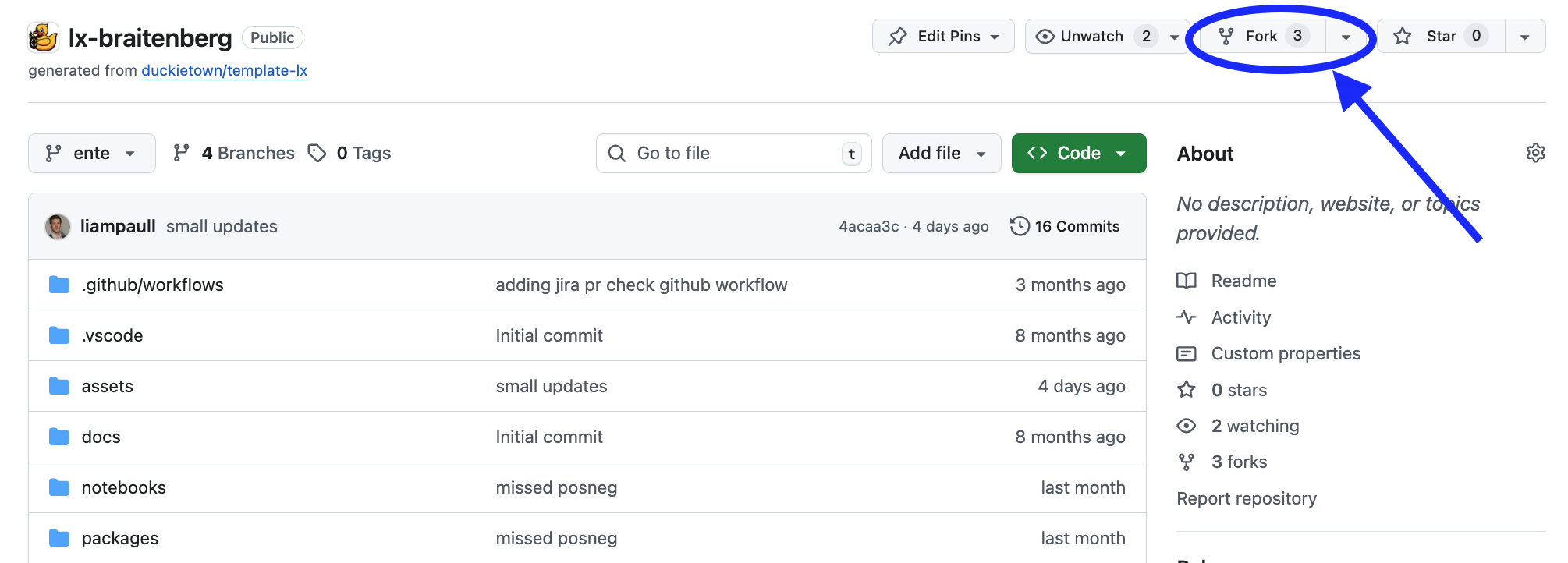
Fig. 180 Fork the LX to be able to make local changes while still being able to receive updates.#
This will create a new repository at: <your_github_username>/lx-ekf-localization.
2. Clone the fork#
Clone the fork on your computer, replacing your GitHub username in the command below, and navigate to the new folder:
git clone [email protected]:<your_github_username>/lx-ekf-localization
cd lx-ekf-localization
3. Configure the upstream repository#
Configure the Duckietown version of this repository as the upstream repository to synchronize with your fork.
List the current remote repository for your fork:
git remote -v
Specify a new remote upstream repository:
git remote add upstream https://github.com/duckietown/lx-ekf-localization
Confirm that the new upstream repository was added to the list:
git remote -v
You can now push your work to your own repository using the standard GitHub workflow, and the beginning of every exercise will prompt you to pull from the upstream repository, updating your exercises to the latest version (if available).
Keeping your System Up To Date#
💻 These instructions are for
entelearning experiences. Ensure your Duckietown Shell is set to anenteprofile (and not adaffyone). You can check your current profile with:dts profile list
To switch to an ente profile, follow the Duckietown Manual DTS installation instructions.
💻 Pull from the upstream remote to synchronize your fork with the upstream repository:
git pull upstream ente
💻 Make sure your Duckietown Shell is updated to the latest version:
pipx upgrade duckietown-shell
💻 Update the shell commands:
dts update💻 Update your laptop/desktop:
dts desktop update
🚙 Update your Duckiebot (even if it is a virtual one):
dts duckiebot update DUCKIEBOT_NAME
(where
DUCKIEBOT_NAMEis the name of your physical or virtual Duckiebot.)
Launching the Code Editor#
Important
All dts code commands should be run from the root directory of the learning experience.
Making sure you are inside the path of this learning experience (cd ./path-to-lxs-in-your-workstation/lx-ekf-localization), then open the code editor:
dts code editor
Wait for a URL to appear on the terminal, then click on it or copy-paste it in the address bar of your browser to access the code editor.
The first thing you will see in the code editor is a version of these instructions. At this point you can start following the LX-specific indications shown in your code editor.
Walkthrough of Notebooks#
Inside the code editor, use the navigator sidebar on the left-hand side to navigate to the
notebooks directory and open the first notebook.
Follow the instructions on the notebook and work through them in sequence.
In many cases the last notebook will instruct you to write some code inside the learning experience directory.
Once you have done that you will need to build your code before testing it.
Testing with the Duckiematrix#
To test your code in the Duckiematrix, attach either a physical or virtual robot to a Duckiematrix Entity. The steps below use a virtual robot; for instructions on attaching a physical robot, see Attaching a Robot to a Remote Engine.
1. Creating and starting virtual Duckiebot#
If you have not done so already (e.g., for a different LX), you can create a virtual Duckiebot with the command:
dts duckiebot virtual create --type duckiebot --configuration DB21J ROBOT_NAME
When you run the command, DTS prompts you to enter and confirm the password for the virtual robot’s duckie account; the characters you enter are not displayed. ROBOT_NAME is the hostname. It can be anything you like, subject to the same naming constraints of physical Duckiebots.
Then you can start your virtual robot with the command:
dts duckiebot virtual start ROBOT_NAME
You should see it with a status Booting and finally Ready if you look at dts fleet discover:
    | Hardware |   Type    | Model |  Status  | Address
---  | -------- | --------- | ----- | -------- | ---------
ROBOT_NAME |  virtual | duckiebot | DB21J |  Ready   | ROBOT_NAME.local
Once you are done for the day, do not forget to stop your virtual robot:
dts duckiebot virtual stop ROBOT_NAME
If in doubt if any of your virtual Duckiebots in running or not, you can check the status of your virtual scuderia at any time with:
dts duckiebot virtual list
2. Starting the Duckiematrix with the virtual Duckiebot#
Now that your virtual robot is ready, you can start the Duckiematrix. From this LX directory:
dts code start_matrix [--no-renderer]
Note
If you are using a Duckietown Workspace, run dts code start_matrix --no-renderer inside the Duckietown
Workspace. If dts is installed on the host machine, then run dts matrix run inside or outside the Duckietown Workspace. When the command is run inside the
Duckietown Workspace, the command is automatically delegated to the host
machine, where it launches the native Renderer.
You will see the Unity-based Duckiematrix simulator start up. The startup screen will look like:
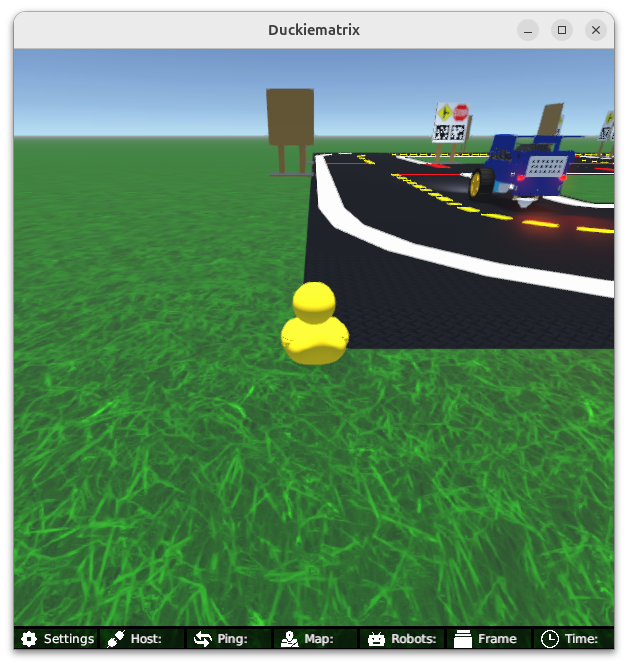
Fig. 181 In this LX you will be greeted by a slightly more complex Duckietown than in previous ones.#
From here you can click anywhere on the window and click ENTER to make it become active, and then move the duckie towards the Duckiebot with the w, a, s, and d keys, and you can move the camera angle to view the Duckiebot with the mouse.
If you are close enough to your Duckiebot, you can board it with the E key, which should look like
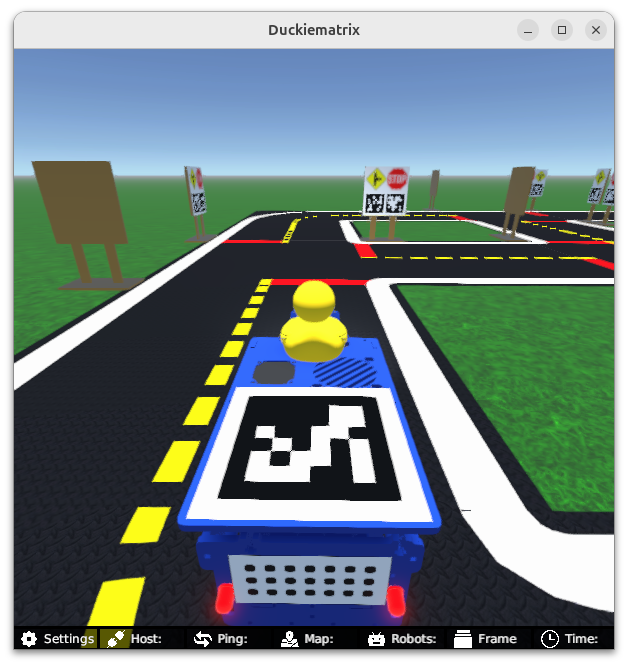
Fig. 182 After boarding your Duckiebot you will be able to move it around manually with WASD.#
You can then you can drive the Duckiebot around with the ‘w’, ‘a’, ‘s’, and ‘d’ keys. You will notice that this map includes traffic signs with fiducial markers (AprilTags) that we are going to use in this LX to help localize your robot.
If you get very lost from the road and you want to come back, you can do so with the R key.
Note
You should reset your Duckiebot’s position with R before each test because the initial state estimate coincides with the reset position.
To run the WebGL (browser) version of the Duckiematrix, add the --browser flag.
Note
For the WebGL (browser) version of the Duckiematrix, if the colors look desaturated, try a different browser.
Building the Code#
From inside the learning experience root directory, you can build your code with:
dts code build -R ROBOT_NAME
where ROBOT_NAME can be either a physical or virtual robot.
Testing on a Duckiebot or in the Duckiematrix#
🚙 To test your code on your physical Duckiebot you can do:
dts code workbench -R ROBOT_NAME
💻 To test your code on a virtual robot in the Duckiematrix:
dts code workbench -m -R ROBOT_NAME
(note the -m flag which means that we are running in the matrix.)
In another terminal, you can launch the noVNC viewer for this exercise and open RViz:
dts code vnc -R ROBOT_NAME
where ROBOT_NAME could be the physical or the virtual robot (use whichever you ran the dts code workbench and dts code build command with).
This will show you your published pose estimate (blue arrow with a covariance ellipse in purple) as well the ground truth pose of the robot (red arrow which should be inside the ellipse if your implementation is correct).
You will also see markers that correspond to the AprilTag traffic signs in the map. As each one is detected by your camera you will see it change color from green to blue. At initialization, it should like this:
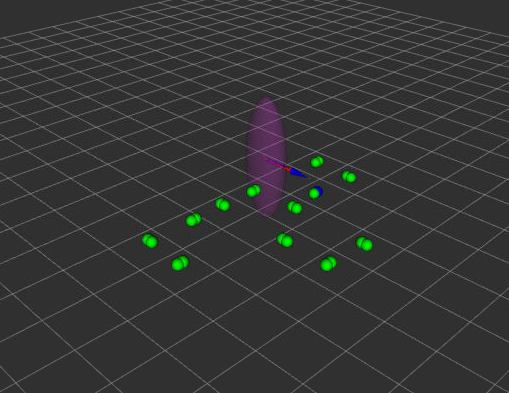
Fig. 183 RViz initialization showing the estimated pose, ground-truth pose, and AprilTag markers.#
You can also look at an image that shows the tags that are being detected. It is published on the topic /ROBOT_NAME/detections/image/compressed (for example you can view with rqt_image_viewer).
This output should look like this:
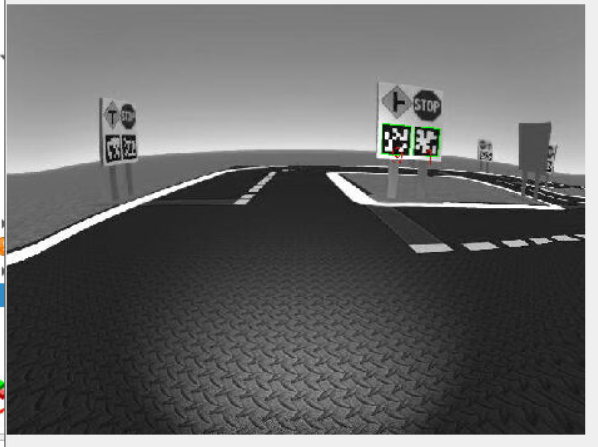
Fig. 184 AprilTag detections.#
You may also use the keyboard controller to pilot your robot and test that the localization performance of your Duckiebot as it moves.
Troubleshooting#
Troubleshooting
SYMPTOM
When I run dts code editor, I get the error dts : No valid DTProject found at '/path/to/lx'.
RESOLUTION
Make sure you are executing the commands from inside a learning experience folder (e.g., */lx-ekf-localization/)
Troubleshooting
SYMPTOM
My virtual robot hangs indefinitely when I try to update it.
RESOLUTION
Try to restart it with the following command, where ROBOT_NAME is the name of your virtual robot:
dts duckiebot virtual restart ROBOT_NAME