Image Streaming (Make it See!)
Contents
Image Streaming (Make it See!)#
This section describes how to see access the Duckiebot’s camera stream. Three methods are shown, one to access the images as the Duckiebot sees them, and two to access images as humans see them.
What you will need
A correctly assembled Duckiebot: Testing the Hardware Components
(for most methods) A functional
dtsinstallation: Duckietown Shell (dts)You can ping the Duckiebot with
ping DUCKIEBOT_NAME.local. If not: Network Configuration in Duckietown
What you will get
Visualizing Duckiebot’s camera image stream in different ways
The Duckietown Image Viewer#
One of the easiest ways to see your Duckiebot’s camera stream is by using the Image Viewer.
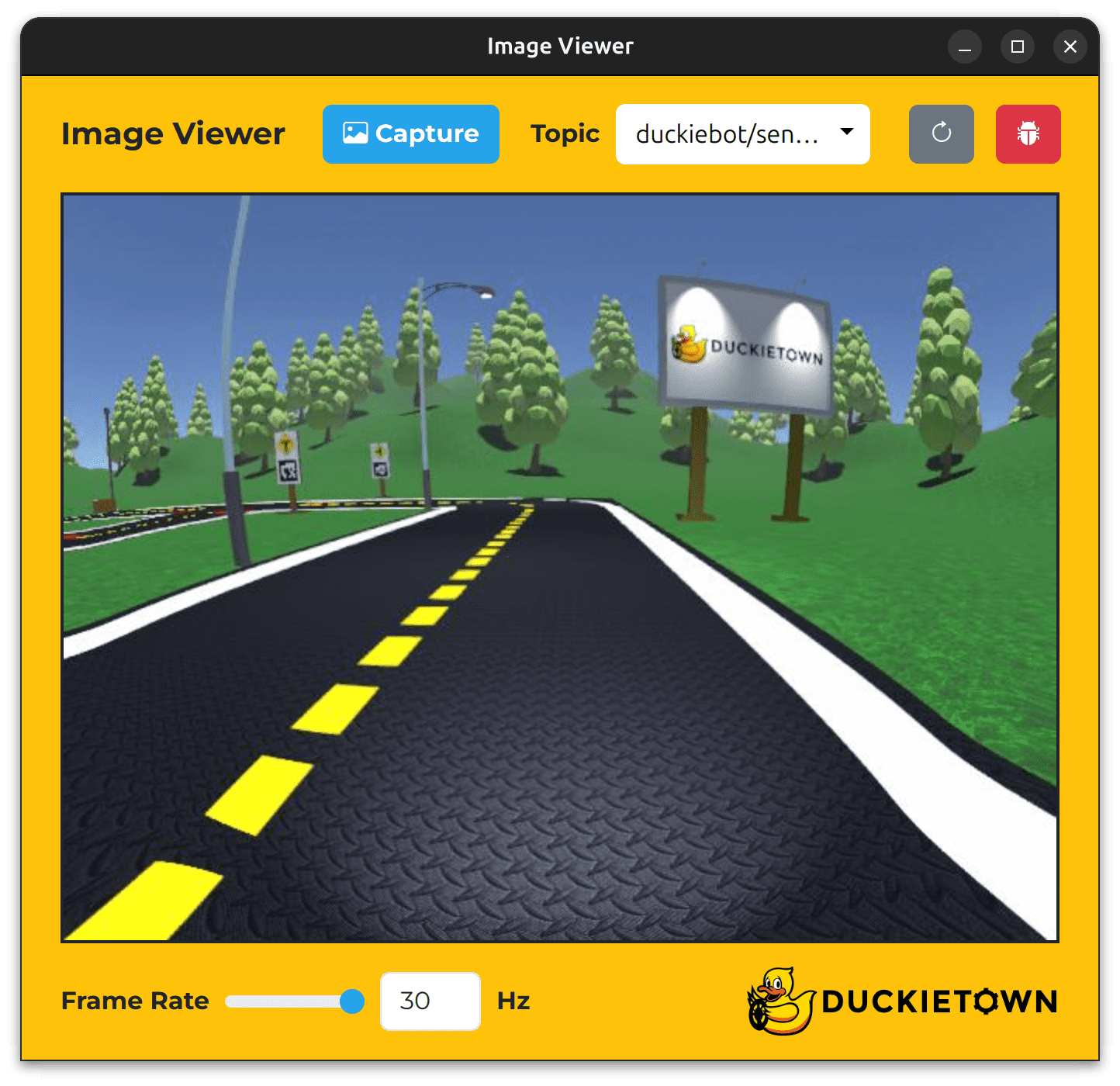
Fig. 55 The Duckietown “Image Viewer” helps visualize the Duckiebot’s camera stream.#
Attention
Before proceeding, make sure that you can ping your Duckiebot using the following command, where DUCKIEBOT_NAME is the name of your Duckiebot:
ping DUCKIEBOT_NAME.local
To open the Image Viewer, run the following command, where the --browser flag opens the WebGL (browser) version:
dts duckiebot image_viewer DUCKIEBOT_NAME [--browser]
To open the Image Viewer, if dts is installed on the host machine, run the following command from a terminal inside the Duckietown Workspace or on the host machine:
dts duckiebot image_viewer DUCKIEBOT_NAME
Note
This command will be delegated to the host machine if it is run inside the Duckietown Workspace.
Note
The first time a Duckietown Viewer app is run, a pop-up window may appear and request permission. Enter your password and select “(Always) Allow” to continue.
Alternatively, to open the WebGL (browser) version of the Image Viewer, open a terminal inside the Duckietown Workspace or on the host machine (if dts is installed on the host machine) and run:
dts duckiebot image_viewer DUCKIEBOT_NAME --browser
Note the keys in the table below.
Key |
Function |
|---|---|
X |
Increase the |
Z |
Decrease the |
Space |
Capture an image |
R |
Refresh the window |
T |
Open the |
Through the browser: the Duckietown Dashboard Mission Control page#
After setting up the robot dashboard Dashboard Setup, the image stream is accessible on the Mission control page of your Duckiebot Dashboard.
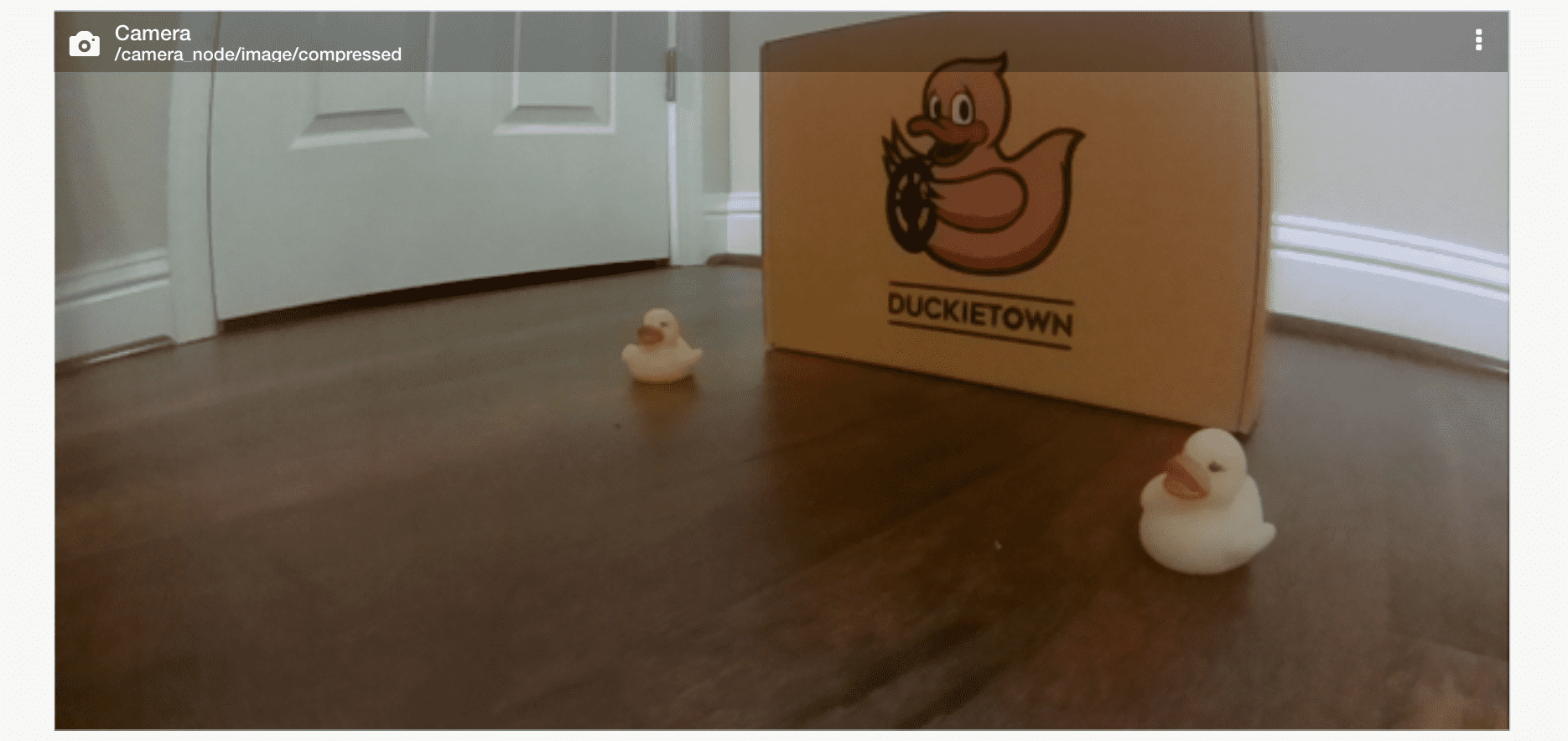
Fig. 56 The Dashboard Robot > Mission Control page shows basic sensor and actuator data streams.#
By default, the camera stream in the Dashboard is throttled down to 8 frames per second. This is to minimize the resources used by your browser while streaming images from the robot, and it is not representative of the actual streaming frequency of images (which should be between 20-30Hz). Feel free to increase the data stream frequency in the Properties tab of the camera block.
Tip
If you see a black image in the camera block, or background noise, make sure that you removed the protective cap that covers the camera lens of your Duckiebot.
Attention
There is a known bug that causes the image stream to flicker in Mozilla Firefox. Switch to a different browser, such as Chrome, to bypass it.
Note
Virtual Duckiebots will not show any image unless they are attached to a Duckiematrix Engine.
Viewing the Image Stream on Your Laptop through rqt image view#
The camera image is streaming from your Duckiebot by default on startup.
To see it, open a terminal and run:
dts gui DUCKIEBOT_NAME
This will start a container with access to the ROS topics, messages and parameters of the Duckiebot, including the image stream from the camera.
Your terminal has now turned into a command line interface running inside of that container within the Duckiebot. You can exit the container back to your normal terminal interface at any time by running the exit command.
To view the camera stream, run:
rqt_image_view
The command will open a window where you can view the image.
You will have to select the camera_node/image/compressed topic from the drop-down menu:
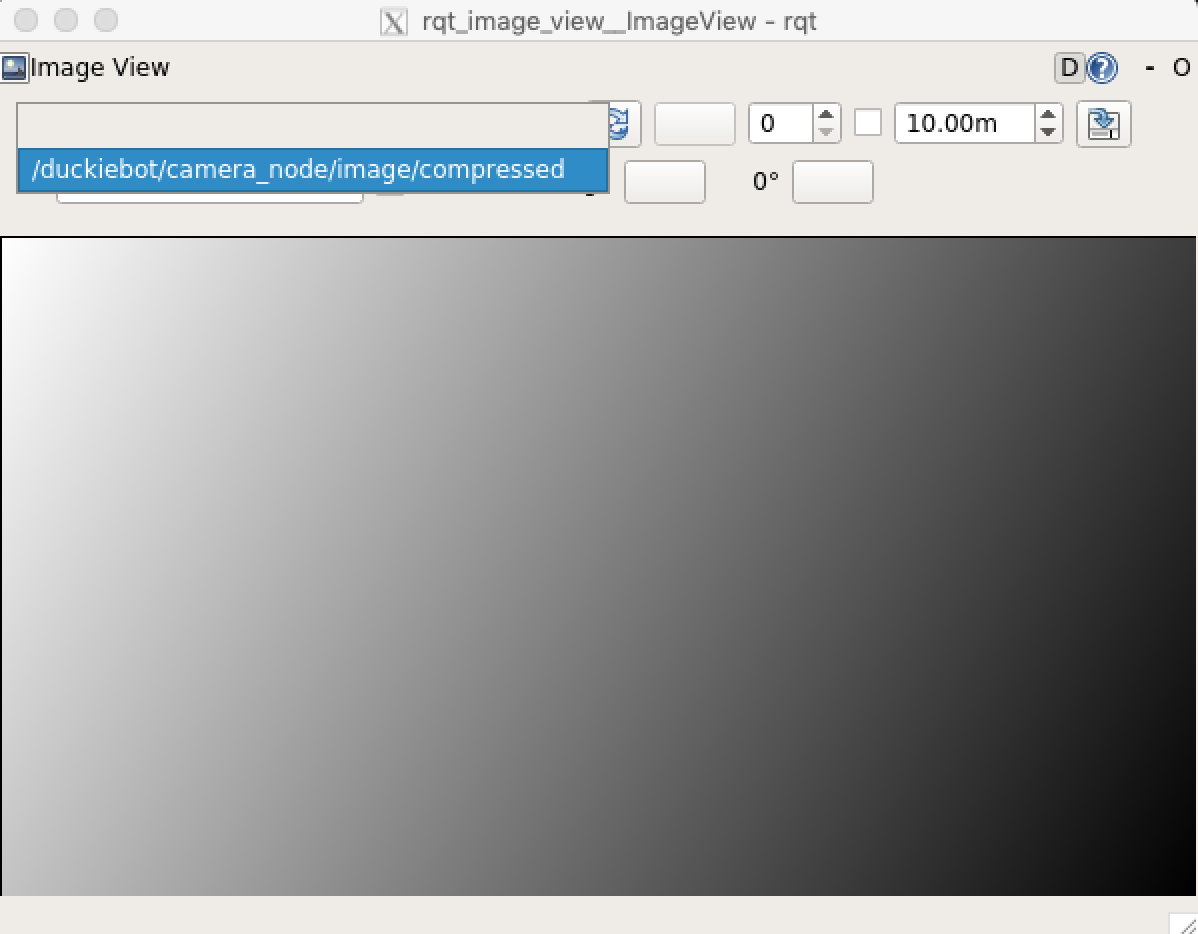
Fig. 57 The rqt image view window with dropdown menu - select the camera_node/image/compressed topic.#
How to save a picture from rqt_image_view#
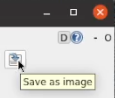
On the top right of the rqt_image_view window, there is a button to save the current frame to an image. But do not save it yet. A little extra setup is needed to be able to view that file later.
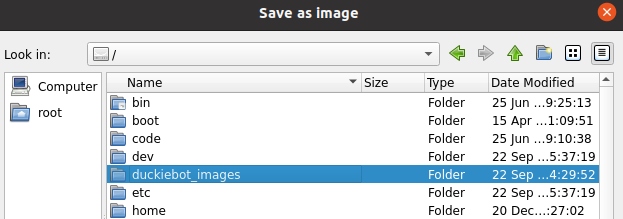
Create a folder on you laptop for where you would like to have the image saved to, say ~/duckiebot_images/. Then, launch the gui with the following command:
dts gui --mount ~/duckiebot_images/:/duckiebot_images [DUCKIEBOT_NAME]
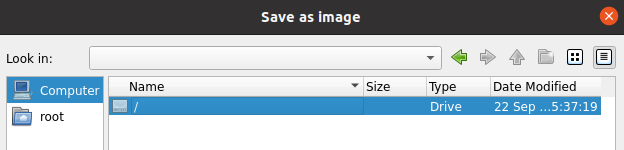
Then, run rqt_image_view again, and use the top-right “Save as image” button to save to the /duckiebot_images folder. To find that folder, you might need to navigate to Computer and select / directory in the pop-up dialogue.
And the saved image from your robot’s view should appear in the folder you created!
How to see images as the robot sees them#
While in the gui tools terminal, run:
rostopic list
If using the baseline ROS image from Duckietown, you will see list of ROS topics. Without getting in the details of ROS at this stage (check the learning experiences for additional information), you will find a topic named TOPIC_NAME with camera_node/image/compressed in it. Run:
rostopic echo TOPIC_NAME
to see the data (messages) being transmitted over that channel (topic). Press CTRL-C to stop the stream and go back to the terminal.
Troubleshooting#
Troubleshooting
SYMPTOM
I can see messages being sent from my Duckiebot when looking at the DUCKIEBOT_NAME/sensor/camera/front_center/jpeg DTPS topic, after following Duckietown Postal Service (DTPS), but I do not see an image.
RESOLUTION
Make sure that the duckiebot-interface container is running by checking the Portainer page of the Dashboard (opened by running dts duckiebot dashboard DUCKIEBOT_NAME --page portainer) or by running:
docker -H DUCKIEBOT_NAME.local ps
The exact name of the container will depend on your Duckiebot’s version. If you do not see the duckiebot-interface container, update your Duckiebot by running:
dts duckiebot update DUCKIEBOT_NAME
Troubleshooting
SYMPTOM
I cannot see an image after refreshing the window and I cannot see messages being sent from my Duckiebot when looking at the DUCKIEBOT_NAME/sensor/camera/front_center/jpeg DTPS topic, after following Duckietown Postal Service (DTPS).
RESOLUTION
Contact support.
Troubleshooting
SYMPTOM
I see a black image.
RESOLUTION
Make sure that the protective cap for your Duckiebot’s camera lens has been removed.
Troubleshooting
SYMPTOM
I see an extremely noisy image.
RESOLUTION
Make sure that the protective cap for your Duckiebot’s camera lens has been removed.
Troubleshooting
SYMPTOM
The images are out of focus.
RESOLUTION
The focus for your Duckiebot’s camera can be manually adjusted by rotating the mechanical focus ring on the lens. When dealing with hardware, exercise care and minimize the use of force. Occasionally, cameras come with the lens glued in place. If the lens does not rotate, you may need to break the glue.