LED control (Make it Shine!)
Contents
LED control (Make it Shine!)#
What you will need
A correctly assembled Duckiebot: Testing the Hardware Components
(for most methods) A functional
dtsinstallation: Duckietown Shell (dts)You can ping the Duckiebot with
ping DUCKIEBOT_NAME.local. If not: Network Configuration in Duckietown
What you will get
Control the Duckiebot’s LEDs intensity and color.
Duckiebots have four LEDs, positioned similarly to the head and tail lights on a car. This section describes how to control the LEDs on your Duckiebot through the LED Controller.
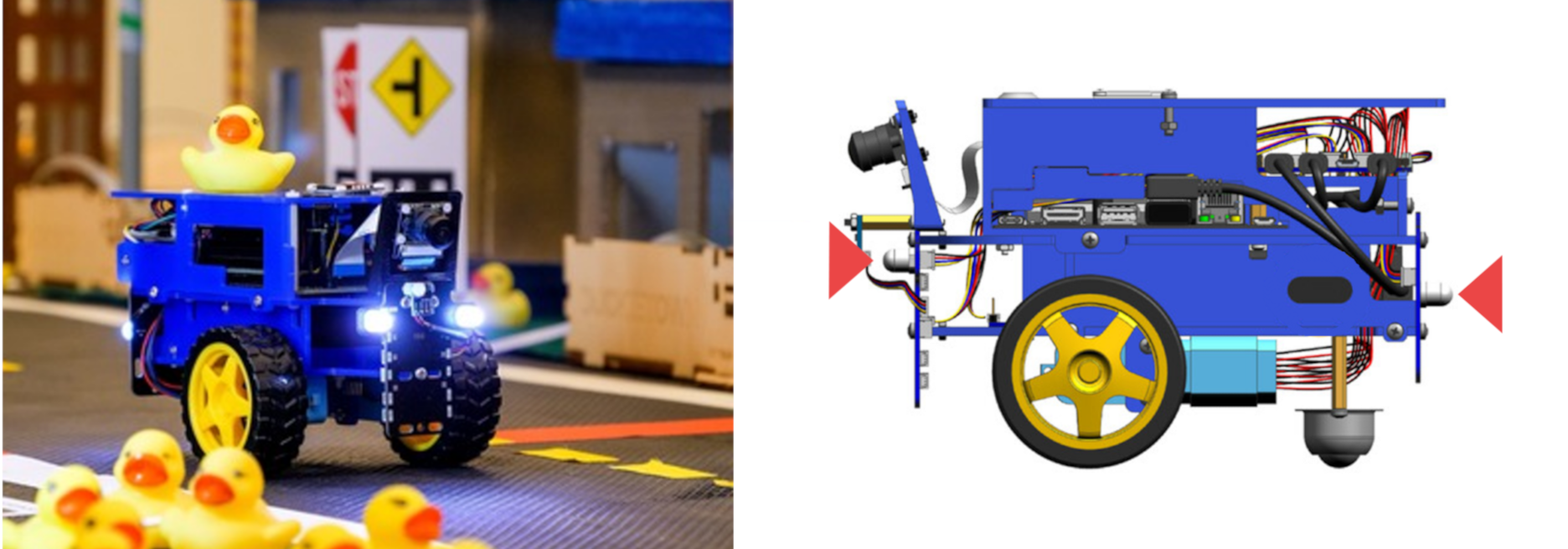
Fig. 58 A Duckiebot with the LEDs shining white (left) and a diagram with arrows indicating the front and back LEDs (right).#
Using LEDs on Duckiebots#
LEDs are more than just lights. As actuators on a Duckiebot, they can serve several purposes:
They indicate the mode or mission the Duckiebot is running.
They communicate state changes in the controller.
They signal upcoming turns or other navigational plans.
They express character and personality.
They light the driving environment.
A manual way to control your Duckiebot’s LEDs is by using the LED Controller.
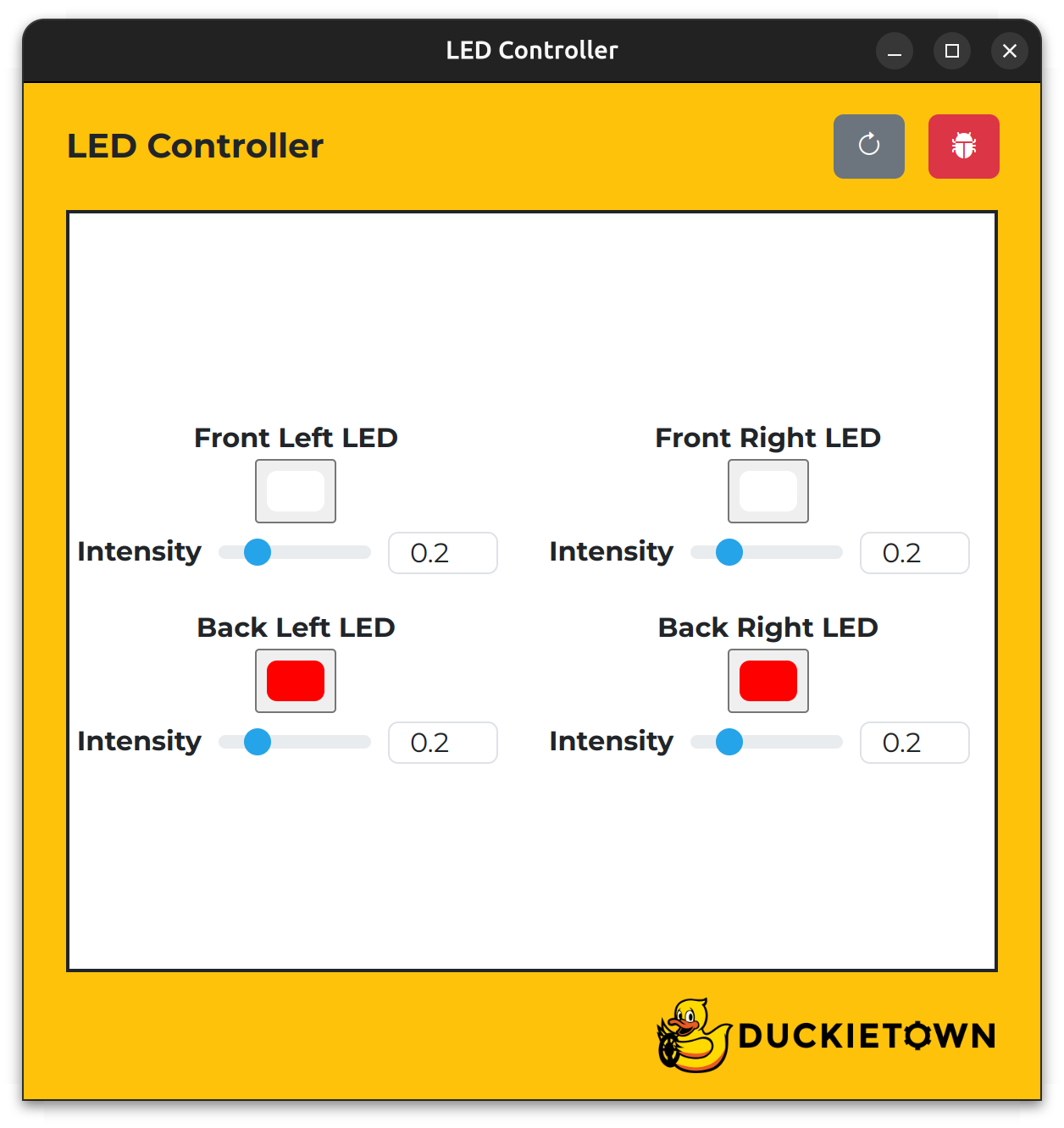
Fig. 59 The LED Controller interface is a simple way for controlling color and intensity of the Duckiebot’s LEDs.#
Attention
Before proceeding, make sure that you can ping your Duckiebot using the following command, where DUCKIEBOT_NAME is the name of your Duckiebot:
ping DUCKIEBOT_NAME.local
To open the LED Controller, run the following command, where the --browser flag opens the WebGL (browser) version:
dts duckiebot led_control DUCKIEBOT_NAME [--browser]
To open the LED Controller, if dts is installed on the host machine, run the following command from a terminal inside the Duckietown Workspace or on the host machine:
dts duckiebot led_control DUCKIEBOT_NAME
Note
This command will be delegated to the host machine if it is run inside the Duckietown Workspace.
Note
The first time a Duckietown Viewer app is run, a pop-up window may appear and request permission. Enter your password and select “(Always) Allow” to continue.
Alternatively, to open the WebGL (browser) version of the LED Controller, open a terminal inside the Duckietown Workspace or on the host machine (if dts is installed on the host machine) and run:
dts duckiebot led_control DUCKIEBOT_NAME --browser
To control your Duckiebot’s LEDs, use the buttons and sliders to change their colors and intensities, respectively.
Note the keys in the table below.
Key |
Function |
|---|---|
R |
Refresh the window |
T |
Open the |
Note
The color dropper tool is not operational yet.
Troubleshooting#
Troubleshooting
SYMPTOM
I can see messages being sent to my Duckiebot when looking at the DUCKIEBOT_NAME/actuator/lights/base/pattern DTPS topic, after following Duckietown Postal Service (DTPS), but the LEDs do not update and the Components page of the Dashboard (opened by running dts duckiebot dashboard DUCKIEBOT_NAME --page robot/components) shows a red alert for the HUT.
RESOLUTION
If you have a HUT v3.1, follow Re-flashing the “HUT”.
Troubleshooting
SYMPTOM
My Duckiebot’s LEDs do not update and I cannot see messages being sent to my Duckiebot when looking at the DUCKIEBOT_NAME/actuator/lights/base/pattern DTPS topic, after following Duckietown Postal Service (DTPS).
RESOLUTION
Reach out for help: How to Get Help
Troubleshooting
SYMPTOM
I have re-flashed the HUT but the LEDs still do not update. Additionally, the ToF sensor and front bumper are not detected on the Components page of the Dashboard (opened by running dts duckiebot dashboard DUCKIEBOT_NAME --page robot/components). I may also be having issues with the screen.
RESOLUTION
Disconnect the ToF sensor from the front bumper and use the long I2C cable, that originally connected the front bumper to the HUT, to connect the ToF sensor directly to that same HUT port. Finally, reboot your Duckiebot. This procedure bypasses a known multiplexer issue on some front bumpers that can cause other issues with the HUT.
Troubleshooting
SYMPTOM
I have connected the ToF sensor directly to the same HUT port that the front bumper was originally connected to and rebooted my Duckiebot but the LEDs still do not update.
RESOLUTION
Make sure that the duckiebot-interface container is running by checking the Portainer page of the Dashboard (opened by running dts duckiebot dashboard DUCKIEBOT_NAME --page portainer) or by running:
docker -H DUCKIEBOT_NAME.local ps
The exact name of the container will depend on your Duckiebot’s version. If you do not see the duckiebot-interface container, update your Duckiebot by running:
dts duckiebot update DUCKIEBOT_NAME