Intrinsic camera calibration
Contents
What you will need
A working Duckiebot: Duckiebot Subsystems
A functional
dtsinstallation: Duckietown Shell (dts)A camera calibration pattern, such as one provided in a Duckiebox.
What you will get
A Duckiebot whose extrinsics camera calibration has been completed.
Intrinsic camera calibration#
The intrinsic camera calibration procedure identifies parameters that define the relationship between the 2D image plane and the 3D world around the Duckiebot. These parameters account for various optical specifications such as the camera’s focal length, the pixel aspect ratio, and the distortion field applied by the fisheye lens.
Tip
For optimal performance, repeat this procedure if you change the focus of the camera by rotating the lens.
The Intrinsics Calibrator#
Attention
Before proceeding, make sure that you can ping your Duckiebot using the following command, where DUCKIEBOT_NAME is the name of your Duckiebot:
ping DUCKIEBOT_NAME.local
To open the Intrinsics Calibrator, run the following command, where the --browser flag opens the WebGL (browser) version:
dts duckiebot calibrate_intrinsics DUCKIEBOT_NAME [--browser]
To open the Intrinsics Calibrator, if dts is installed on the host machine, run the following command from a terminal inside the Duckietown Workspace or on the host machine:
dts duckiebot calibrate_intrinsics DUCKIEBOT_NAME
Note
This command will be delegated to the host machine if it is run inside the Duckietown Workspace.
Note
The first time a Duckietown Viewer app is run, a pop-up window may appear and request permission. Enter your password and select “(Always) Allow” to continue.
Alternatively, to open the WebGL (browser) version of the Intrinsics Calibrator, open a terminal inside the Duckietown Workspace or on the host machine (if dts is installed on the host machine) and run:
dts duckiebot calibrate_intrinsics DUCKIEBOT_NAME --browser
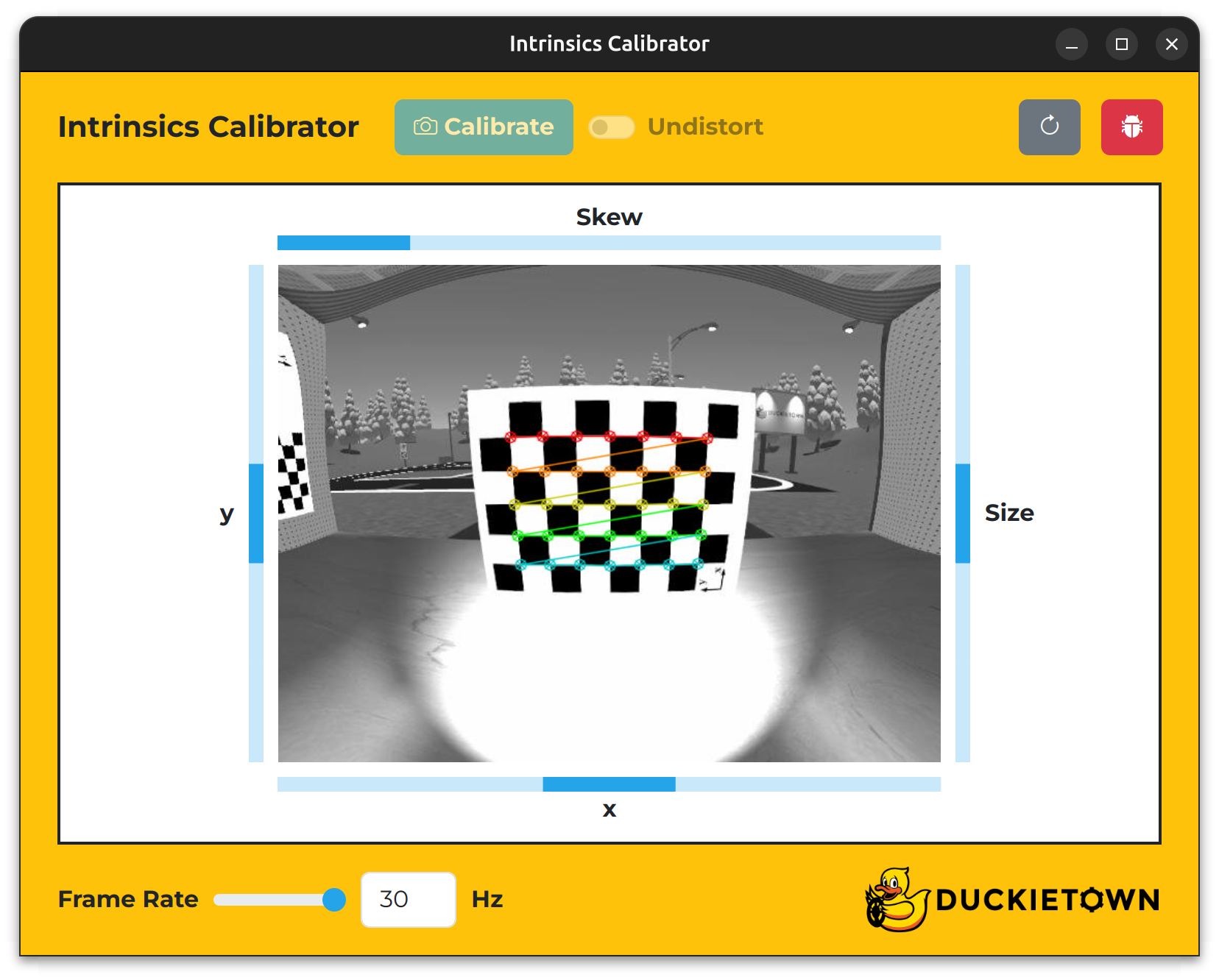
Fig. 64 The Duckietown intrinsics camera calibration interface.#
Note the keys in the table below.
Key |
Function |
|---|---|
X |
Increase the |
Z |
Decrease the |
Space |
Calibrate the camera |
F |
Toggle the |
R |
Refresh the window |
T |
Open the |
Intrinsic calibration procedure#
To perform the intrinsic calibration procedure:
Move the calibration pattern in front of your Duckiebot’s camera such that the entire checkerboard pattern is within its field of view and colored lines begin to overlay the checkerboard pattern.
Rotate the mechanical focus ring on the lens until you can clearly read the
xandylabels on the checkerboard pattern (do not adjust the focus again or place the lens cover back onto the lens unless you plan on repeating this procedure).Slowly move the calibration board left, right, up, down, forwards and backwards, relative to your Duckiebot’s camera, until each region within the
x,yandSizebars is filled in.Slowly tilt and pan the calibration board, relative to your Duckiebot’s camera, until each region within the
Skewbar is filled in.Click the
Calibratebutton.Wait for the spinner to disappear.
(Optional) Click the
Undistortswitch to see an undistorted view of what your Duckiebot sees.
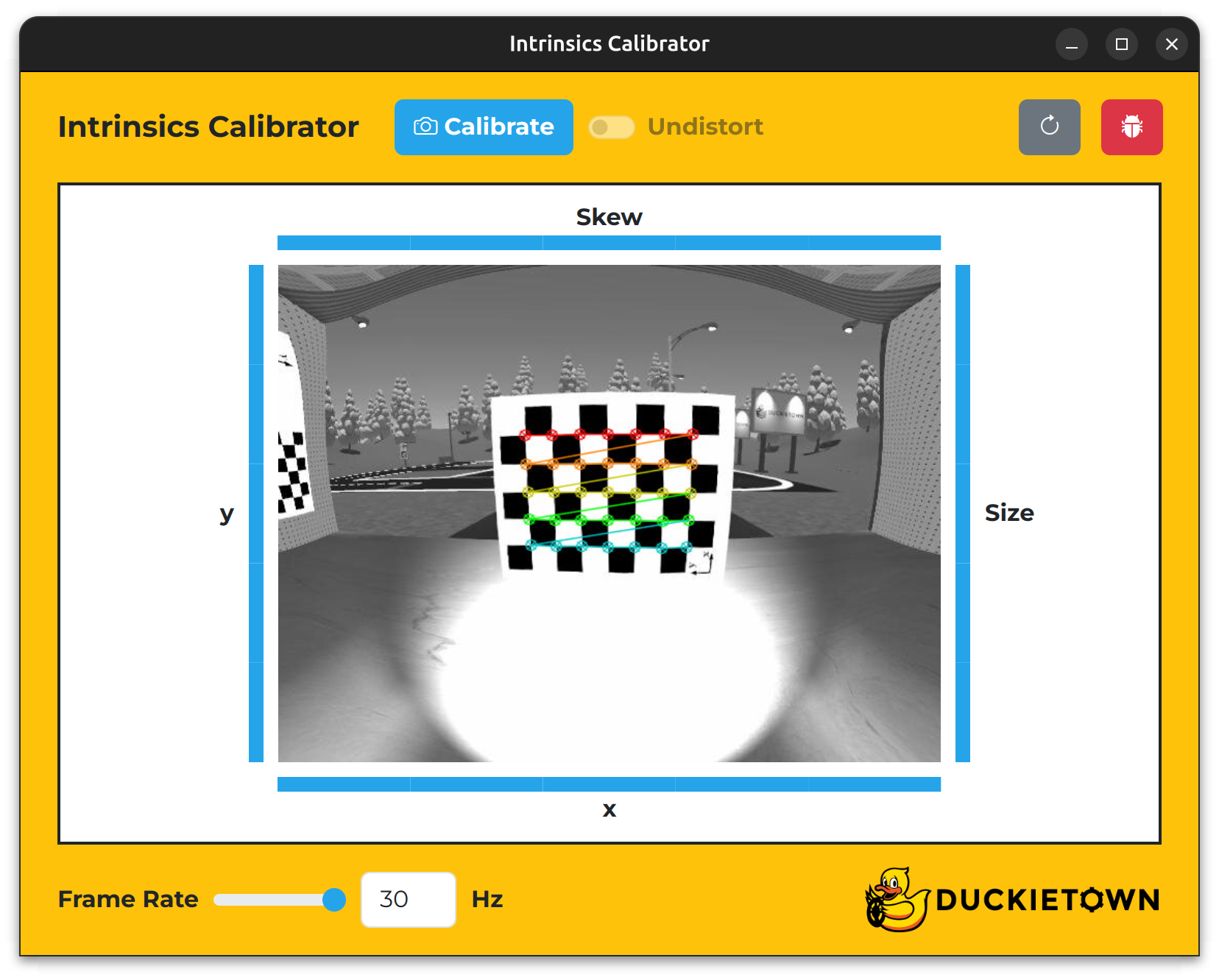
Fig. 65 The Duckietown intrinsics camera calibration interface (Intrinsics Calibrator) with all of its bars filled in.#
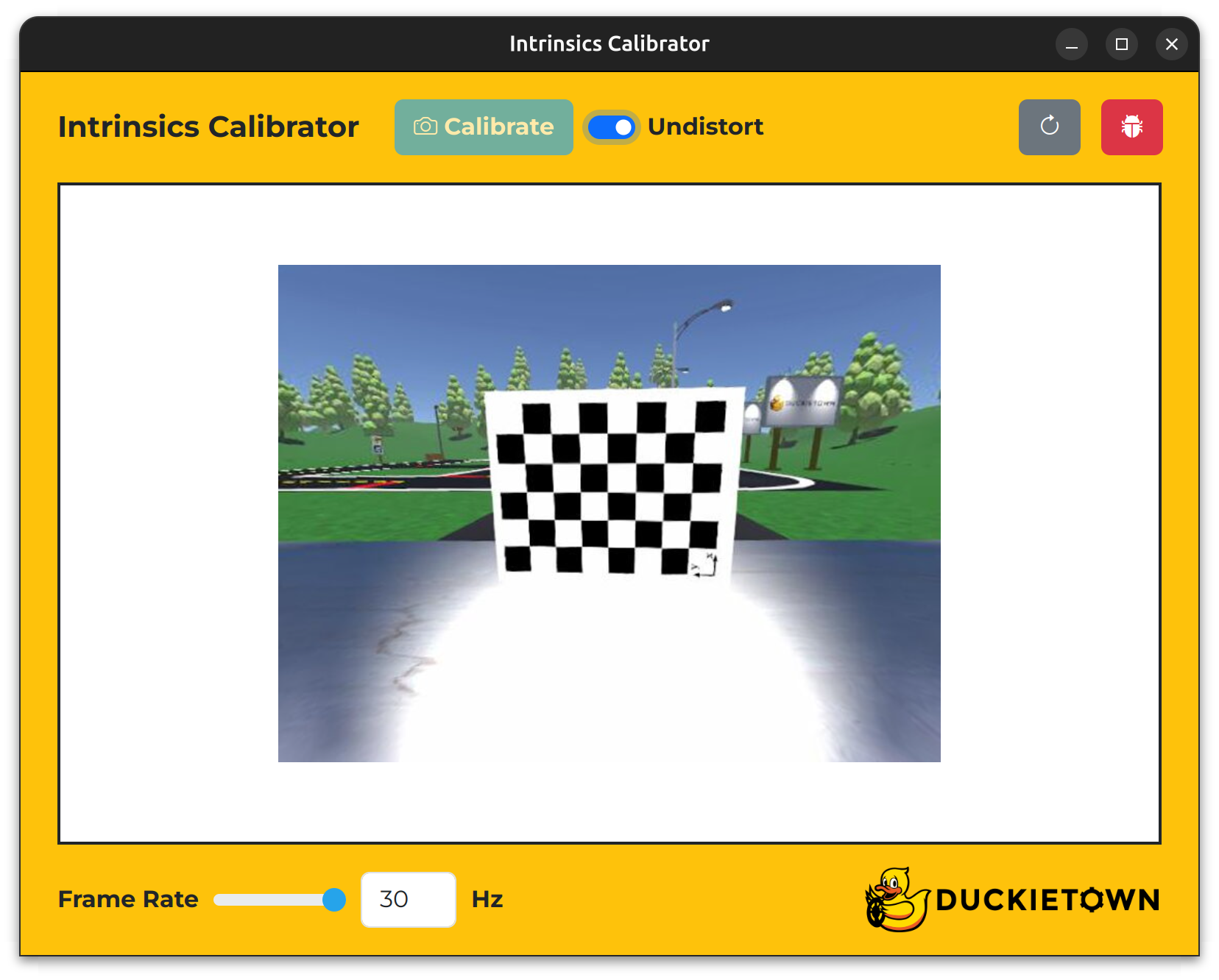
Fig. 66 The Intrinsics Calibrator with the Undistort switch set to on.#
To confirm that a new intrinsic calibration file has been created on your Duckiebot, run the following command and inspect the contents of the Camera Intrinsic panel:
dts duckiebot dashboard DUCKIEBOT_NAME --page robot/calibrations
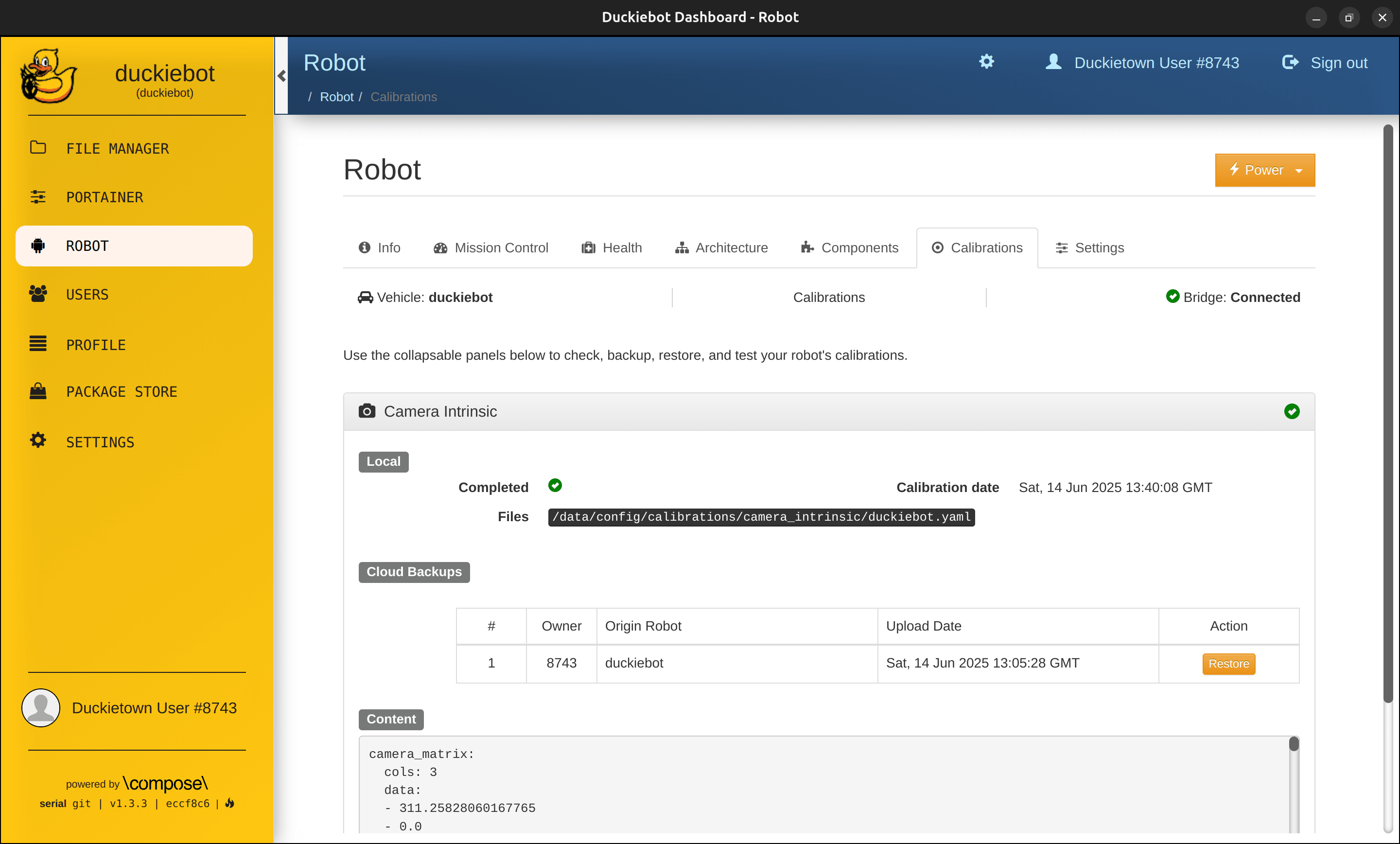
Fig. 67 The Camera Intrinsic panel on the Robot page of the Dashboard.#
Note
Within the Camera Intrinsic panel, under Local, you should see a tick next to Completed, the calibration date next to Calibration date and /data/config/calibrations/camera_intrinsic/DUCKIEBOT_NAME.yaml next to Files.
Troubleshooting#
Troubleshooting
SYMPTOM
When I open a calibrator window, I see a gray loading screen instead of images in the center. I know that the camera otherwise works on my Duckiebot.
RESOLUTION
Press the refresh icon on the top right of the calibrator window to restart the image stream.