🔥 🆕 LX: Lane Following - Integration
Contents
What you will need
Learning experience computer setup: General Procedure for Running Learning Experiences
(recommended) A successful Duckiematrix installation: Duckiematrix installation
(optional) A “Ready to Go” Duckiebot: Getting Started with your Duckiebot
What you will get
A Duckiebot autonomously following the lane in Duckietown.
🔥 🆕 LX: Lane Following - Integration#
This learning experience is designed to combine the knowledge gained from several of the simpler LXs into one more complex lane following autonomous behavior.
It also serves as an introduction to the dts devel API which you can use to create new behaviors in Duckietown.
For guided environment setup instructions, lecture content, and more related to this LX, see the EdX course page.
Intended Learning Outcomes
After this learning experience, you will be able to:
Use the
dts develAPI to deploy your code and create new behaviors in Duckietown.Integrate the knowledge gained from previous LXs such as modeling, control, computer vision, filtering, etc., into a more complex lane following autonomous behavior.
Run and tune the autonomous lane following behavior on a Duckiebot in the Duckiematrix and on a physical Duckiebot.
Identify common pitfalls, and troubleshoot issues that arise when running the lane following behavior on a Duckiebot in different environments.
Available repositories
🔒 Instructor Solution Repository: this LX does not require a solutions repository.
To access solution repositories, become a Duckietown Instructor.
Warning
If you are using a Duckietown Workspace, the WebGL (browser) versions of the Duckietown Viewer and
Duckiematrix can be run inside or outside the Duckietown Workspace. If
dts is installed on the host machine, commands that launch native
Duckietown Viewer apps or the Duckiematrix Renderer, such as dts matrix run, can also be run in either location. When one of these commands is
run inside the Duckietown Workspace, it is automatically delegated to the
host machine, where it launches the native UI. The --standalone flag
starts the Duckiematrix Engine in the environment where the command is run.
About these learning activities#
For guided setup instructions, lecture content, and more related to this LX, see our Self-Driving Cars with Duckietown MOOC on EdX.
Note
This exercise can be run on a virtual Duckiebot in the Duckiematrix or on a physical Duckiebot using the off-board agent workflow.
Forking the repository#
1. Create a fork#
Navigate to the lx-lane-following repository.
Find and press the “Fork” button on the top right:
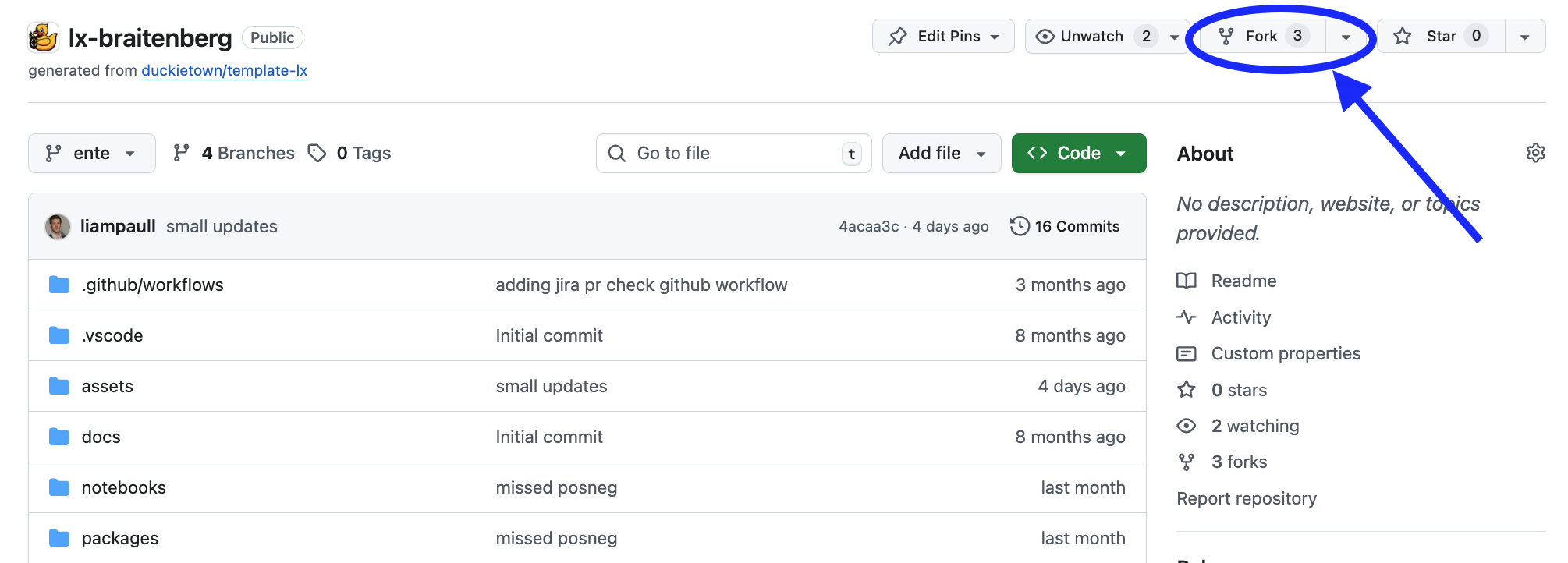
Fig. 188 Fork the LX to be able to make local changes while still being able to receive updates.#
This will create a new repository at: <your_github_username>/lx-lane-following.
2. Clone the fork#
Clone the fork on your computer, replacing your GitHub username in the command below, and navigate to the new folder:
git clone --recurse-submodules [email protected]:<your_github_username>/lx-lane-following
cd lx-lane-following
3. Configure the upstream repository#
Configure the Duckietown version of this repository as the upstream repository to synchronize with your fork.
List the current remote repository for your fork:
git remote -v
Specify a new remote upstream repository:
git remote add upstream https://github.com/duckietown/lx-lane-following
Confirm that the new upstream repository was added to the list:
git remote -v
You can now push your work to your own repository using the standard GitHub workflow, and the beginning of every exercise will prompt you to pull from the upstream repository, updating your exercises to the latest version (if available).
Keeping your System Up To Date#
💻 These instructions are for
entelearning experiences. Ensure your Duckietown Shell is set to anenteprofile (and not adaffyone). You can check your current profile with:dts profile list
To switch to an ente profile, follow the Duckietown Manual DTS installation instructions.
💻 Pull from the upstream remote to synchronize your fork with the upstream repository:
git pull upstream ente
💻 Make sure your Duckietown Shell is updated to the latest version:
pipx upgrade duckietown-shell
💻 Update the shell commands:
dts update💻 Update your laptop/desktop:
dts desktop update
🚙 Update your Duckiebot (even if it is a virtual one):
dts duckiebot update DUCKIEBOT_NAME
(where
DUCKIEBOT_NAMEis the name of your physical or virtual Duckiebot.)
Launching the Code Editor#
Important
All dts code commands should be run from the root directory of the learning experience.
Making sure you are inside the path of this learning experience (cd ./path-to-lxs-in-your-workstation/lx-lane-following), then open the code editor:
dts code editor
Wait for a URL to appear on the terminal, then click on it or copy-paste it in the address bar of your browser to access the code editor.
The first thing you will see in the code editor is a version of these instructions. At this point you can start following the LX-specific indications shown in your code editor.
Walkthrough of Notebooks#
Inside the code editor, use the navigator sidebar on the left-hand side to navigate to the notebooks directory and open the first notebook.
Follow the instructions on the notebook and work through them in sequence. In many cases the last notebook will instruct you to write some code inside the learning experience directory.
Once you have done that you will need to build your code before testing it.
Testing with the Duckiematrix#
To test your code in the Duckiematrix, attach either a physical or virtual robot to a Duckiematrix Entity. The steps below use a virtual robot; for instructions on attaching a physical robot, see Attaching a Robot to a Remote Engine.
1. Creating and starting virtual Duckiebot#
If you have not done so already (e.g., for a different LX), you can create a virtual Duckiebot with the command:
dts duckiebot virtual create --type duckiebot --configuration DB21J ROBOT_NAME
When you run the command, DTS prompts you to enter and confirm the password for the virtual robot’s duckie account; the characters you enter are not displayed. ROBOT_NAME is the hostname. It can be anything you like, subject to the same naming constraints of physical Duckiebots.
Then you can start your virtual robot with the command:
dts duckiebot virtual start ROBOT_NAME
You should see it with a status Booting and finally Ready if you look at dts fleet discover:
    | Hardware |   Type    | Model |  Status  | Address
---  | -------- | --------- | ----- | -------- | ---------
ROBOT_NAME |  virtual | duckiebot | DB21J |  Ready   | ROBOT_NAME.local
Once you are done for the day, do not forget to stop your virtual robot:
dts duckiebot virtual stop ROBOT_NAME
If in doubt if any of your virtual Duckiebots in running or not, you can check the status of your virtual scuderia at any time with:
dts duckiebot virtual list
2. Starting the Duckiematrix with the virtual Duckiebot#
Now that your virtual robot is ready, you can start the Duckiematrix. From this LX directory:
dts code start_matrix [--no-renderer] [--browser]
Note
If you are using a Duckietown Workspace, run dts code start_matrix --no-renderer inside the Duckietown
Workspace. If dts is installed on the host machine, then run dts matrix run inside or outside the Duckietown Workspace. When the command is run inside the
Duckietown Workspace, the command is automatically delegated to the host
machine, where it launches the native Renderer.
To run the WebGL (browser) version of the Duckiematrix, add the --browser flag.
Note
For the WebGL (browser) version of the Duckiematrix, if the colors look desaturated, try a different browser.
You will see the Unity-based Duckiematrix simulator start up.
From here you can click anywhere on the window and click ENTER to make it become active, and then move the duckie towards the Duckiebot with the w, a, s, and d keys, and you can move the camera angle to view the Duckiebot with the mouse. If you are close enough to your Duckiebot, you can board it with the E key, and drive the Duckiebot around with w, a, s, and d keys.
If you get very lost from the road and you want to come back, you can do so with the R key.
Note
You should reset your Duckiebot’s position with R before each test because the initial state estimate coincides with the reset position.
Building the Code#
Part of this LX involves writing code for the lane-following behavior. Once you have written your code, run cd packages/dt-core from the LX root, then dts devel build -H ROBOT_NAME before testing it.
The dts devel workflow is more advanced (and powerful) than the dts code commands that we typically use in LXs. For details, refer to the last notebook of this LX.
Testing on a Duckiebot or in the Duckiematrix#
🚙 To test the code of this LX on your Duckiebot - whether physical or virtual - use the dts devel workflow. Details are provided in the pertinent notebook, accessible with dts code editor.
Troubleshooting#
Troubleshooting
SYMPTOM
When I run dts code editor, I get the error dts : No valid DTProject found at '/path/to/lx'.
RESOLUTION
Make sure you are executing the commands from inside a learning experience folder (e.g., */lx-ekf-localization/)
Troubleshooting
SYMPTOM
My virtual robot hangs indefinitely when I try to update it.
RESOLUTION
Try to restart it with the following command, where ROBOT_NAME is the name of your virtual robot:
dts duckiebot virtual restart ROBOT_NAME